
Individual customizations have to be implemented in Shopware 6 with an own theme or an extension (plugin or app).
For the integration of individual customizations you may use an extension from the Shopware Community Store or our free "ThemeWare® Customizing App" (an extension based on the app system of Shopware 6).
Note: Please use the "ThemeWare® Customizing Plugin" in Shopware 6 (self-managed).
Download
You can find the download link for the free "Customizing app" via the ThemeWare® Utilities:
ThemeWare® Utilities
Important: Please note that we offer the "ThemeWare® Customizing App" free of charge and cannot provide support for the App or individual customizations.
Installation
The app has to be uploaded using the administration of Shopware via "Extensions" => "My extensions" and the button "Upload extension".
Install and activate the app after that.
It can happen that the error "Undefined variable $twt-color-brand-secondary-light" appears during activation. However, the app is still activated.
Unable to compile the theme "Storefront". Undefined variable $twt-color-brand-secondary-light...
After activation, recompile your ThemeWare® theme once (just save the theme configuration unchanged, for example) and clear the Shopware cache.
Please find more information regarding the manual installation of extensions in the article:
Install extensions manuallyIf the extension has been successfully installed, example implementations (a JavaScript "test alert" and a "test banner") appear in the Storefront.
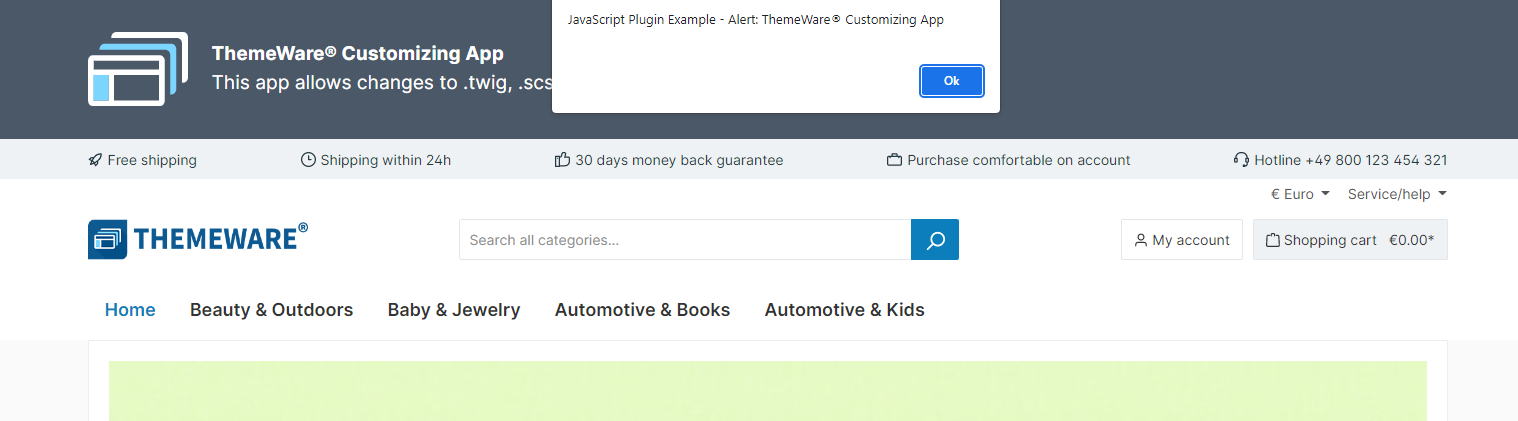
ThemeWare® Customizing App
Activate/deactivate example implementations
From version 4.0, you can activate or deactivate the example implementations (e.g. the "test banner") in the app settings.
Structure and feature
Using the "ThemeWare® Customizing App", it is possible to deposit individual customizations. In this context, the following folders and files are relevant
- File "base.scss":
- Basis for all customizations with CSS/SCSS
- Folder:
Resources/app/storefront/src/scss - Note: The file contains sample customizations which can be edited or deleted.
- File "base.html.twig":
- Example for template customization with Twig/HTML
- Folder:
Resources/views/storefront - Note: The file contains sample customizations which can be edited or deleted.
- File "custom.plugin.js":
- Example of a JS plugin (imported via the file
Resources/app/storefront/src/main.js) - Folder:
Resources/app/storefront/src/js - Note: The file contains a sample JS plugin that can be edited or deleted.
- Example of a JS plugin (imported via the file
- Assets
- Folder:
Resources/public
- Folder:
Note: You can find example customizations in "base.scss", "base.html.twig" and "custom.plugin.js". Adjust the content of the files to your requirements.
Update
As the app is free of charge and not available via the Shopware Store, there is currently no automatic update option.
You can always find the download link for the latest version via the ThemeWare® Utilities. If necessary, just register again:
ThemeWare® Utilities
Deactivate the app before you perform a Shopware update. You can find information on how to update your app manually below:
Manual update
As all changes are overwritten on file level when updating extensions, it is important to backup the folder custom/apps/TcinnCustomizingApp/src before updating and upload it again after the update.
Note: You can find the latest version in the ThemeWare® Utilities.
Below you will find notes on manual update options for the latest Shopware 6 major releases:
Shopware 6.7
Note: Whether your existing version can continue to be used with Shopware 6.7 depends primarily on your individual customizations. We recommend testing this first in a test or staging environment.
The customizing app for Shopware 6.6 is already compatible with Shopware 6.7.
The only change that needs to be made is to the twig block for our example customization, but you have probably already removed this block:
{% block base_header %}

>>
{% block base_body_inner %}Note: Please note that your individual customizations may also need to be made compatible.
For more information about the extensive changes to the storefront in Shopware 6.7, please visit the ThemeWare® Service Portal:
Shopware 6.6
To make the "Customizing App" compatible for Shopware 6.6, you need to make the following changes:
SCSS
If you have not already done so for Shopware 6.5, please update the file "_messagebox.scss":
color: color-yiq($twt-color-brand-secondary-light);


color: color-contrast($twt-color-brand-secondary-light);
JavaScript
In addition, the integration of JavaScript plugins into the storefront has been changed with Shopware 6.6. Please delete all scripts in the folderResources\app\storefront\dist\storefront\js and rebuild the storefront once (e.g. with build-storefront.sh).
Note: Please note that your individual customizations may also need to be made compatible.
For more information on the extensive changes to the storefront in Shopware 6.6, please visit the Shopware Blog:
Shopware 6.5
To make the customizing plugin basically compatible for Shopware 6.5, it is sufficient to modify the required Shopware version in the "_messagebox.scss" file as follows:
color: color-yiq($twt-color-brand-secondary-light);


color: color-contrast($twt-color-brand-secondary-light);
This makes the extension compatible with Shopware 6.5 and it does not need to be updated.
State: Shopware 6.6.0