
With ThemeWare® you show care instructions, seals or certificates as small symbols right on the product page – e.g. washing symbols on textiles or an organic seal on groceries. Important information becomes graspable at a glance and builds customer trust.
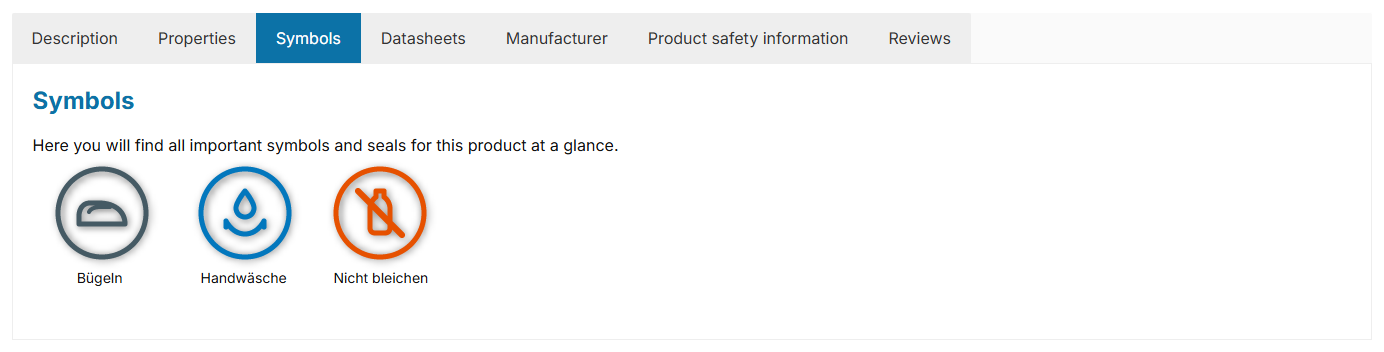
Product symbols in a separate tab
Note: The symbols come from two sources that you can freely combine – from properties with an image (ideal for symbols used on many products) and from custom fields directly on the product (ideal for individual products). They appear as soon as you enable the product symbols in the theme configuration.
Requirements
- a product you want to assign symbols to
- the symbols as an image (SVG or PNG) – depending on the source, on a property option or in the product
Source A: properties with an image
For symbols that are used on several products (e.g. care instructions or seals), it is best to use properties with an image. The image is a native Shopware field on the individual option – the ThemeWare® custom field sits on the group and enables the symbols.
"Catalogues" => "Properties" => select property group => "Custom fields" area
Set the field "Show as product symbol" to yes and then assign an image to each desired option of this group. Save your changes.
Note: Only options with an image are displayed as a symbol. The group still appears in the properties table as usual.
Source B: individual symbols on the product
For symbols that only concern a single product, use the symbol custom fields directly on the product.
"Catalogues" => "Products" => select product => "Specifications" tab => "Custom fields" area => your theme's custom field set
Select the desired images via the custom fields "→ Symbol 1" to "→ Symbol 3" and optionally assign a title to each ("Symbol 1–3 – Title") – it is used as a tooltip and alternative text. Save the product.
Note: The symbols from the custom fields are displayed before the symbols from the properties.
Enable in the theme + choose the position
"Theme Manager" => your ThemeWare® theme => "Product pages" tab => "Product symbols" area
Choose the desired position via the "Show product symbols" configuration – e.g. below the product images (gallery), in the buy box, in the description, in the properties tab or in a separate tab. Optionally adjust style, size, subheadline and description text. Save your changes.
Result
The symbols now appear at the chosen position on the product page – combined from both sources. If nothing shows up, clear the Shopware cache once.
ThemeWare® Tip: Upload the symbols as SVG or PNG in your desired colour – they are not recoloured.
Further information
You can find all positions, styles and configuration options in detail in the ThemeWare® manual:
ThemeWare® Manual ⇒ Product symbols