
In this article you will learn how to export and import the ThemeWare® configuration.
Note: This article is intended for professionals and experts. If you are not absolutely sure, we will be happy to support you: ThemeWare® Services at a glance
Export and import of the theme configuration
Shopware itself does not offer an export and import of the theme configuration in the administration. With ThemeWare®, you have two ways to do it: conveniently in the administration with the Backup Manager add-on or manually via the database.
Using an export and import of the configuration values you can:
- save your configuration
- restore a saved configuration
- transfer configurations between a theme and its duplicate
- transfer theme configurations to another installation
Note: Only the values you have changed yourself are exported, not a complete copy of all settings. What this means for variants, duplicates, updates and media is explained in the article Backup of the ThemeWare® configuration.
Export and import with the Backup Manager
With the Backup Manager add-on, you export and import the theme configuration directly in the administration, without any access to the database. You will find it in the ThemeWare® Hub in the tab "Backup". You reach the Hub via the main navigation "Content" => "ThemeWare® {your theme}".
Important: The Backup Manager is an add-on and has to be unlocked separately. Like the Hub, it is part of the ThemeWare® improvements to the administration and is therefore only available in the Pro Edition.
Exporting the theme configuration
- Open the tab "Backup" in the ThemeWare® Hub
- Click "Export" for the desired theme
- The configuration is downloaded as a JSON file
Importing the theme configuration
- Open the tab "Backup" in the ThemeWare® Hub
- Click "Import" for the target theme
- Download the current configuration of the target theme as a safety backup
- Select the JSON file to be imported and confirm the import
The previous configuration of the target theme is completely replaced. The theme is then automatically recompiled.
Tip: You will find all details on export, import and the advanced mode in the Manual.
Manual approach (for experienced users)
Important: In the Shopware 6 Cloud currently is no possibility to reach the configuration via the database.
Backup for safety
Manual editing of the database is suitable for experienced users who are familiar with the database. Get help if this does not apply to you.
Attention: Make sure you create a backup of your database before you make any changes here!
Tip: For a quick access to the database we gladly use the extension Adminer for Admin from Friends of Shopware.
Exporting the theme configuration
- Open the database (e.g. Adminer or phpMyAdmin)
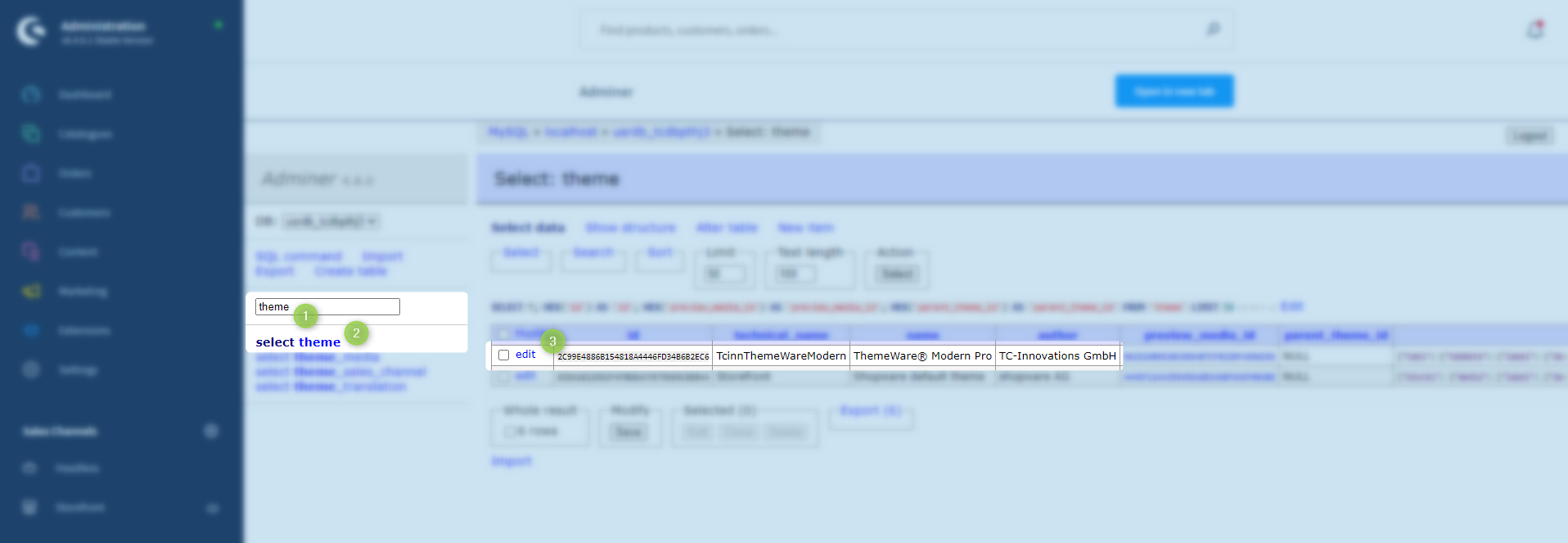
- Use the search field to find the table "themes" (1)
- Open the table with "select" (2)
- Edit the data set of the desired theme (e.g. "TcinnThemeWareModern") with "edit" (3)
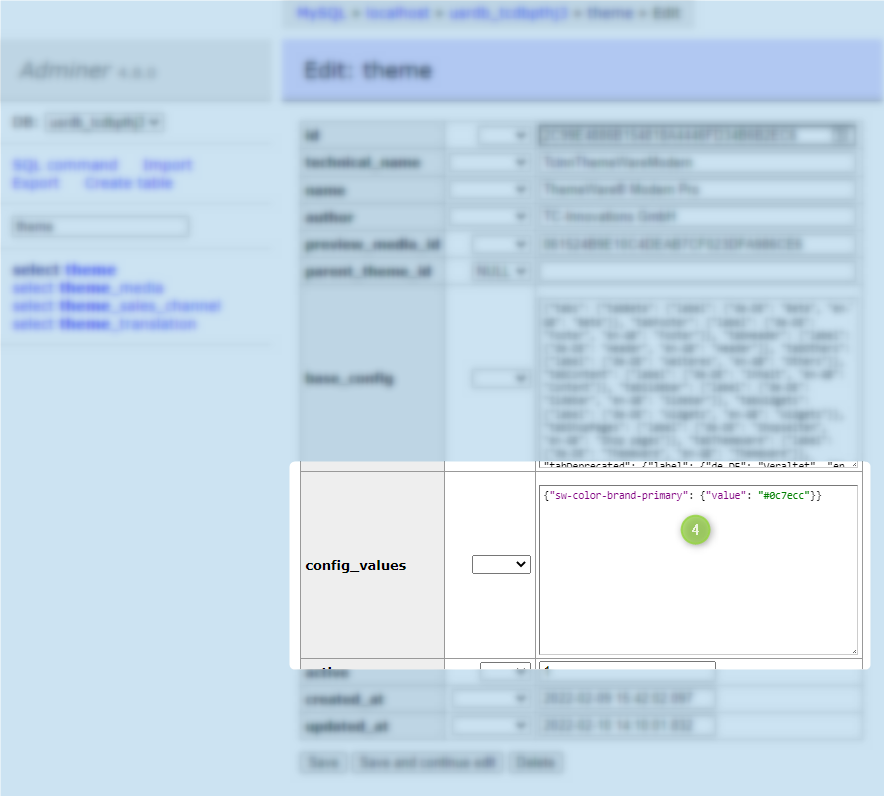
- Save the content of the column "config_values" (4) in a *.txt or *.json file to perform a "backup" of the current configuration
- Leave the database without saving changes
Importing the Theme Configuration
- Open the database (e.g. Adminer or phpMyAdmin)
- Use the search field to find the table "themes" (1)
- Open the table with "select" (2)
- Edit the data set of the desired theme (e.g. "TcinnThemeWareModern") with "edit" (3)
- Enter your saved configuration into the field "config_values" (4)
- Save this change and exit the database
Note: The change will be applied to your theme when you open the theme configuration the next time.
Screenshots
Important information
- When transferring a theme configuration, make sure that the themes are compatible with each other! For example, you should avoid depositing a ThemeWare® configuration in the default "Storefront" theme, or vice versa.
- When transferring a theme configuration, make sure that the version number of the source and target theme is the same!
- If the configuration is to be transferred to another Shopware installation, then all media (background image, etc.) must be re-uploaded and reassigned.