In this article you will learn how to install ThemeWare® for Shopware 6 manually.
Note: This article is intended for professionals and experts. If you are not absolutely sure, we will be happy to support you: ThemeWare® Services at a glance
Important: This manual addresses experienced users. In case of a manual Installation it must be checked whether an extension or a theme is at all compatible with the currently used Shopware version! – Therefore, we generally recommend to perform the installation using the Shopware installation routine.
- Download a zip of ThemeWare® via your Shopware account
- Open the administration of your shop
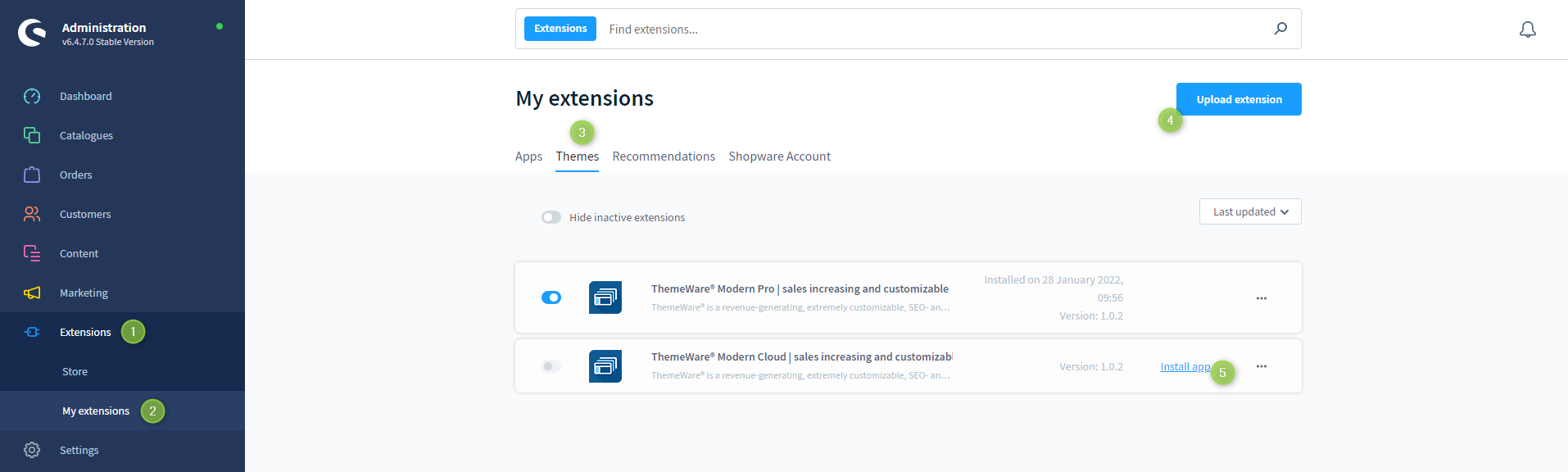
- Switch via the main navigation to the "Extension management" (1) (2) ("Extensions" => "My Extensions")
- Switch to the tab "Themes" (3)
- Upload the zip file via the button "Upload extension" (4) into your shop.

- ThemeWare® is being displayed in the overview now
- Now install the extension using the option "Install app" (5)
ThemeWare® has now been installed.
Screenshots