
The ThemeWare® rental version includes a free trial month. The rental can be cancelled at any time on a monthly basis or is automatically extended at the prices stated at the time of booking.
- Open the administration of your shop
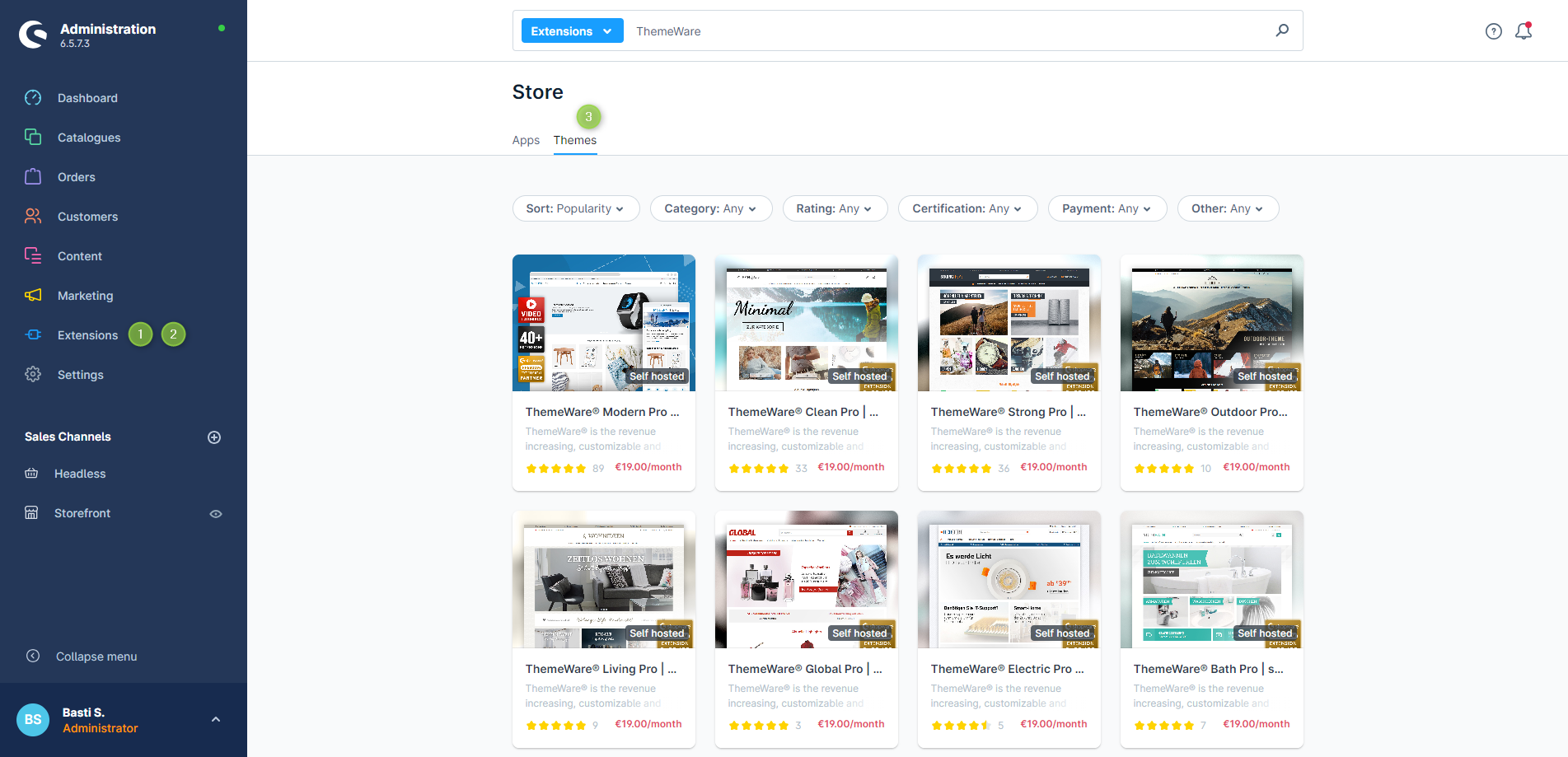
- Switch via the main navigation to the "Store" (1) (2) ("Extensions" => "Store")
- Switch to the tab "Themes" (3)
- Optional: Enter "ThemeWare" or e.g. "Outdoor" into the search field
- Now click onto the desired ThemeWare® theme in the overview
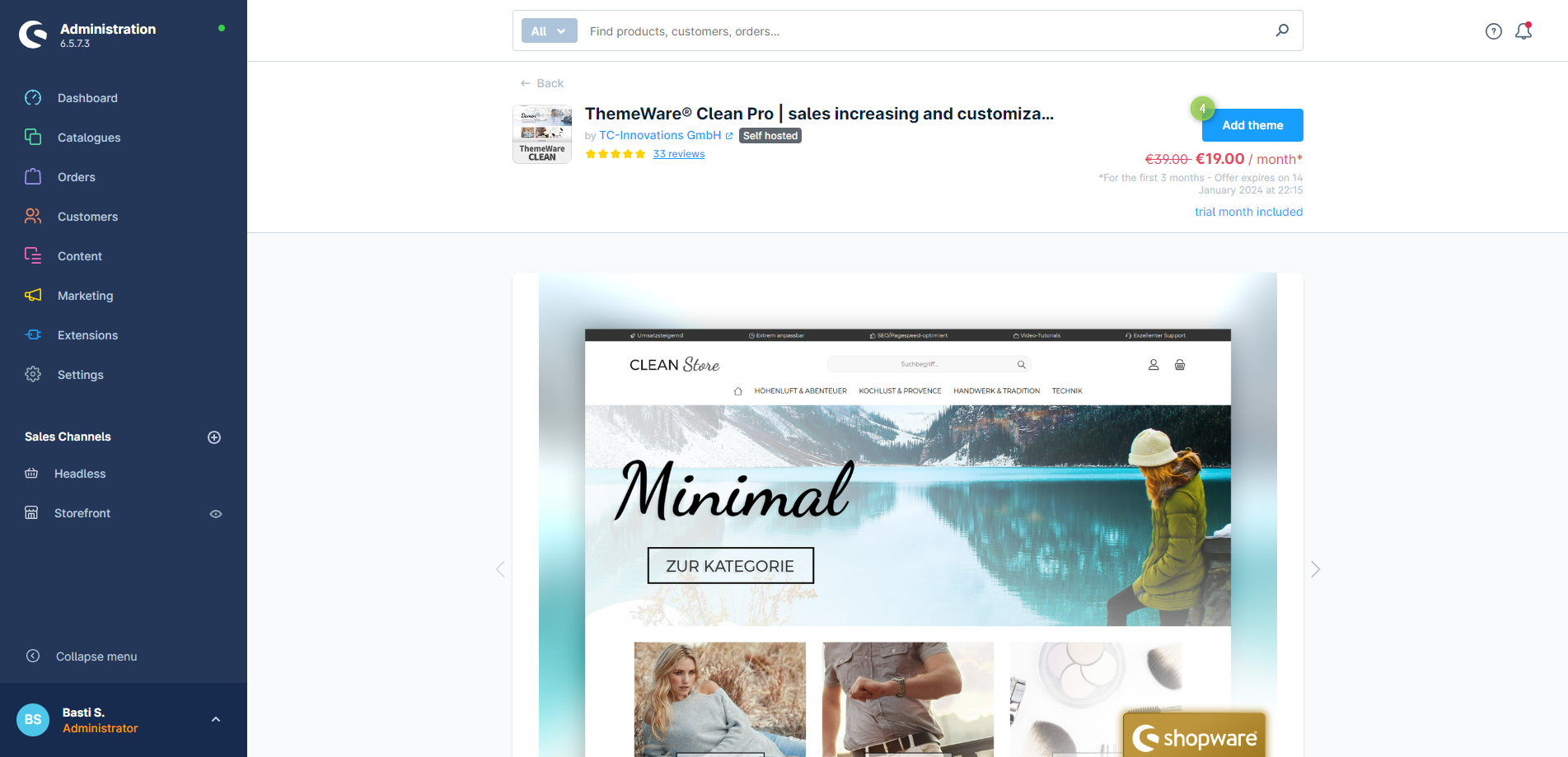
- The details page of the ThemeWare® themes will now open up
- Click on the button "Add theme" (4)

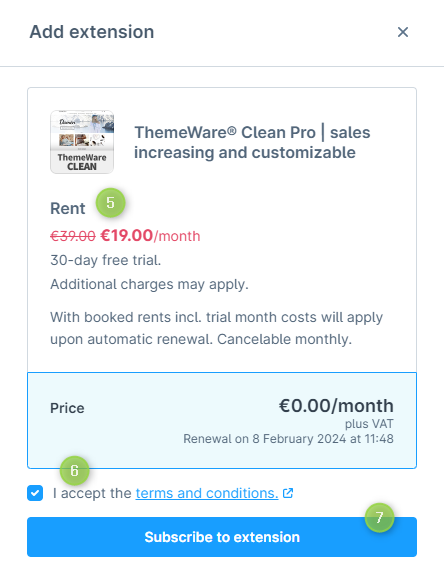
- A pop-up will open now
- Here you can find all the details about the costs after the trial month (5)
- Please read and accept the Terms and Conditions (6)
- Now confirm the "booking" with "Subscribe to extension" (7)

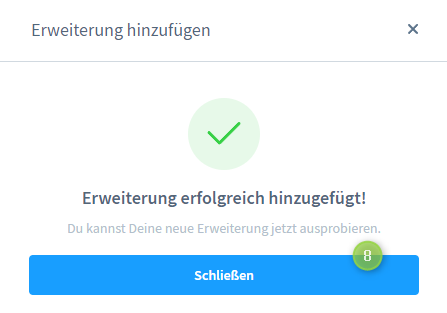
Now you have subscribed to ThemeWare®.
Tip: Install ThemeWare® next: Installing ThemeWare®
Screenshots
Further information
Note: Purchased extensions appear automatically in the Extension Management. A manual upload is not necessary.
After the purchase you can install themes directly from the details page, but we recommend to go via the Extension Management.
Tip: If you purchase extensions for a test domain, you can later transfer the licences to the live domain via your Shopware account. You can find more information on this in the Shopware documentation.
Important: In order to use the store in the administration you have to consider the following items:
- Register your shop in your Shopware account:Setting up the shop in the Shopware Account
- Link up your Shopware account with the shop administration: Linking up the Shopware Account with the shop
- Log in with your Shopware account in the administration: Registering the Shopware Account in the administration