
Each CMS layout is made up of one or more CMS sections. This allows many different designs to be implemented with fullwidth and/or boxed sections.
There are currently two types of CMS sections: "Sidebar" and "Full width". In other words, a section with a sidebar and a section without a sidebar.
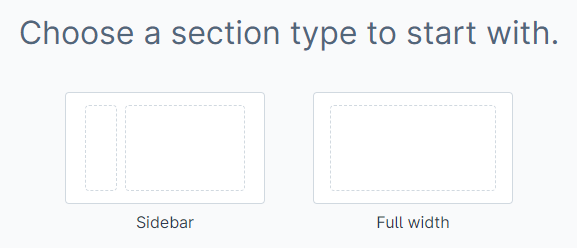
Section types (Sizing mode)
A CMS section is filled with one or more CMS blocks. Read more about this in the following article.
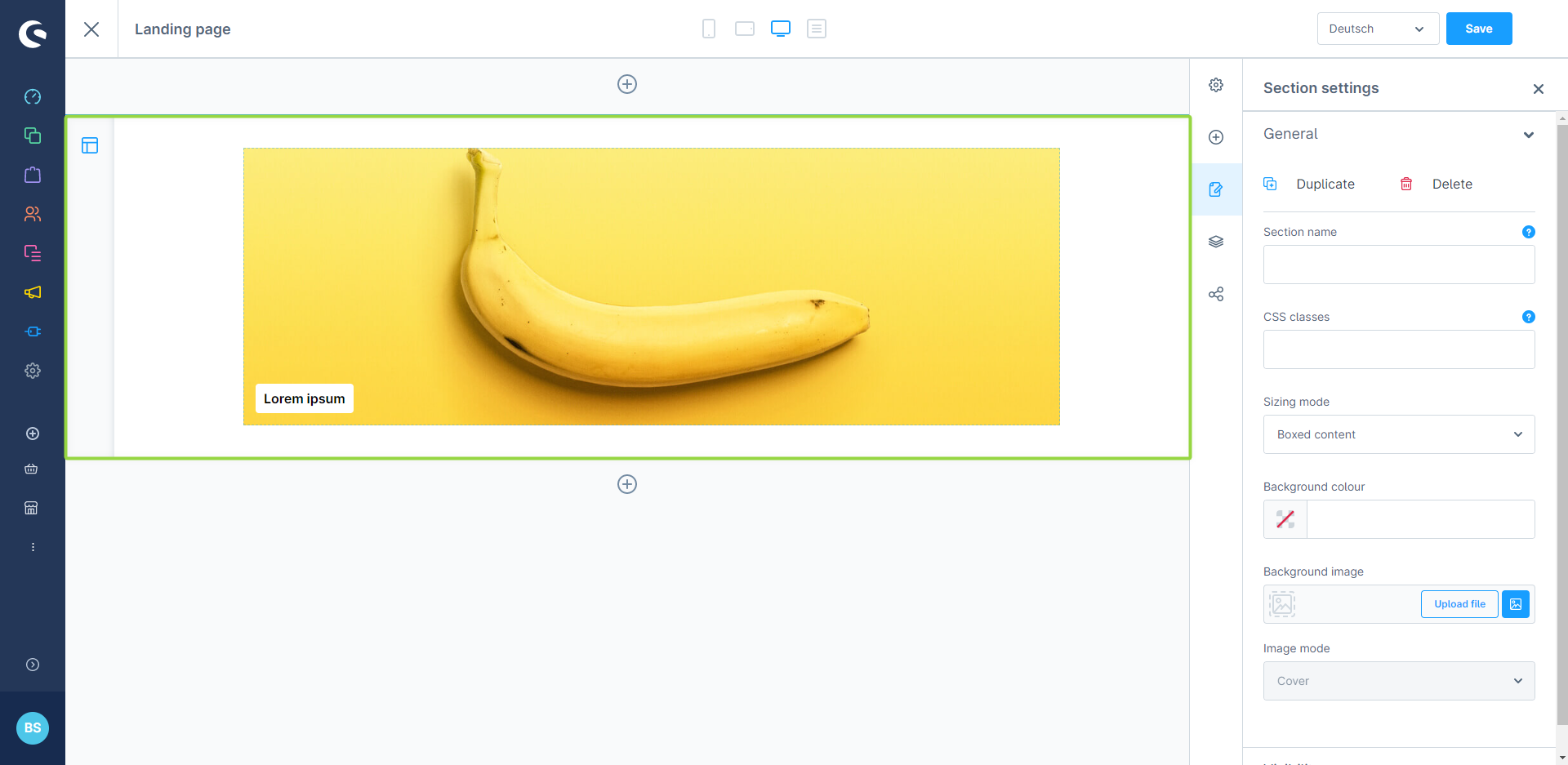
CMS section
Add CMS section
A new layout already contains a CMS section. To add another section before an existing section, click on the  "plus" icon (1) above the section. To add a section after an existing section, click on the "plus" icon (2) below the section.
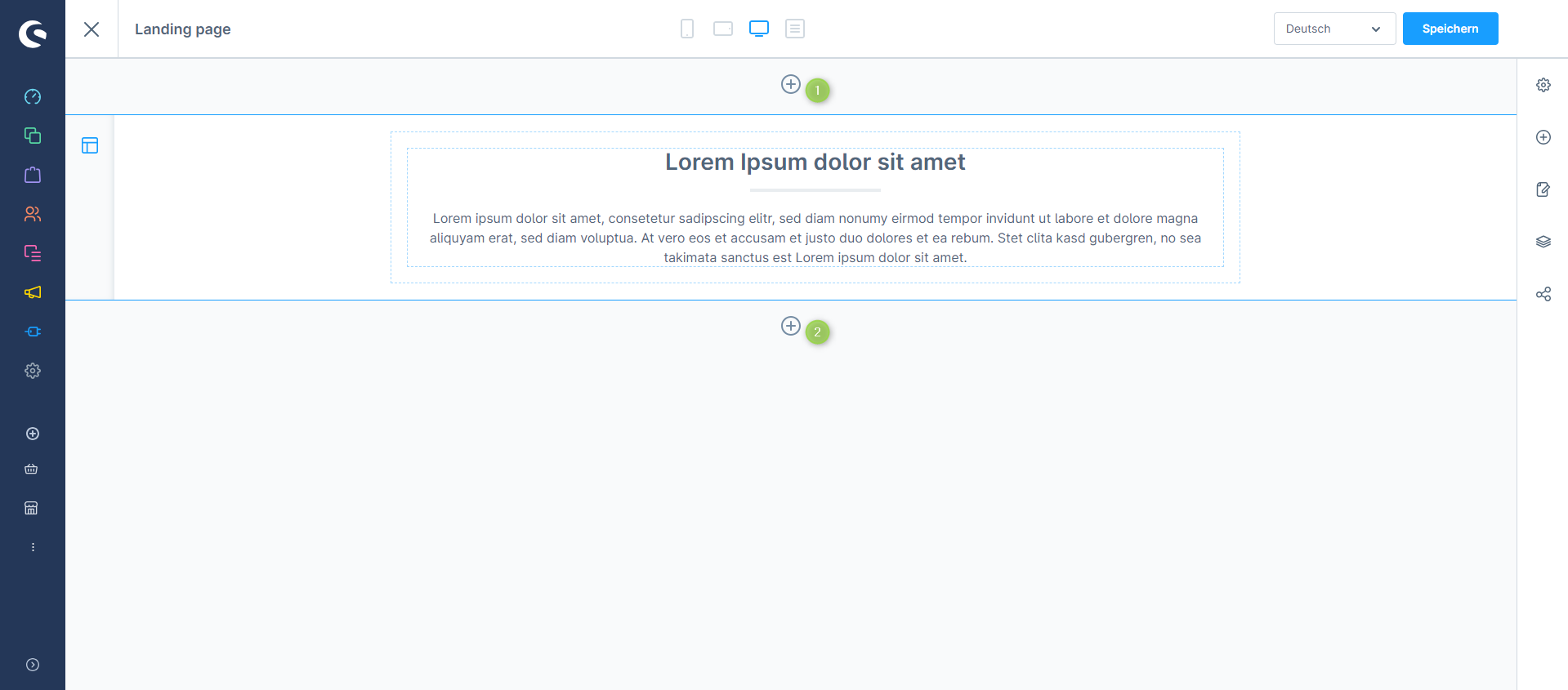
Add a CMS section
Now you can choose between the two available types of CMS sections ("Sidebar" and "Full width").

CMS sections
Section settings
You can access the settings for a CMS section via the  "layout" icon (1) on the left edge of the corresponding section. Clicking on it opens the sidebar (2) in which you will find the section settings. Here you can change the name and the sizing mode of the section.
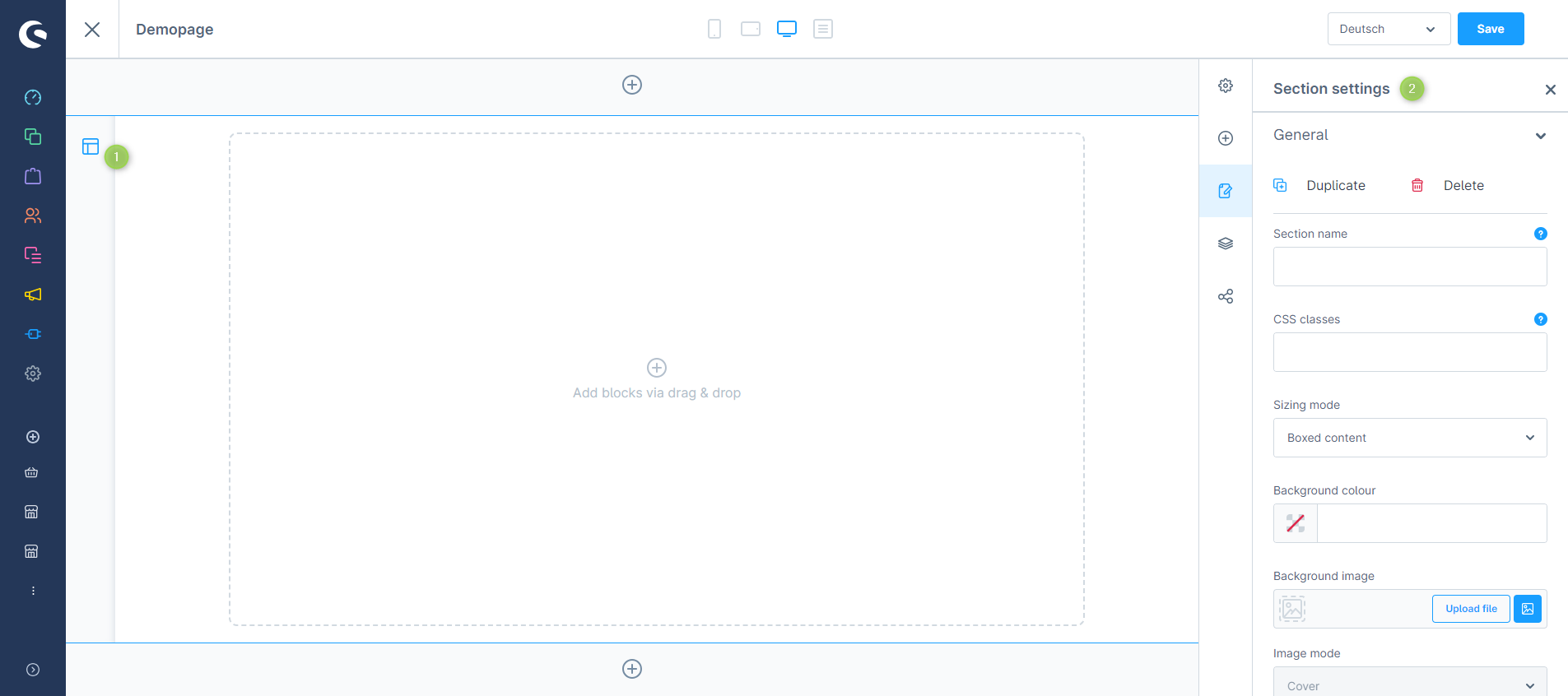
Section settings
Settings
You can give each section a name and assign CSS classes. You can select the sizing mode for each section and set a background colour and a background image. In the "Visibility" section you can define on which device the section should be displayed.
Section in the editor an the Storefront
The representation of CMS sections in the Shopping Experience editor in Shopware 6 differs slightly from the actual representation in the Storefront. A CMS section always extends over the full width (unless you use the ThemeWare® boxed layout) of the Shopping Experience. The content of a section can then be displayed "full width" or "boxed".
Below you can see a comparison of a CMS section in the Shopping Experience editor and in the Storefront.
- CMS section (1) [Background colour:
 #ffd181]
 - CMS block (2) [Background colour:
 #ff8d30]
 - CMS element (3)

Section in the Shopping Experience editor

Section in the Storefront (Boxed)

Section in the Storefront (Full width)
Further information
You can find more information about the Shopping Experience in Shopware 6 in the Shopware documentation:
Shopware documentation: Shopping Experiences