
In this article, you will learn how to make a backup of the theme configuration: conveniently in the administration with the Backup Manager or manually via the database.
Note: This article is intended for professionals and experts. If you are not absolutely sure, we will be happy to support you: ThemeWare® Services at a glance
What is backed up?
Both approaches back up the same data: only the values you have changed yourself (in the database, the column "config_values"). Fields you have never adjusted are not included and use the theme's default values. The backup is therefore not a complete copy of all settings.
Important: The backup restores your exact state as long as you restore it into the same theme of the same installation. In the following cases, the result differs:
- Different variant: Fields you have not adjusted take on the default values of the target variant.
- After an update: Default values are not backed up. If an update changes a default value, fields you have not adjusted use the new value.
- Duplicates: A duplicate inherits the settings of its base theme. Only the values changed directly in the duplicate are backed up. Therefore, also back up the base theme.
- Media: Uploaded logos and images are only included as references, the media files themselves are not.
Backup with the Backup Manager
With the Backup Manager add-on, you back up the theme configuration directly in the administration, without any access to the database. You will find it in the ThemeWare® Hub in the tab "Backup". You reach the Hub via the main navigation "Content" => "ThemeWare® {your theme}".
Important: The Backup Manager is an add-on and has to be unlocked separately. Like the Hub, it is part of the ThemeWare® improvements to the administration and is therefore only available in the Pro Edition.
Backup of the theme configuration
- Open the tab "Backup" in the ThemeWare® Hub
- Click "Export" for the desired theme
- The configuration is downloaded as a JSON file
Restoring a backup
To restore a backup, click "Import" for the desired theme and upload the saved JSON file. Before that, the import dialog backs up the current configuration so that you can always go back.
Tip: You will find all details on export, import and the advanced mode in the Manual.
Manual approach (for experienced users)
Manual editing of the database is suitable for experienced users who are familiar with the database.
Important: In the Shopware 6 Cloud currently is no possibility to reach the configuration via the database.
Backup for safety
Manual editing of the database is suitable for experienced users who are familiar with the database. Get help if this does not apply to you.
Tip: For quick access to the database, we like to use the Adminer extension for the Friends of Shopware admin.
Backup of the theme configuration
- Open the database (e.g. Adminer or phpMyAdmin)
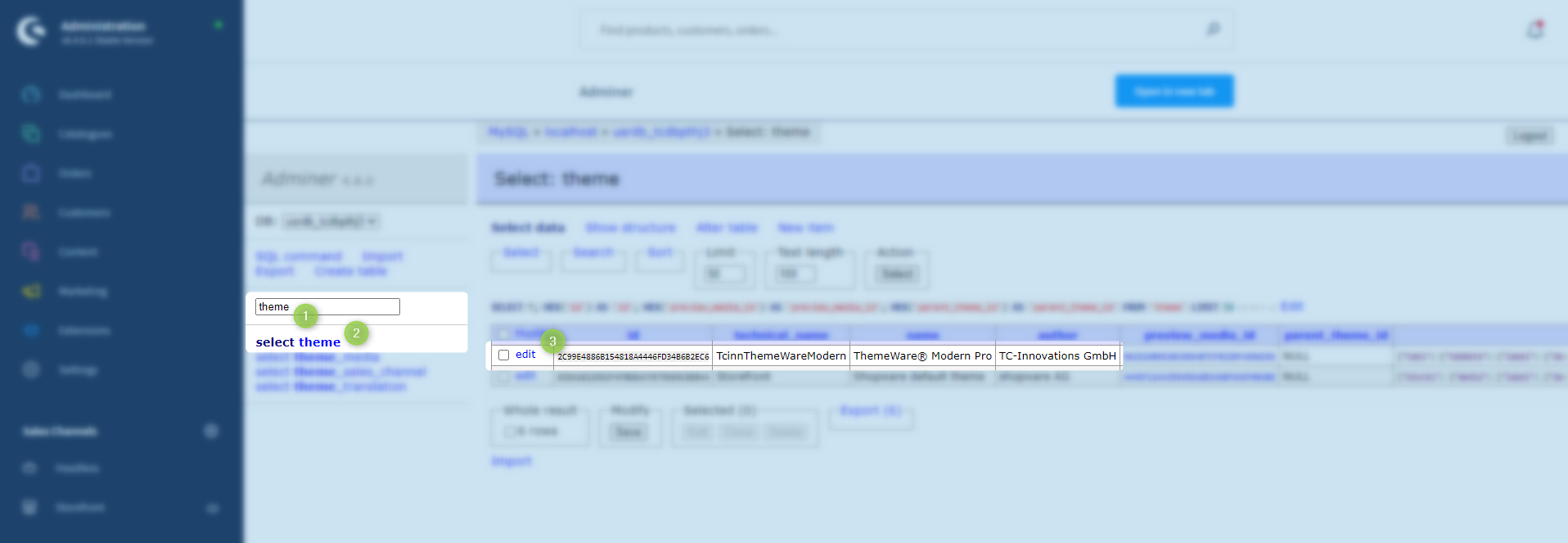
- Use the search field to find the table "themes" (1)
- Open the table with "select" (2)
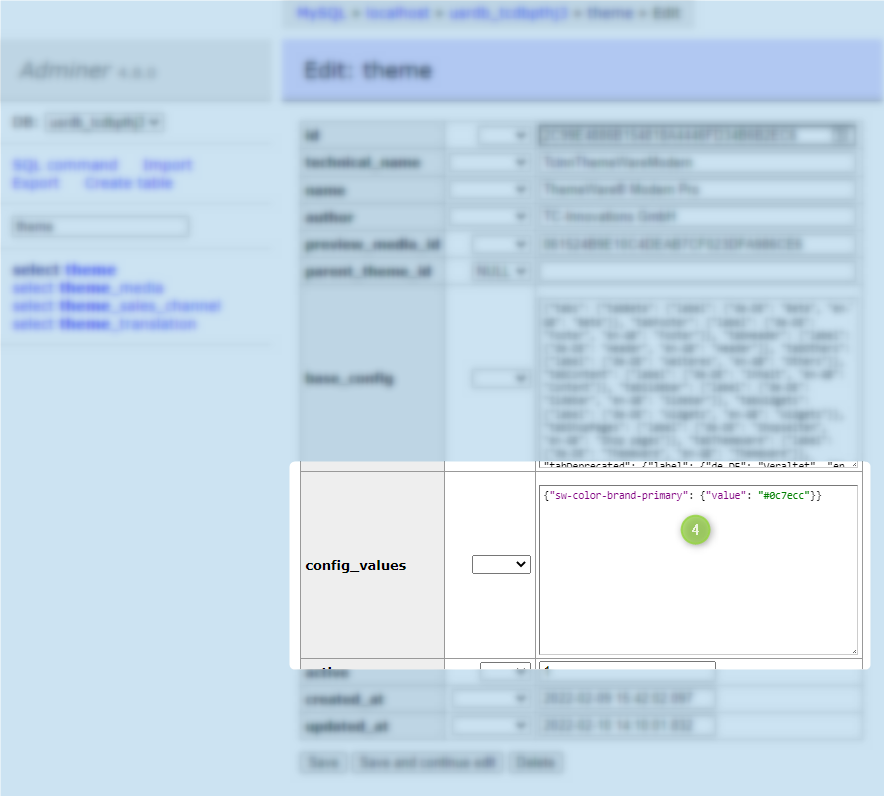
- Edit the data set of the desired theme (e.g. "TcinnThemeWareModern") with "edit" (3)
- Save the content of the column "config_values" (4) in a *.txt or *.json file to perform a "backup" of the current configuration
- Leave the database without saving changes
Screenshots
Note: For information on how to restore the theme configuration, please refer to the following article: Exporting and importing the ThemeWare® configuration.