- Open the Shopware Store in your web browser of preference
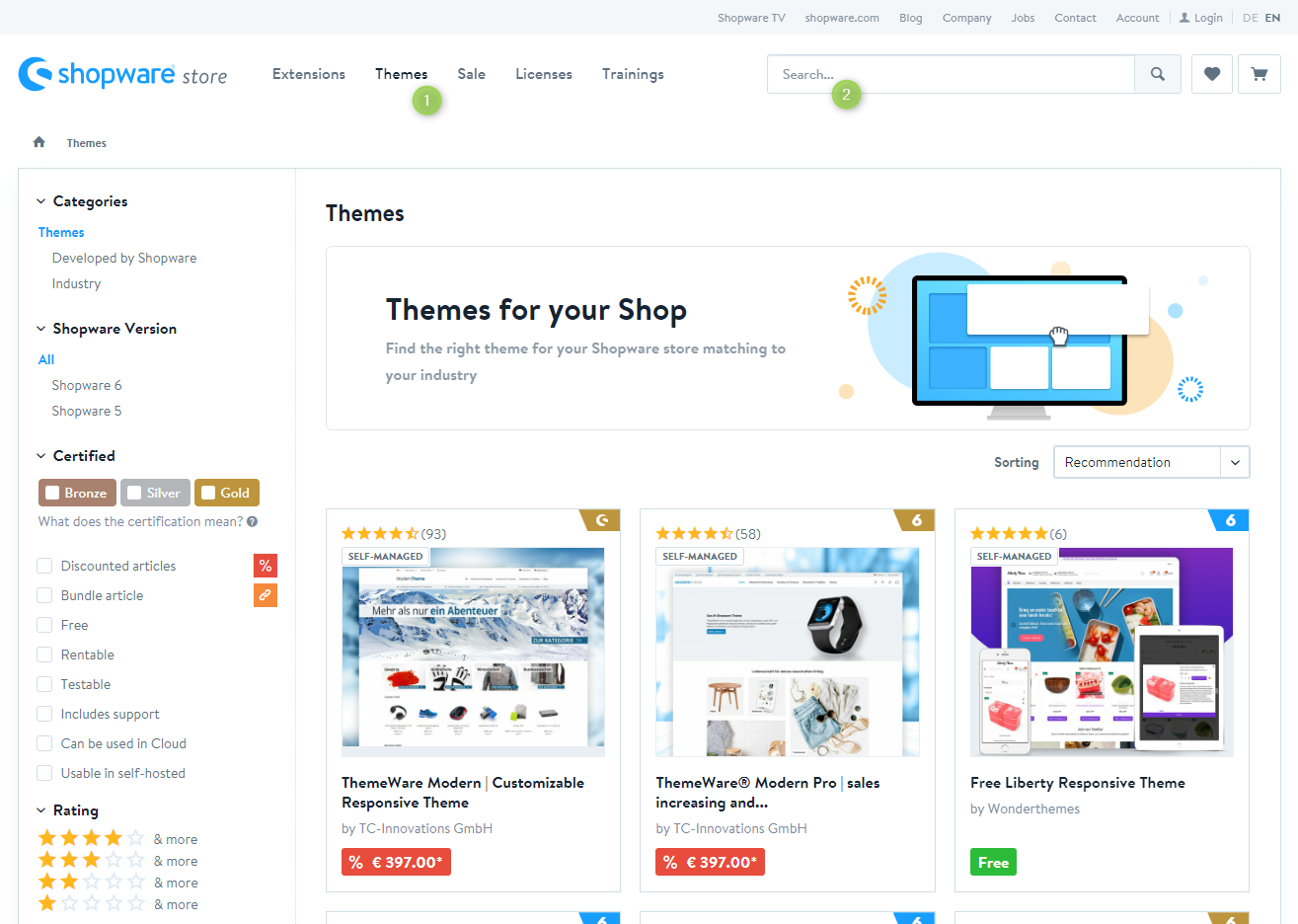
- Switch via the main navigation to the section "Themes" (1)
- Enter "ThemeWare" or a specific theme (e.g. "ThemeWare Strong") into the search (2)
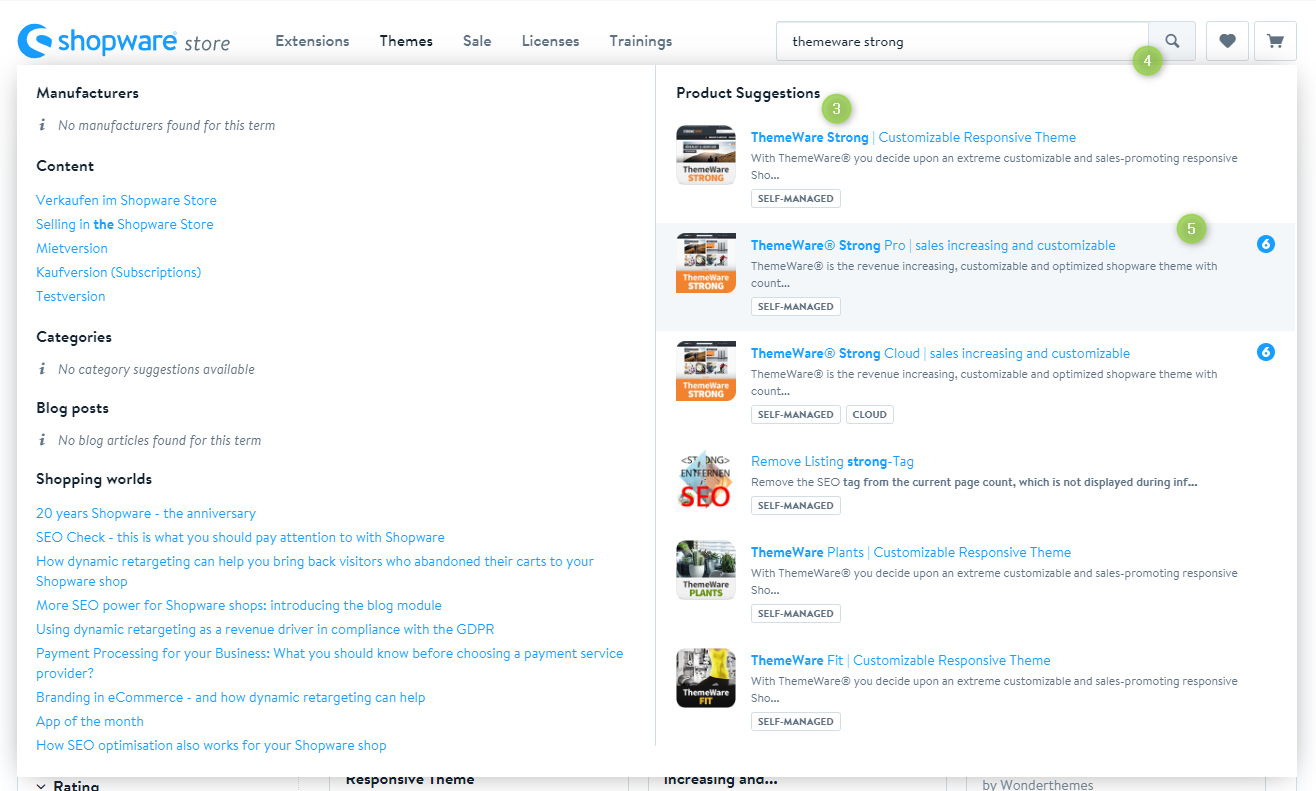
- In case you wish to see all available Themes or the Theme you are looking for does not appear in the "Product Suggestions" (3), click onto the Search Button (4).
- Once the Theme you are looking for appears in the "Product Suggestions" (3), click onto the corresponding entry (5) and continue with step 6.
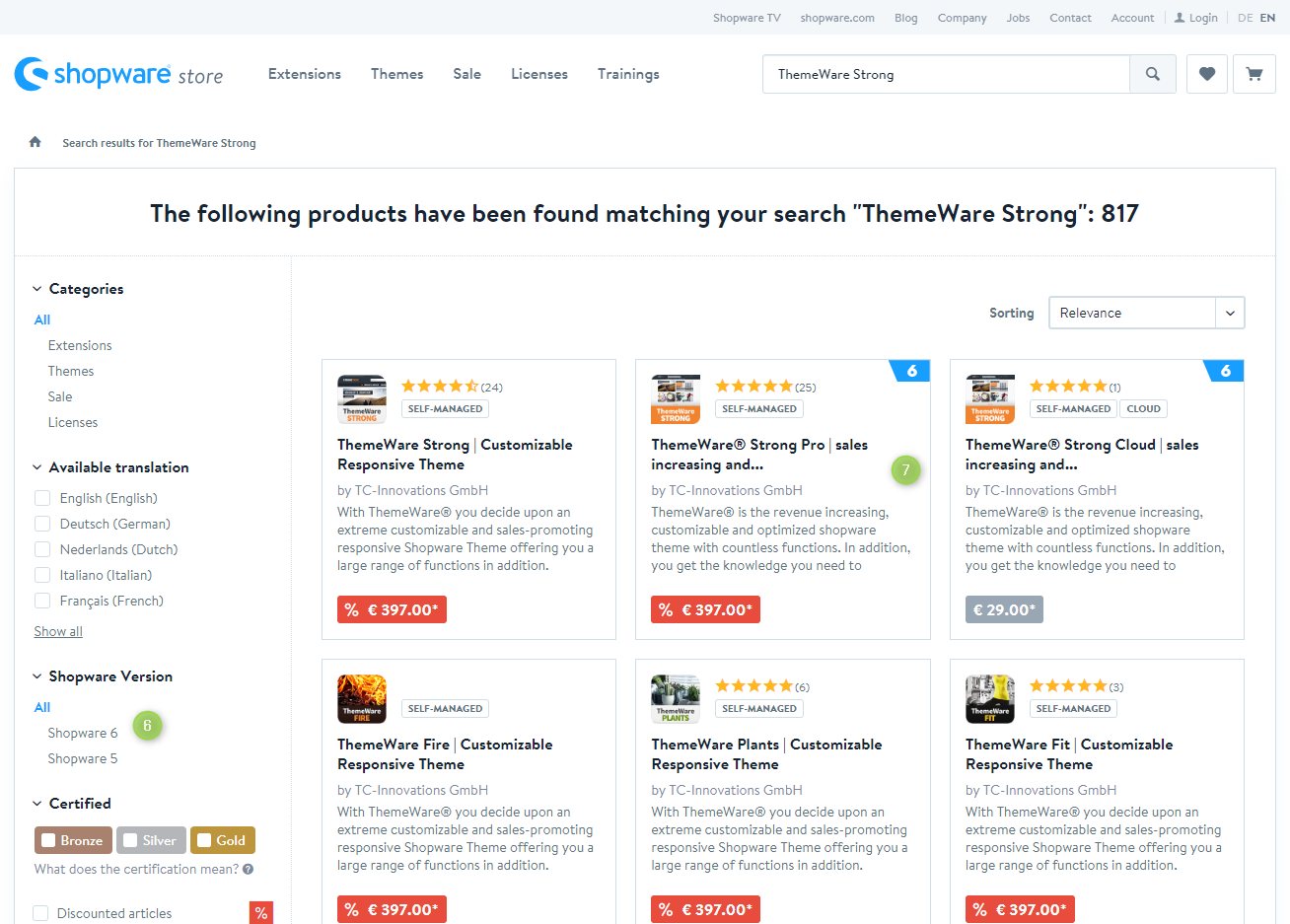
- Optional: Select the "Shopware 6" filter in the sidebar (6)
- Click onto the desired theme (7)
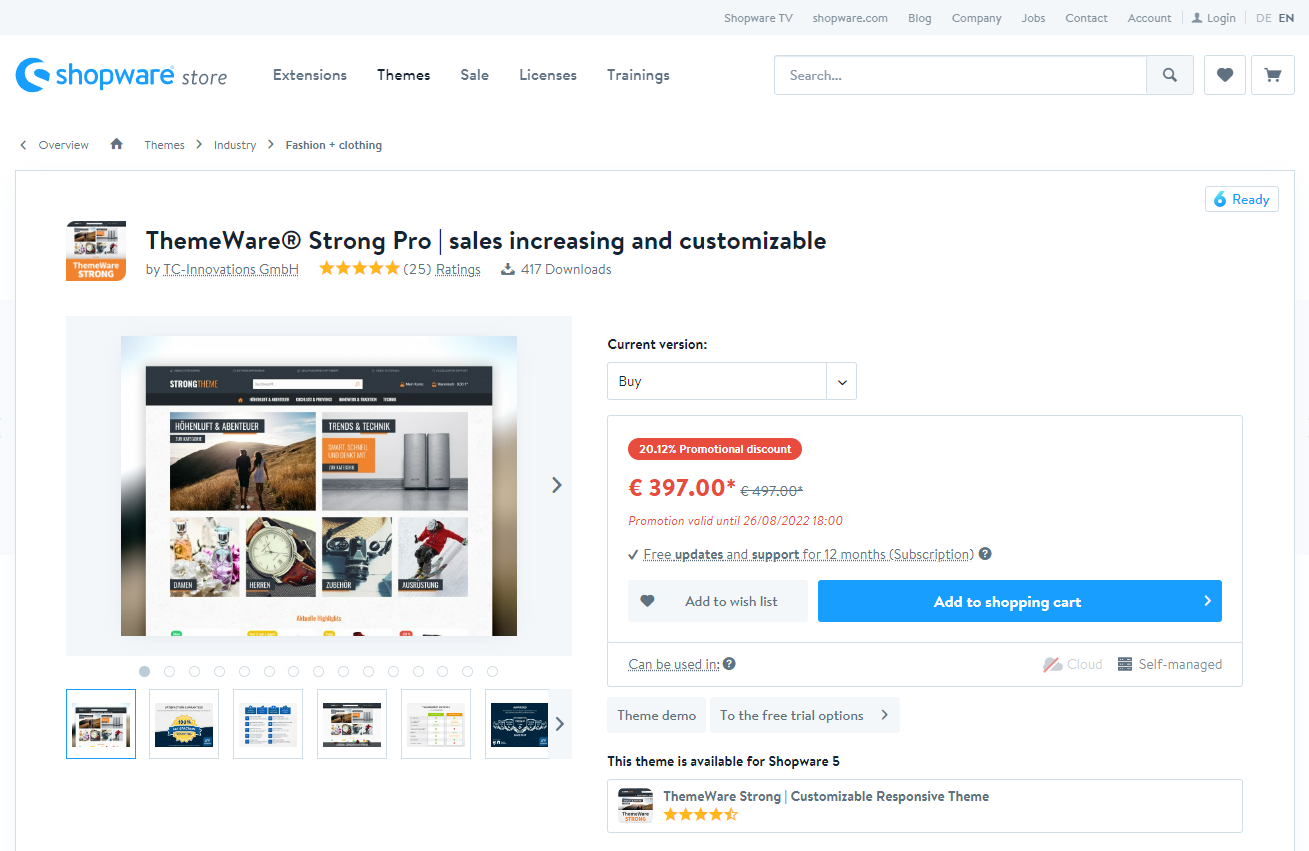
- The details page of the ThemeWare® theme will open now
Now you have successfully searched the Shopware Store for ThemeWare® and found a theme.
Tip: All ThemeWare® Themes for Shopware 6 are available in the store using the following link, we have already selected the appropriate filters: ThemeWare® in the Shopware Store
Note: An overview of all ThemeWare® Themes with links to the corresponding demos and the Shopware Store please find here: demo.themeware.design/en
Screenshots