
ThemeWare® provides you with a comprehensive selection of CSS classes with which you can modify the column spacing in CMS blocks - i.e. the spacing between two columns.
Tip: Please find application examples in our demoshops.
Note: Use the new, more intuitive CSS classes to adjust the gaps in CMS blocks: Adjusting gaps in CMS blocks
ThemeWare® "Column" CMS block
Columns in CMS blocks have a fixed padding of 40px (2x 20px) in Shopware 6. ThemeWare® provides you with various CSS classes to change this spacing.
The ThemeWare® CSS column spacing classes work for ThemeWare® "Column" CMS blocks as well as most standard CMS blocks from Shopware.
CSS classes
| Class | Block/Section | Description |
|---|---|---|
| twt-cms-col-padding-0 | Block | Sets the padding-left/-right for columns in CMS blocks to 0 pixels. |
| twt-cms-col-padding-5 | Block | Sets the padding-left/-right for columns in CMS blocks to 5 pixels. |
| twt-cms-col-padding-10 | Block | Sets the padding-left/-right for columns in CMS blocks to 10 pixels. |
| twt-cms-col-padding-15 | Block | Sets the padding-left/-right for columns in CMS blocks to 15 pixels. |
| - | - | 20 pixels is the default column spacing. |
| twt-cms-col-padding-25 | Block | Sets the padding-left/-right for columns in CMS blocks to 25 pixels. |
| twt-cms-col-padding-30 | Block | Sets the padding-left/-right for columns in CMS blocks to 30 pixels. |
| twt-cms-col-padding-35 | Block | Sets the padding-left/-right for columns in CMS blocks to 35 pixels. |
| twt-cms-col-padding-40 | Block | Sets the padding-left/-rightg for columns in CMS blocks to 40 pixels. |
Note: How to insert the CSS classes please find in the article ThemeWare® CSS classes for Shopping Experiences.
Details

Example

Left: Default column spacing | Right: twt-cms-col-padding-10
Note: You can activate or deactivate the ThemeWare® "CSS column padding classes" as required. You can find the configuration in the Tab "Others" => Block "Advanced settings" => Section "Additional CSS classes".
Mobile representation
In mobile viewports, columns are represented one below the other. They have a fixed defined margin of 0px. ThemeWare® version 2.1 and higher provides you with various CSS classes: you can change this spacing.
The CSS classes work for ThemeWare® "Column" CMS blocks as well as most standard CMS blocks from Shopware.
CSS classes
| Class | Block/Section | Description |
|---|---|---|
| - | - | 0 pixels is the default column margin. |
| twt-cms-col-margin-5 | Block | Sets the margin-bottom for columns in CMS blocks to 5 pixels. |
| twt-cms-col-margin-10 | Block | Sets the margin-bottom for columns in CMS blocks to 10 pixels. |
| twt-cms-col-margin-15 | Block | Sets the margin-bottom for columns in CMS blocks to 15 pixels. |
| twt-cms-col-margin-20 | Block | Sets the margin-bottom for columns in CMS blocks to 20 pixels. |
| twt-cms-col-margin-25 | Block | Sets the margin-bottom for columns in CMS blocks to 25 pixels. |
| twt-cms-col-margin-30 | Block | Sets the margin-bottom for columns in CMS blocks to 30 pixels. |
| twt-cms-col-margin-35 | Block | Sets the margin-bottom for columns in CMS blocks to 35 pixels. |
| twt-cms-col-margin-40 | Block | Sets the margin-bottom for columns in CMS blocks to 40 pixels. |
| twt-cms-col-margin-45 | Block | Sets the margin-bottom for columns in CMS blocks to 45 pixels. |
| twt-cms-col-margin-50 | Block | Sets the margin-bottom for columns in CMS blocks to 50 pixels. |
| twt-cms-col-margin-55 | Block | Sets the margin-bottom for columns in CMS blocks to 55 pixels. |
| twt-cms-col-margin-60 | Block | Sets the margin-bottom for columns in CMS blocks to 60 pixels. |
| twt-cms-col-margin-65 | Block | Sets the margin-bottom for columns in CMS blocks to 65 pixels. |
| twt-cms-col-margin-70 | Block | Sets the margin-bottom for columns in CMS blocks to 70 pixels. |
| twt-cms-col-margin-75 | Block | Sets the margin-bottom for columns in CMS blocks to 75 pixels. |
| twt-cms-col-margin-80 | Block | Sets the margin-bottom for columns in CMS blocks to 80 pixels. |
Note: How to insert the CSS classes please find in the article ThemeWare® CSS classes for Shopping Experiences.
Details
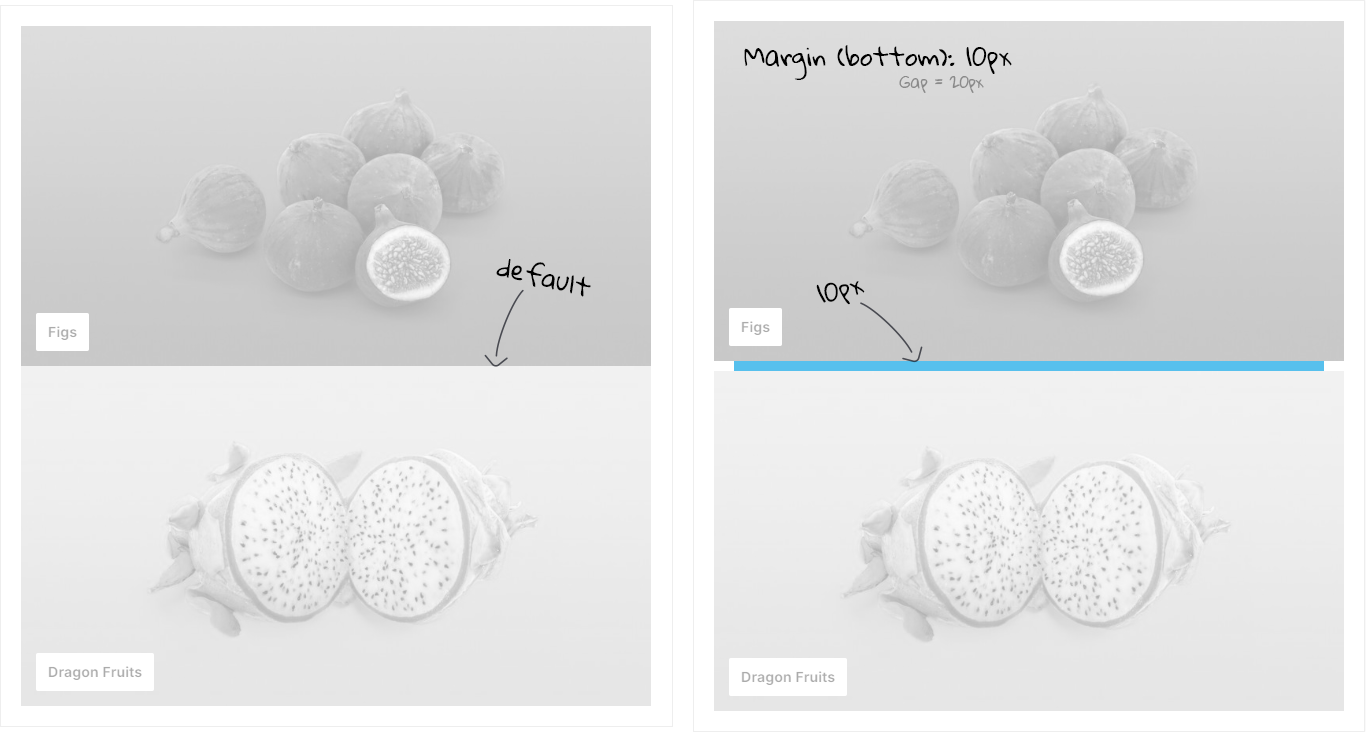
Examples

Left: default | Right: twt-cms-col-margin-15
ThemeWare® "Grid" CMS blocks
You can also use the above-mentioned CSS classes for "Column" blocks in "Grid" blocks from ThemeWare®, but we have introduced new, more intuitive CSS classes for these with ThemeWare® 3.2.0 and recommend using these new CSS classes in future.
You can find more information on this in the following article:
Adjusting gaps in CMS blocksNew CSS classes with ThemeWare® 3.2.0
With ThemeWare® 3.2 we have added new CSS spacing classes for ThemeWare® "Grid" and "Columns" CMS blocks. These combine the functionality of the two CSS classes twt-cms-col-padding and twt-cms-col-margin mentioned above.
The new CSS "Gap" classes work in "Grids" and in the "Columns" blocks of ThemeWare®.
You can find more information on this in the following article:
Adjusting gaps in CMS blocks