
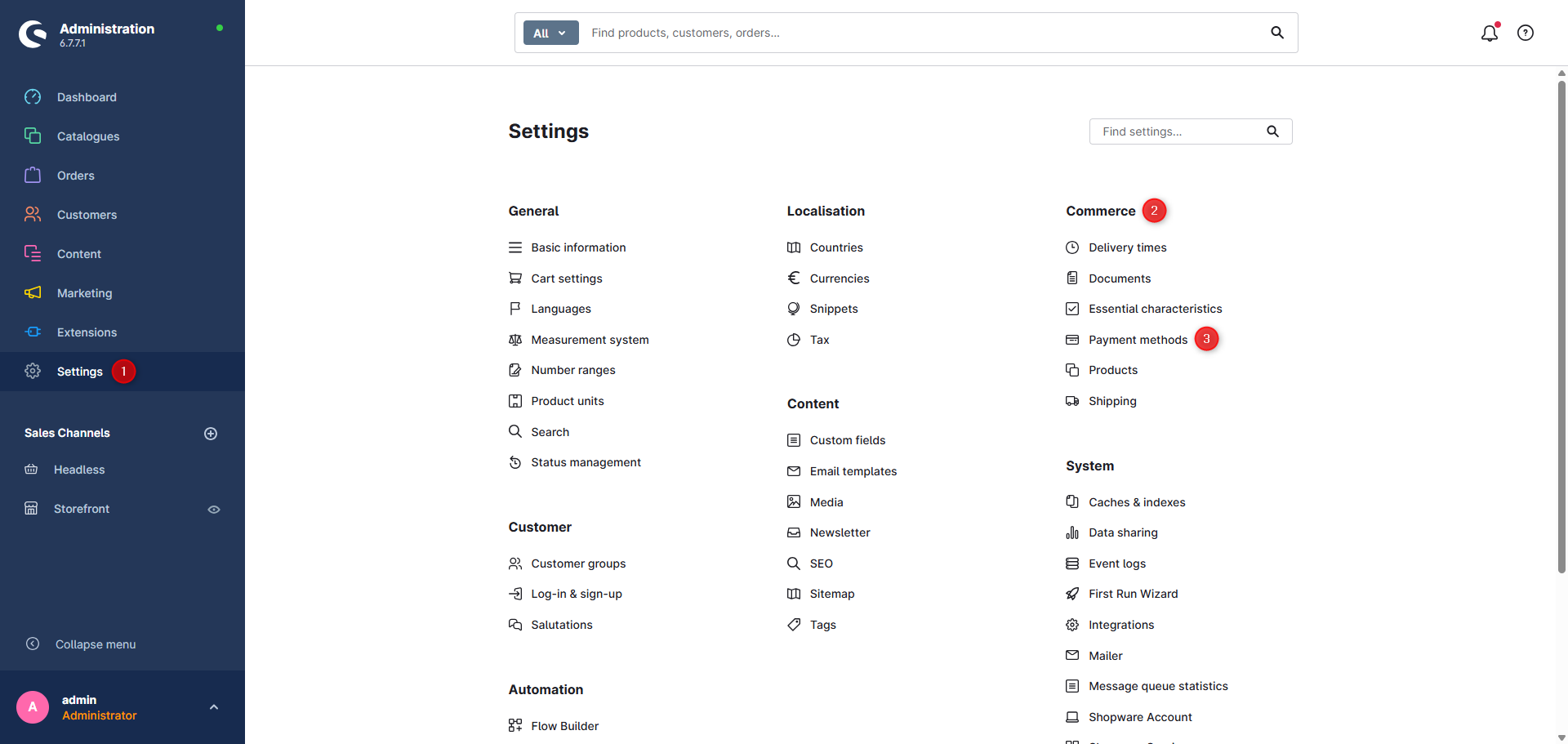
You can find the settings for shipping and payment methods in the Shopware admin:
- Go to Settings in the admin
- Open the Shop section
- Select Payment methods
Here you can create new payment methods or edit existing ones:
These configurations are applied directly in the footer and in the checkout of your storefront.
Payment methods in ThemeWare®
ThemeWare® does not change the functionality of shipping or payment methods – it only improves the visual display in the footer or adds it to the product detail page.
Matching, pagespeed-friendly logos are included in the ThemeWare® Utilities.
They are sent to you immediately and free of charge via email and help you create a more professional storefront design.
Get ThemeWare® Utilities now! Register for free at service.themeware.design/en and get access to all premium resources – including logo sets, icons, and more!
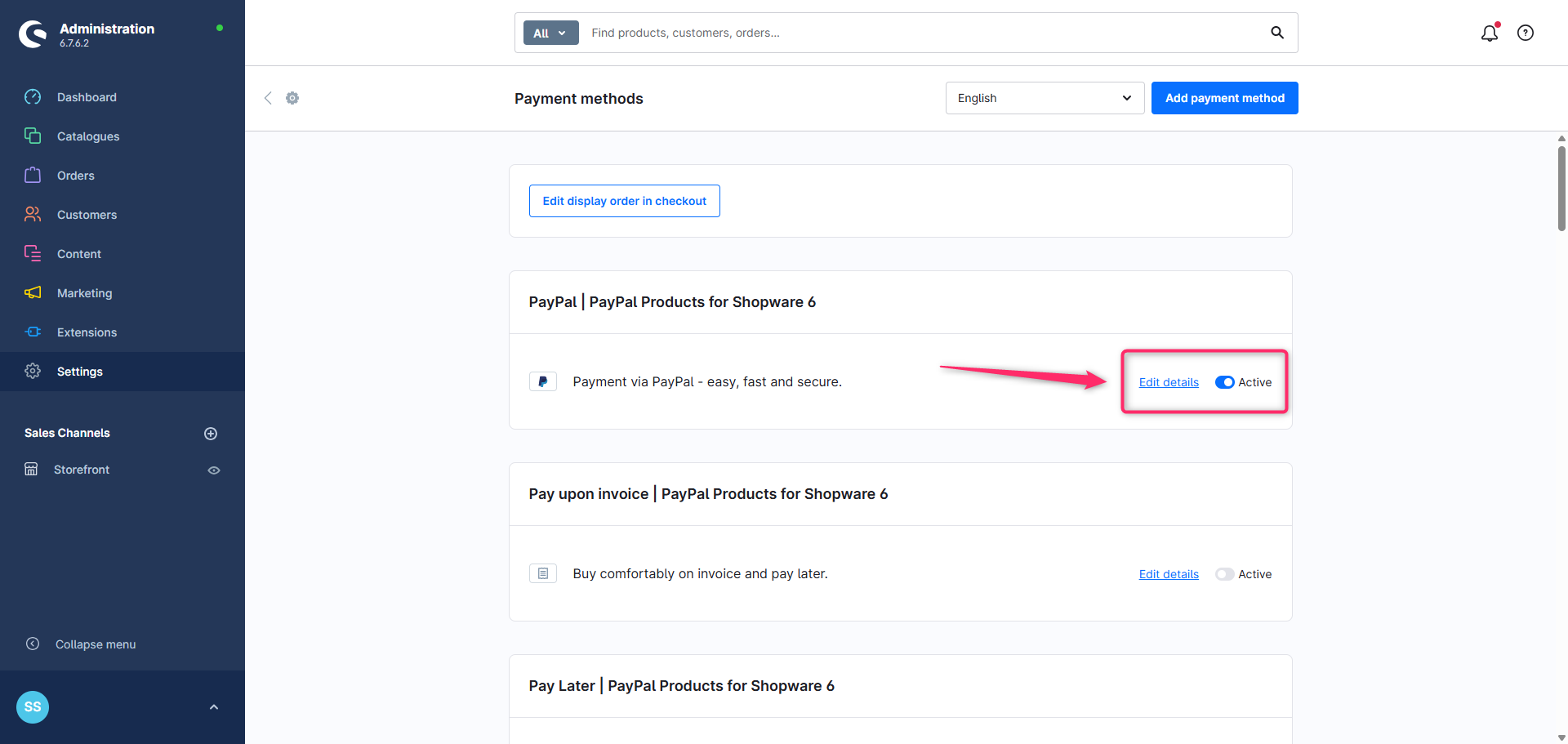
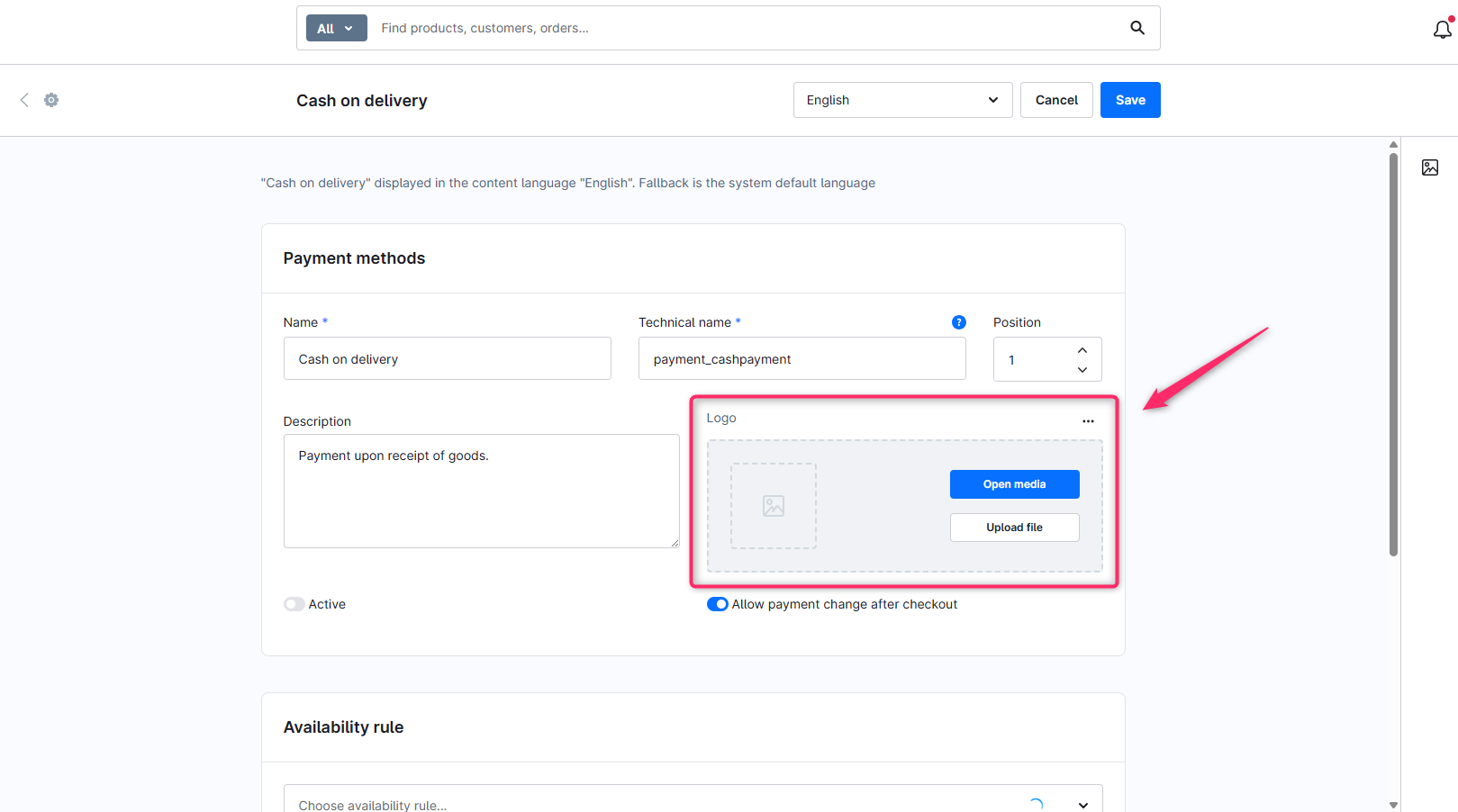
Here’s how to assign a logo in Shopware:
- Go to Settings > Shop > Payment Methods
- Click on the method you want to edit
- In the "Media" section, select the appropriate logo from your media library and assign it
The assigned logos will be automatically displayed in the footer of your shop – as long as this feature is enabled in your theme settings.
Tip: For a consistent and professional look, we recommend using our page speed-optimized logos for all shipping methods.