
- Open the administration of your shop
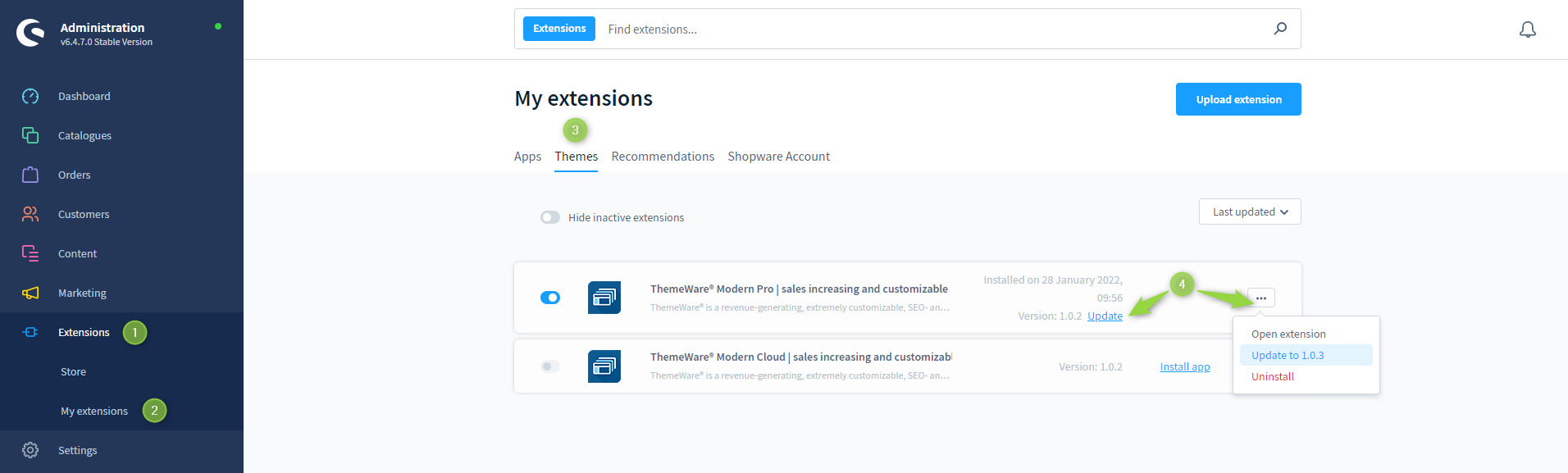
- Switch via the main navigation to the "Extension Management"(1) (2) ("Extensions" => "My extensions")
- Switch to the tab "Themes" (3)
- Find your theme in the list of your extensions
- Click "Update" (4) or
- Click onto the
 Context-Button next to the theme in order to open the context menu and click onto "Update to x.y.z" (4)
 - :white_check_mark: Tip: Deactivate the theme before updating, and once it’s deactivated, clear the Shopware cache. Deactivating ThemeWare®
- Clear the entire Shopware cache and reload the administration
ThemeWare® has now been updated.
Impotant: To prevent presentation errors caused by an outdated cache, update the storefront once after a theme update: Refreshing the storefront
Screenshots
Update guidelines 💡
Always refer to our update guide when updating ThemeWare®:
Update guideFurther information
Tip: It is useful to deactivate ThemeWare® before updating a theme: Deactivating ThemeWare®
Note: If no update is shown in the context menu please have a look at the article ThemeWare® update not available.
Note: If the update does not work as described, please take a look at the article ThemeWare® cannot be updated.
Important: If you want to update Shopware, it is always a good practice to update ThemeWare® before or after the update!
Please have a look at the article Shopware Updates and ThemeWare®.