
With Shopware 6.4.19.0 you can easily set the visibility of sections and blocks in the Shopping Experience editor.
1. Shopping Experience
- Switch to the Shopping Experiences Management via the main navigation ("Content" => "Shopping Experiences")
- Click on the desired Shopping Experience to edit it.
- The Shopping Experience now opens in the Shopping Experience editor
2. Section
- Click on the button
 in the top left corner of the CMS section you want to edit (1)
 - The section settings open on the right side of the window (2)
- Open the section "Visibility" (3)
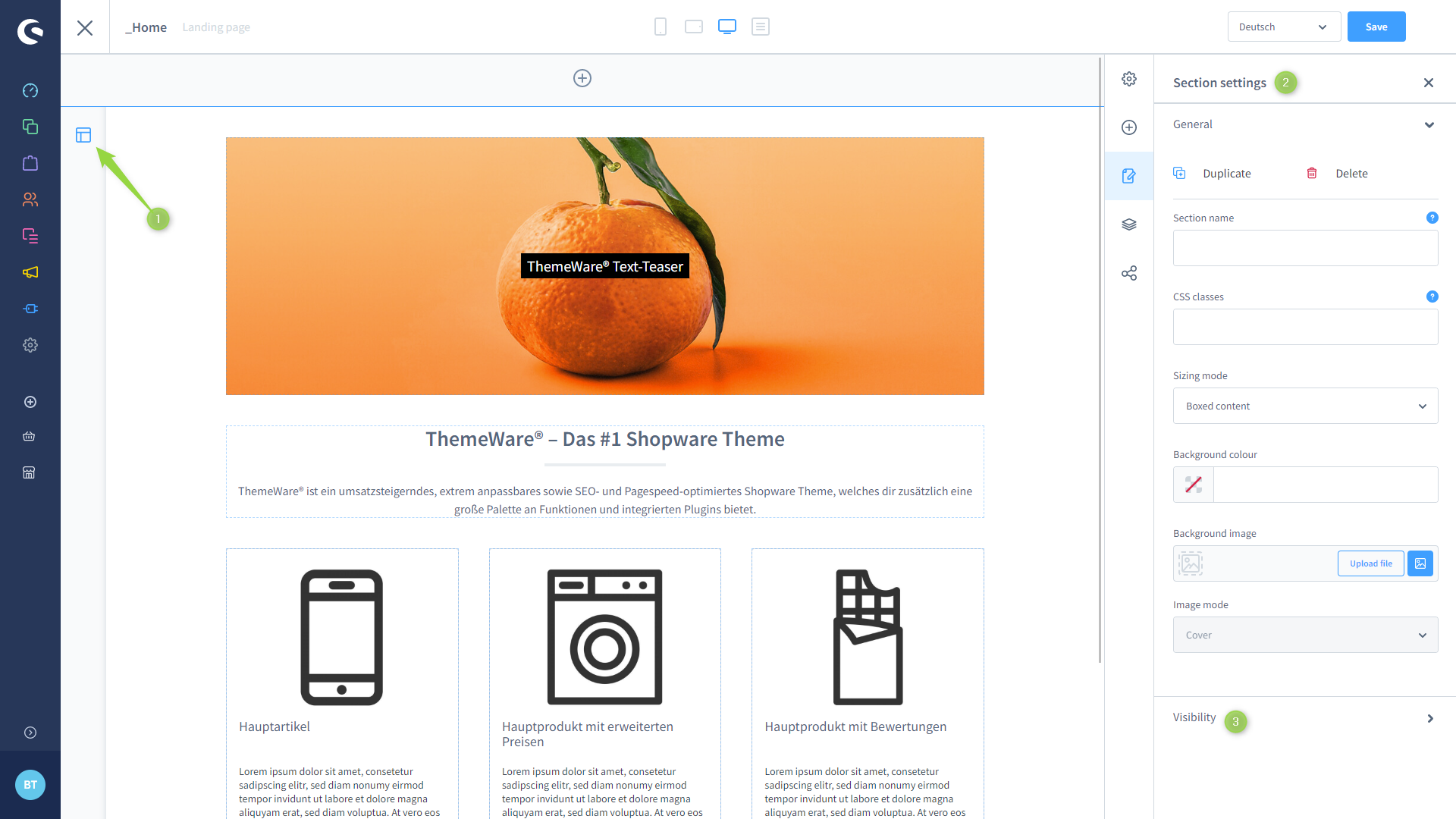
Section settings
2. Block
- Click on the CMS block you want to edit (1)
- The block settings open on the right side of the window (2)
- Open the section "Visibility" (3)
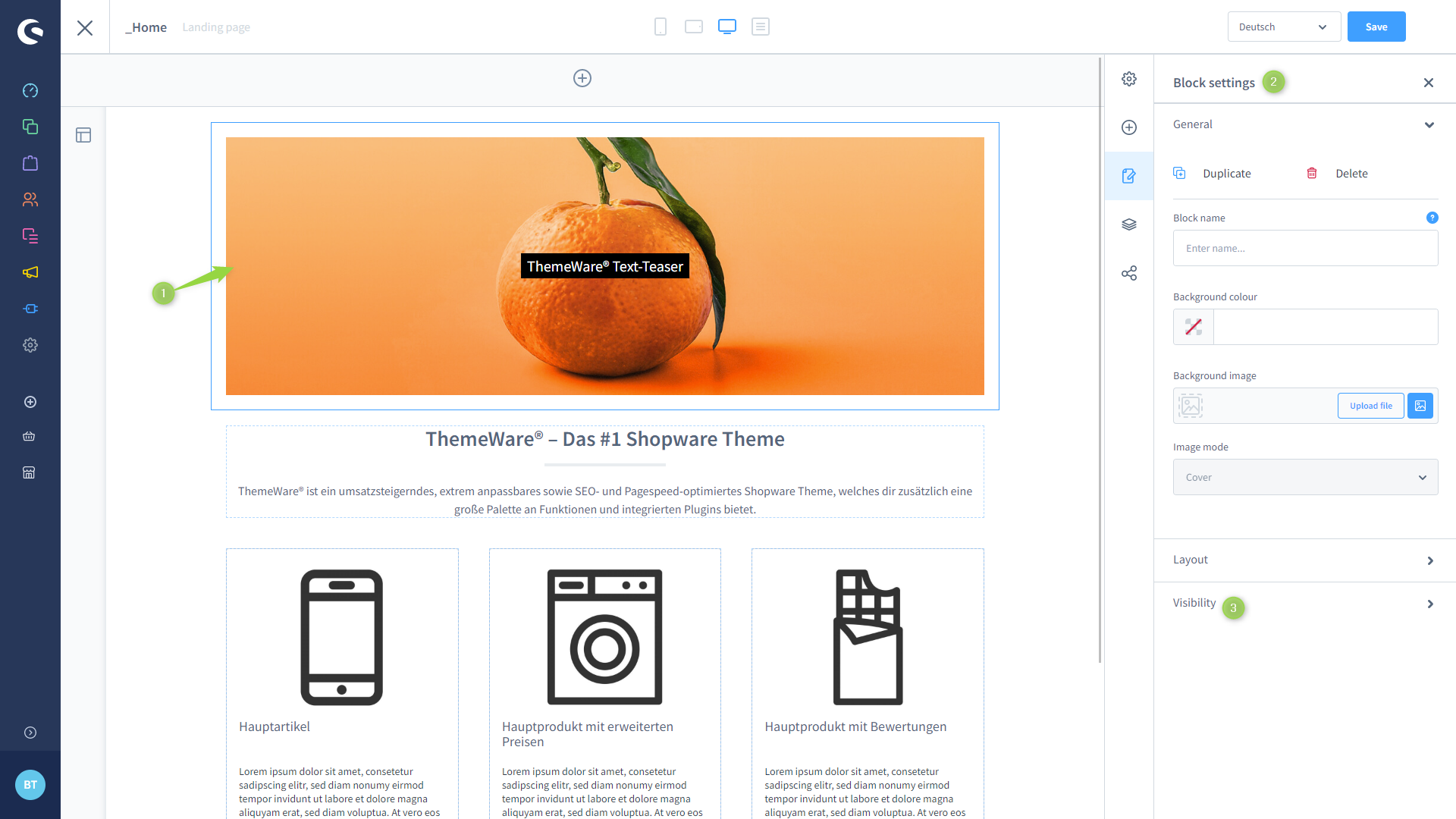
Block settings
3. Visability
In the section "Visibility" (3) you can now configure the section or block for three viewports (4).
| Mobile | 0 px bis 767 px | admin--cms-visability-mobile.png |
| Tablet | 768 px bis 991 px | admin--cms-visability-tablet.png |
| Desktop | ab 992 px | admin--cms-visability-desktop.png |



In the editor, invisible CMS sections or CMS blocks are "collapsed".
- With a click on the link "Collapse section" or "Expand section" (5) you can collapse/expand an invisible CMS section in order to edit it.
- With a click on the link "Collapse block" or "Expand block" (5) you can collapse/expand an invisible CMS block in order to edit it.
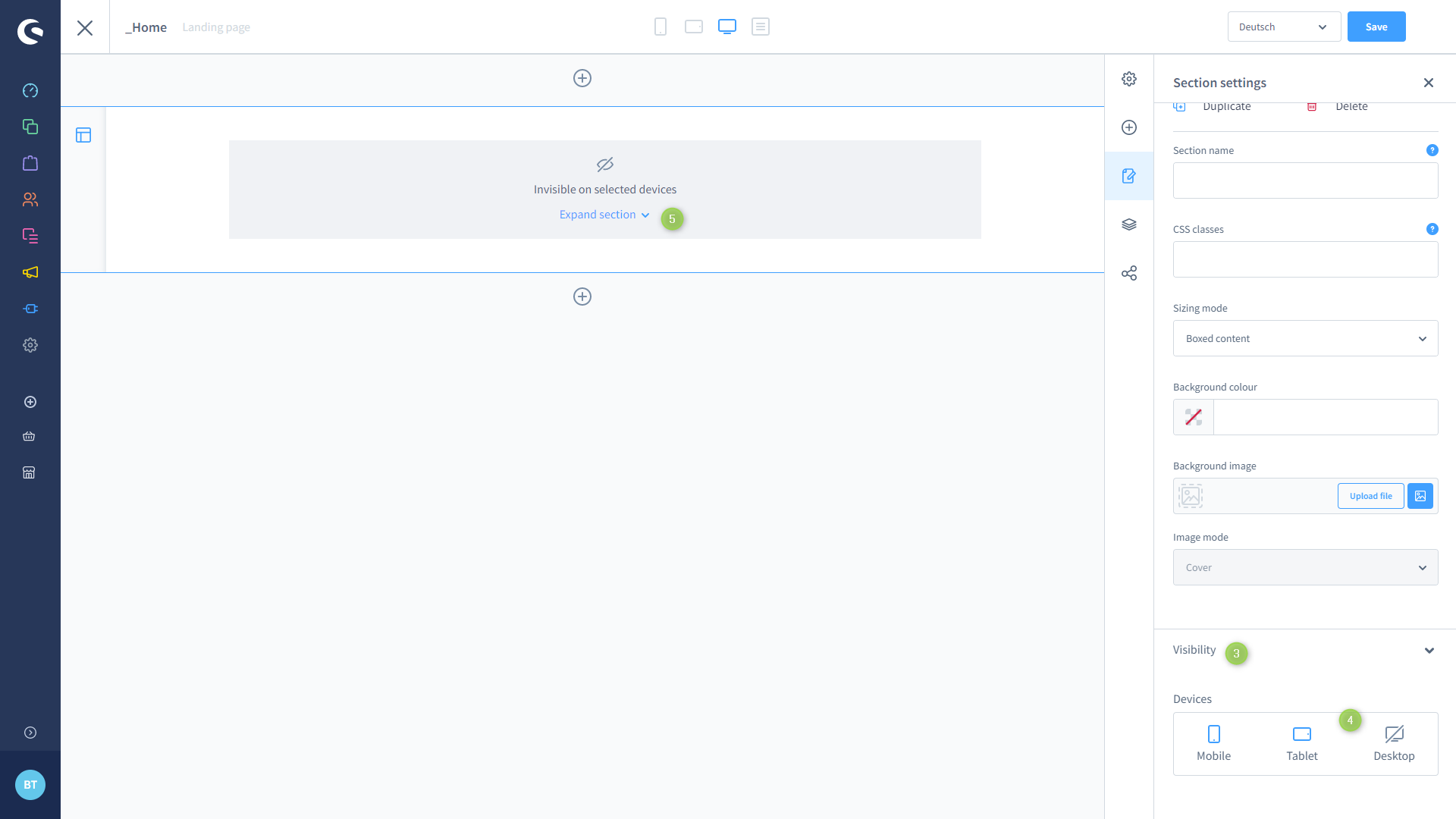
Invisible CMS section
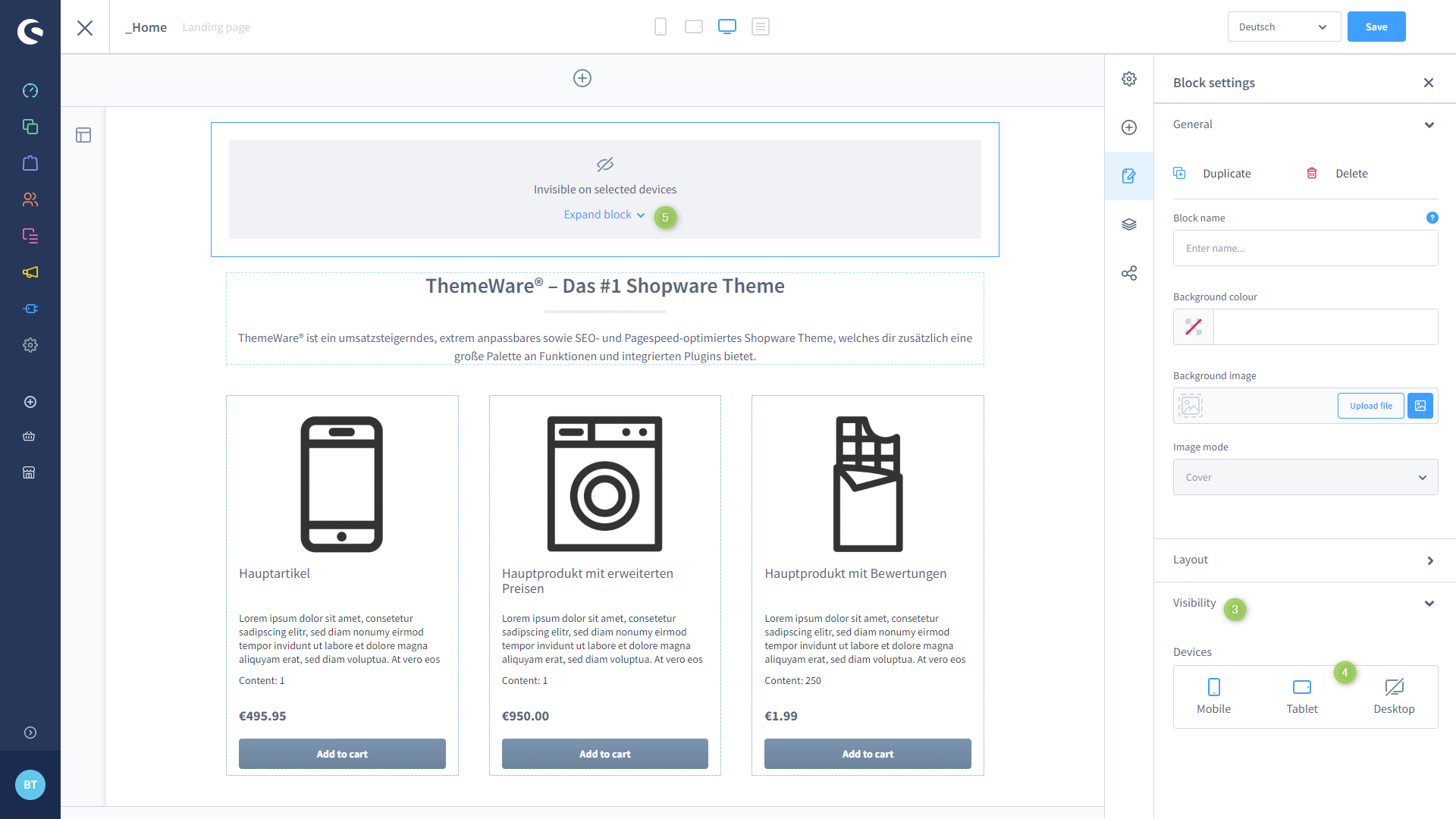
Invisible CMS block
Note: Please note that Shopware just adds a CSS class to the section or block. The element is therefore invisible, the HTML code is still present in the storefront.
Tip: Until Shopware allows more viewports, the Bootstrap CSS classes from ThemeWare® offer you further configuration options for the visibility of CMS sections and CMS blocks: see Responsive Shopping Experiences with Bootstrap