The ThemeWare® rental version includes a free trial month. The rental can be cancelled at any time on a monthly basis or is automatically extended at the prices stated at the time of booking.
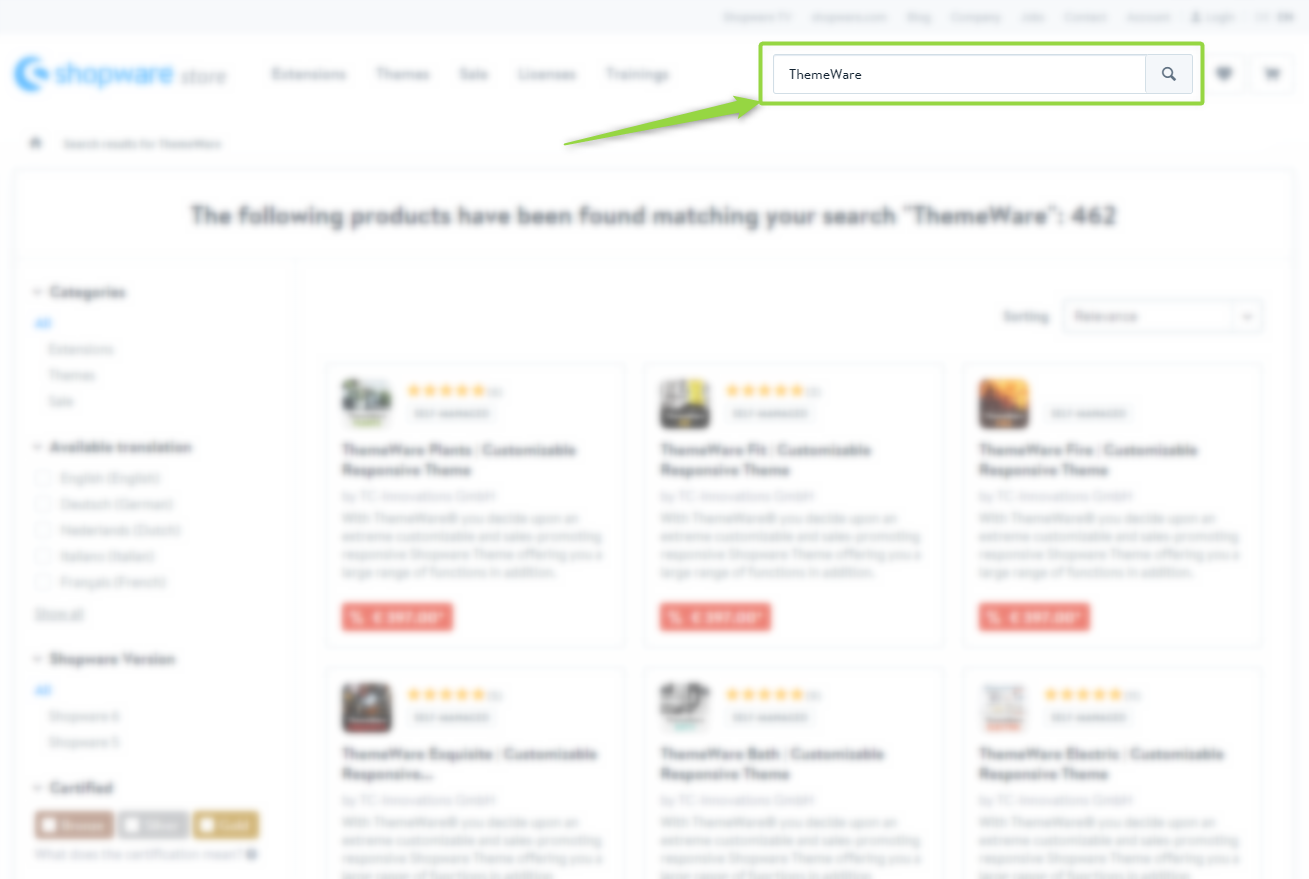
- Open the Shopware Store in the preferred web browser
- Look for "ThemeWare" or a specific theme e.g. "ThemeWare Modern"
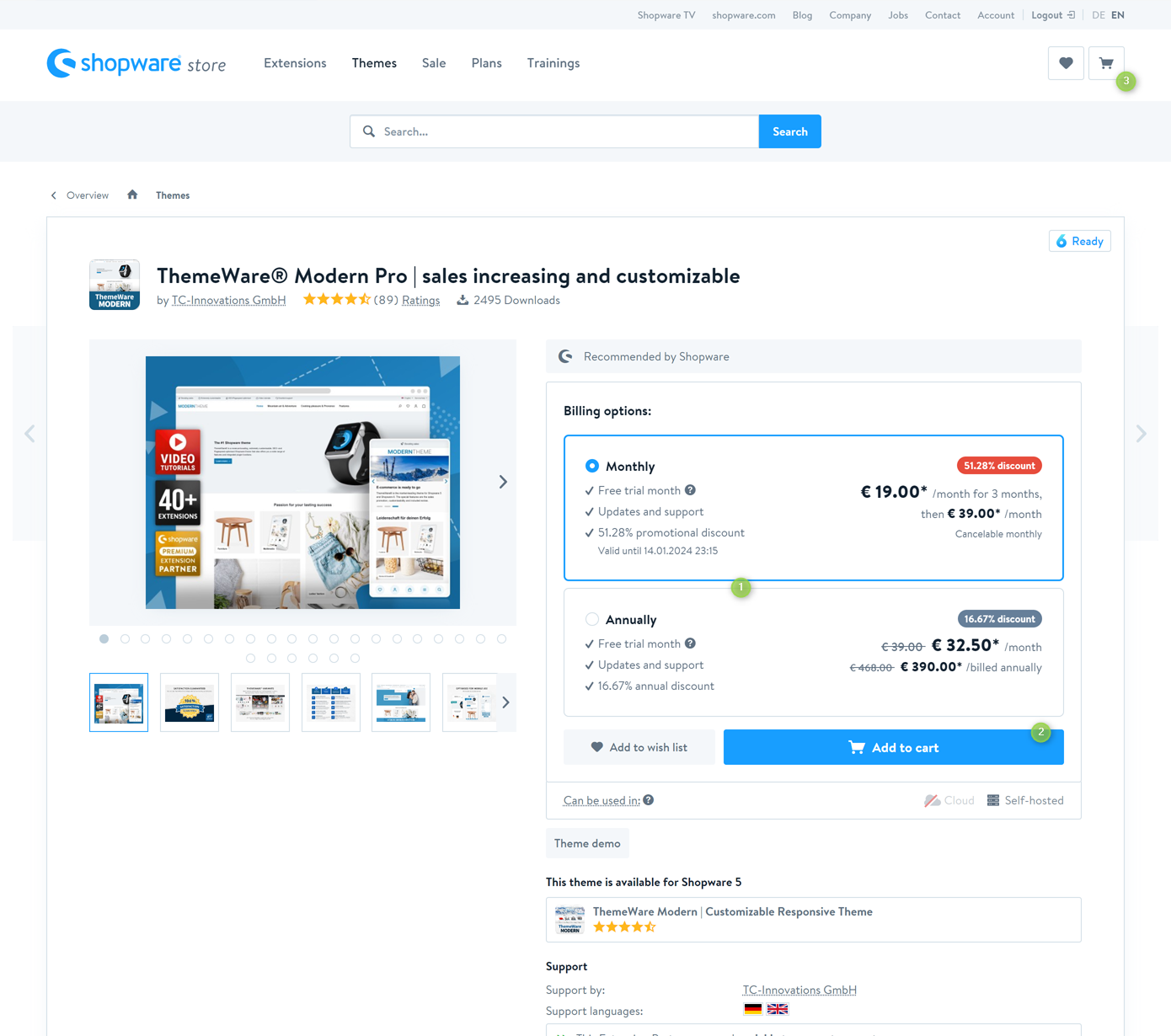
- The details page of the ThemeWare® Theme will now open
- Select the desired billing option (1)
- Click onto the button "Add to cart" (2)

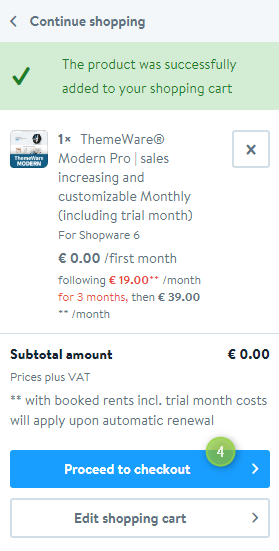
- Open the off-canvas cart (3)
- Next click onto the button "Proceed to checkout" (4)

- Optional: Enter your Shopware access data and login (if you are not already logged in)
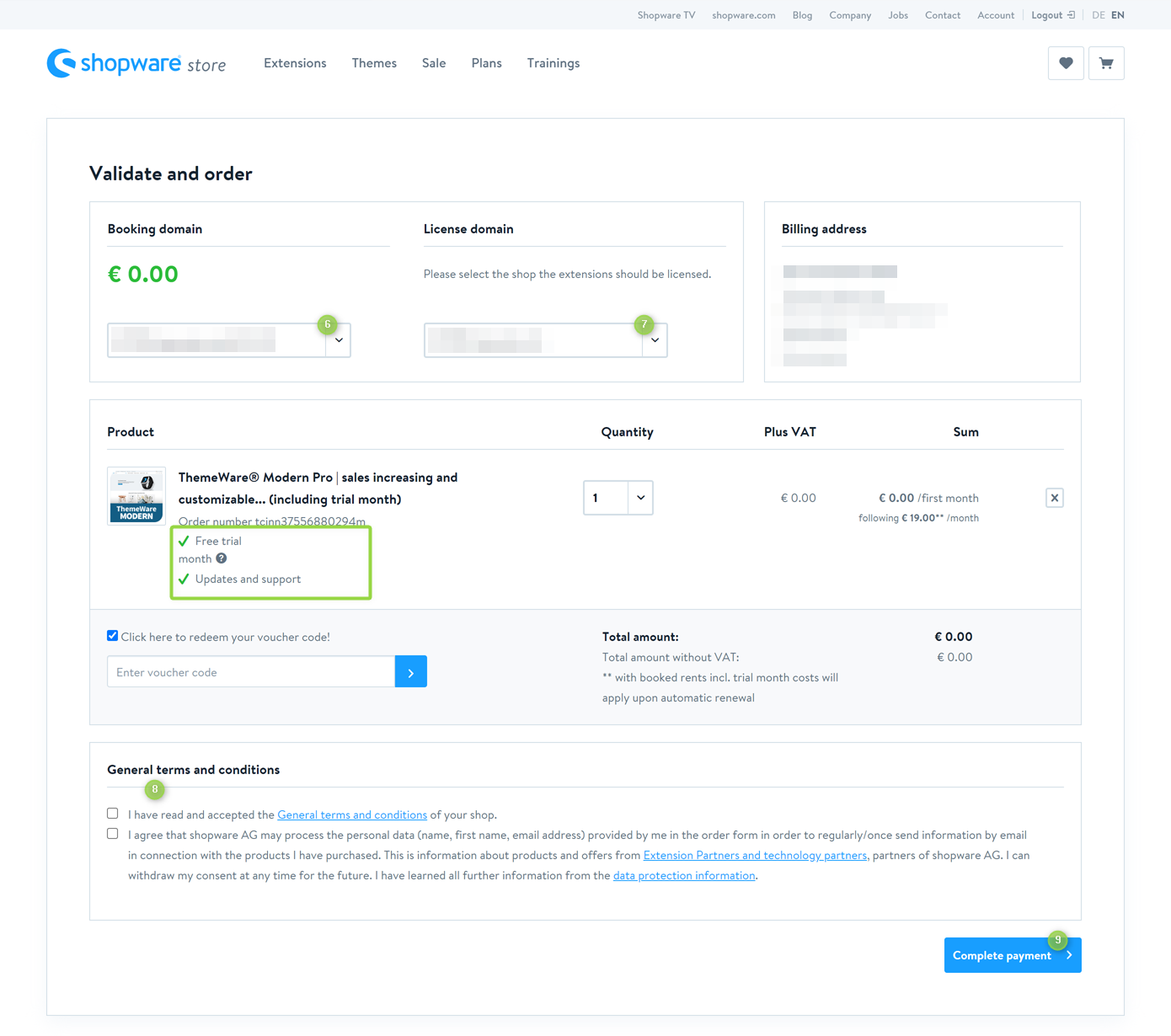
- The page "Validate and order" will open
- Choose the Booking domain for the order (6)
- Choose the License domain for your Theme (7)
- Read and confirm the General terms and conditions and the data protection information (8)
- Check all details
- Order the test version with the button "Complete payment" (9)

Now you have subscribed to ThemeWare®.
Note: How to find ThemeWare® in the store please read in the article Finding ThemeWare®.
Screenshots