In order to make a shop page available as a content page in your storefront, the corresponding layout must be assigned to a category page via the Category Management.
In this tutorial you will discover how to create a category page, when needed, and how to assign a shop page layout to it.
Example: In the following we add a "Newsletter" shop page to the "Footer navigation".
Creating a category page
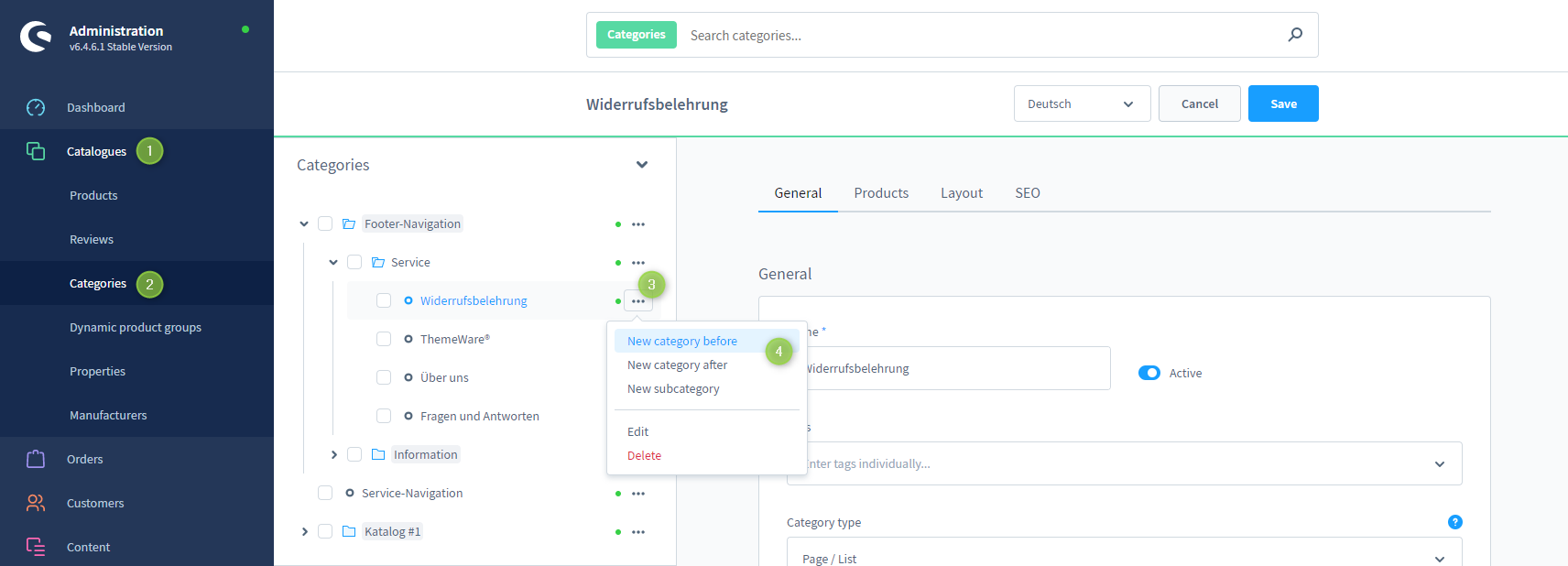
- Switch via the main navigation to the "Category management" (1) (2) of your shop ("Catalogues" => "Categories")
- Select the desired category in which the shop page should be listed
- Example: The newsletter should be accessible via the footer navigation
- Click onto the
 Context button (3) to open the context menu and create a new category
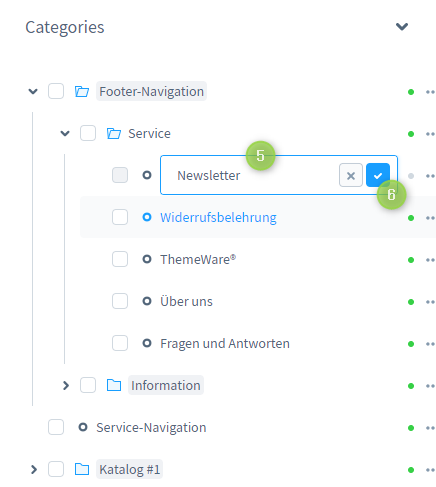
- Example: We would like to add the "Newsletter" page above the "Revocation notices" page (4)
- Name the page (5) and create the page (6)
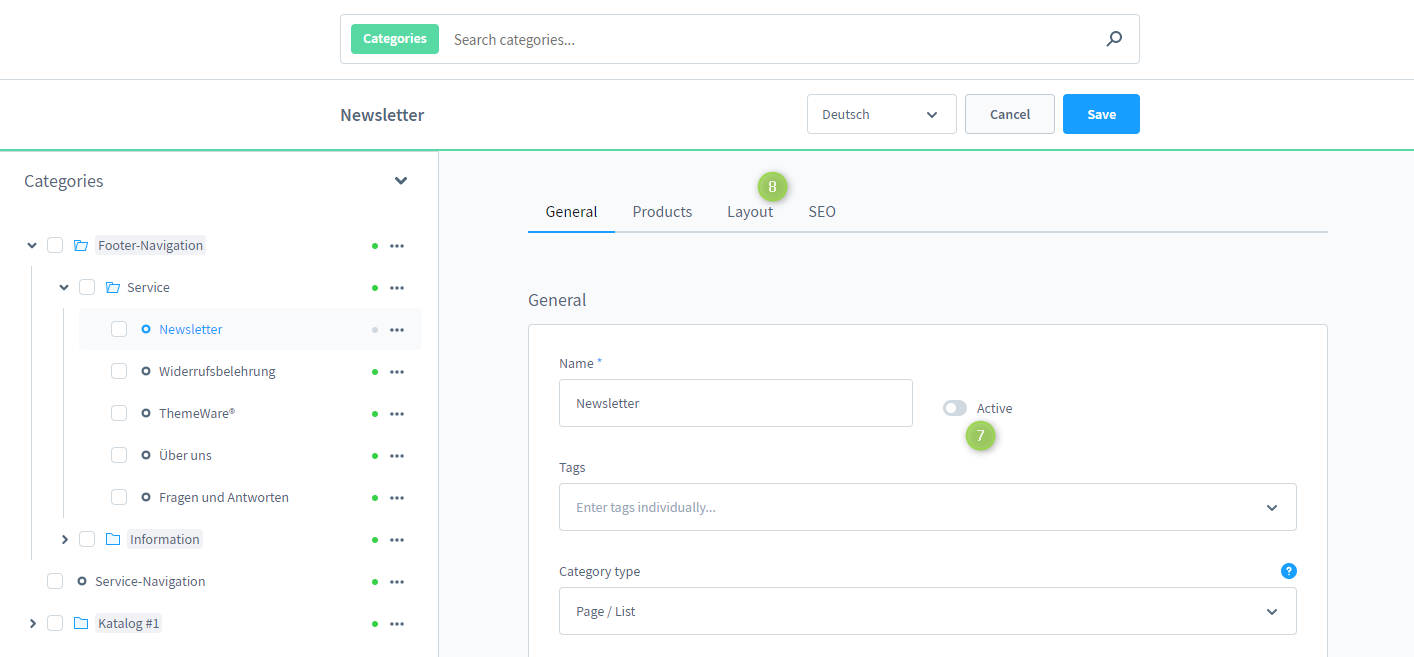
- Now the category page can be edited
- Activate the page to be displayed in the storefront (7)
Assigning the layout
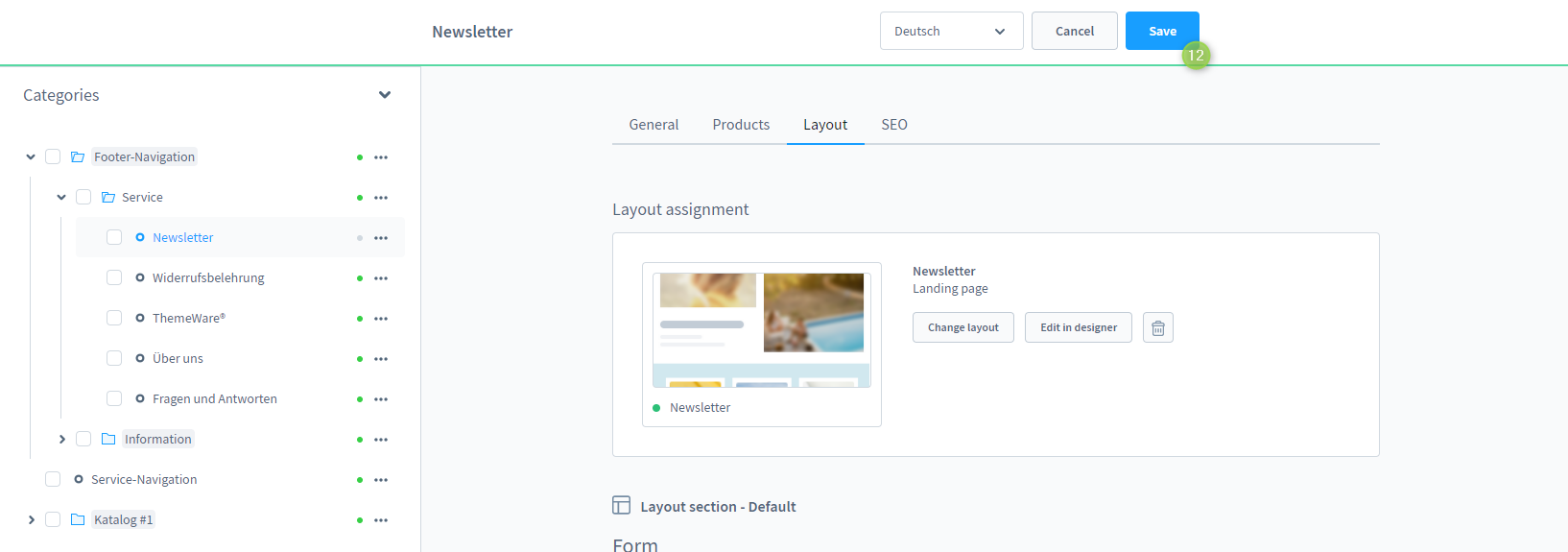
- Switch to the tab "Layout" (8)
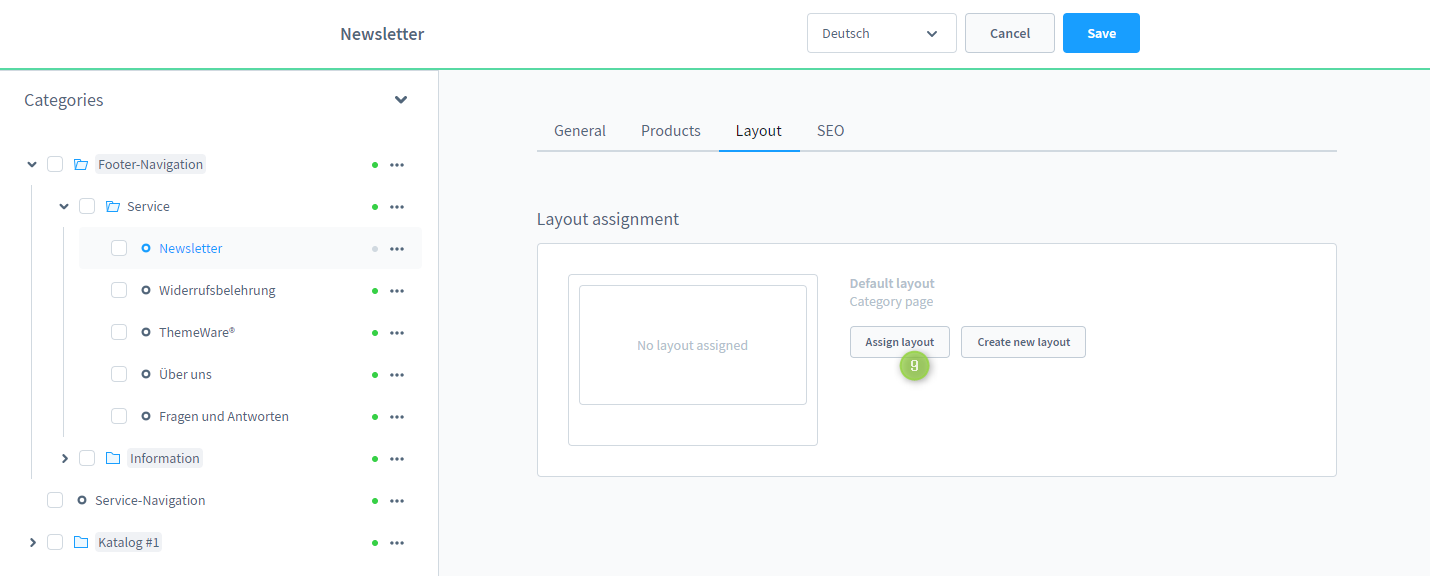
- Click onto the button "Assign layout" (9)
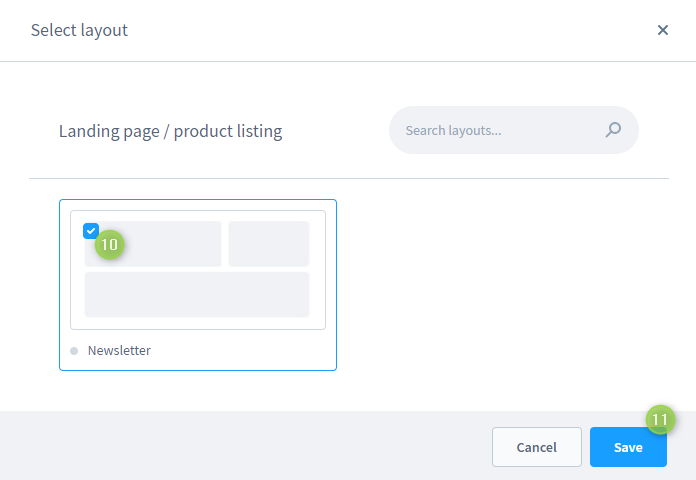
- Choose the desired layout (10)
- Confirm your selection with "Save" (11)
- Now the category page can also be "Saved" (12)
Now you have created a category page and assigned a shop page layout to it.
Note: All worth knowing about the topic "footer navigation" will be explained in our introduction in the article Configuring the footer navigation.
Screenshots