
In this article you will learn how to edit ThemeWare®, that is, how to configure it.
You edit themes, and therefore ThemeWare®, in the theme administration. There are two ways to get there:
- The first way is to click on "Content" and then on "Themes". (Note: In the Shopware Cloud you will find the "Themes" area directly in the main navigation.)
You then see all installed themes. Click the theme in question, or ThemeWare®, to get to the theme configuration and edit the theme. - The other way is to select your sales channel. Then click on the tab "Theme" and there on "Edit theme". This takes you straight to the theme configuration and you can edit the theme.
Example
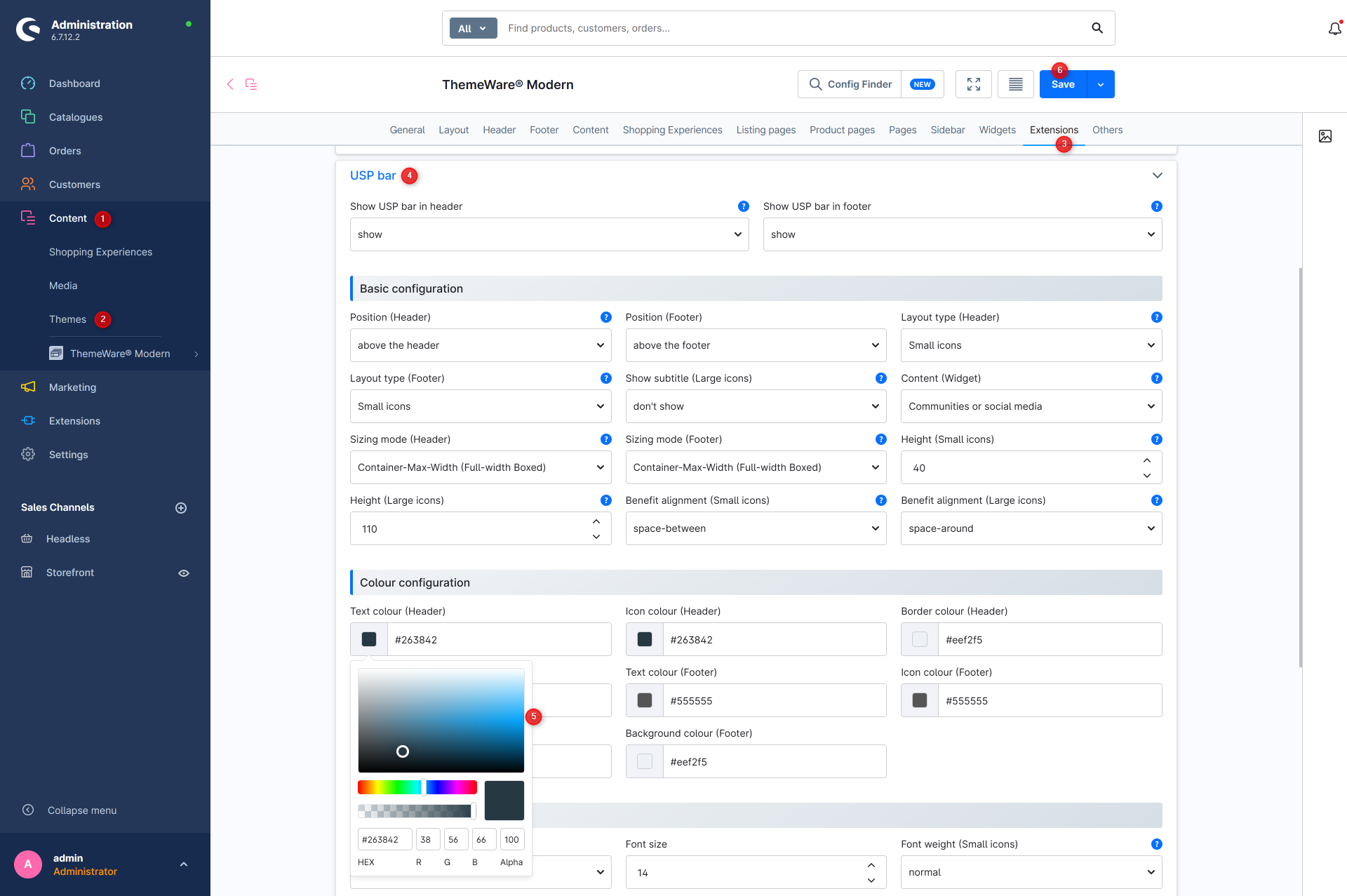
Example: The first thing you notice in the storefront is the USP bar. In this example we change the background colour of the USP bar.
Open the administration of your shop
- Switch via the main navigation to the "theme administration" (1) (2) ("Content" => "Themes")
- Note: In the Shopware Cloud you will find the "Themes" area directly in the main navigation.
- Now click on your ThemeWare® theme to start editing
- The USP bar is an extension, so we switch to the tab "Extensions" (3)
- Scroll down a bit and open the block "USP bar" (4)
- Scroll down a bit further to the section "Colour configuration"
- Clicking the button to the left of the input field "Background colour (Header)" opens the "colour picker" (5)
- We select the colour
#e2f4fd - Save the theme configuration (6)
- Switch to the storefront and reload the page
You have now changed the background colour of the USP bar.
Tip: If a change does not take effect in the storefront, refresh the storefront once using the following tutorial: Refreshing the storefront
Tip: You do not have to click your way through the tabs to find a setting. With the Config Finder you simply type "usp background colour" and immediately see only the matching configuration fields: Find configuration
Note: There is a separate article about the USP bar later on.
Screenshots
After

Further information
If you have further questions or any problems, you can find more information in our detailed tutorial: Editing ThemeWare®