
With ThemeWare® you provide downloads (e.g. data sheets, manuals or certificates as PDF) right on the product page. Your customers find all important documents in one place – this builds trust and reduces enquiries.
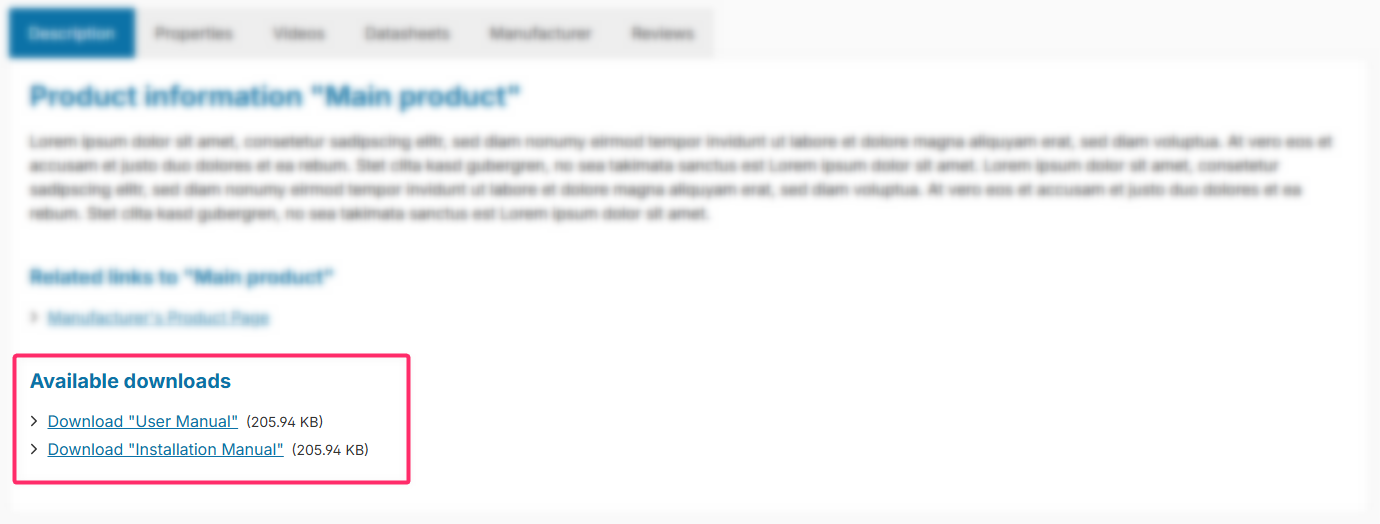
Note: The downloads are maintained per product via custom fields and appear in the "Description" tab as soon as you enable the downloads in the theme configuration and at least one download is stored.
Requirements
- a product you want to assign a download to
- the desired PDF file in your Shopware media manager
Note: Shopware 6's media manager does not currently support zip files. Please use PDF files.
Step 1: Enable downloads in the theme
"Theme Manager" => your ThemeWare® theme => "Product pages" tab => "Tab "Description"" block => "Downloads" section
Set "Show downloads" to "show". Optionally, use "Description text" to show an introductory text above the downloads (from the snippet). Save your changes.
Step 2: Add the download to the product
"Catalogues" => "Products" => select product => "Specifications" tab => "Custom fields" section => "Downloads" custom field set
Store the download in the matching custom fields:
- Download 1–3 – select the PDF file from your media manager
- e.g. "user_manual_aero-mini_en.pdf"
- Download 1–3 – Title – the displayed link text
- e.g. "Aero Mini User Manual"
- Download 1–3 – Description – optional description text for the download
- e.g. "Download the user manual for the Aero Mini as a PDF."
Save the product.
Result
The downloads now appear in the "Description" tab of the product page. If nothing shows up, clear the Shopware cache once.
ThemeWare® Tip: Use meaningful titles (custom field "Download 1–3 – Title") – without a title the file name is shown. Adjust the subheadline above the downloads via the snippet twt.detail.downloads.title and the introductory description text via twt.detail.downloads.text.
Further information
You can find all configuration options and custom fields in detail in the ThemeWare® manual:
ThemeWare® Manual ⇒ Product downloads