
A CMS element is a content element in a Shopping Experience, more precisely in a CMS block. Shopware offers you a selection of CMS elements, and with the ThemeWare® Pro Edition you also get an extensive collection of sales-promoting CMS elements.
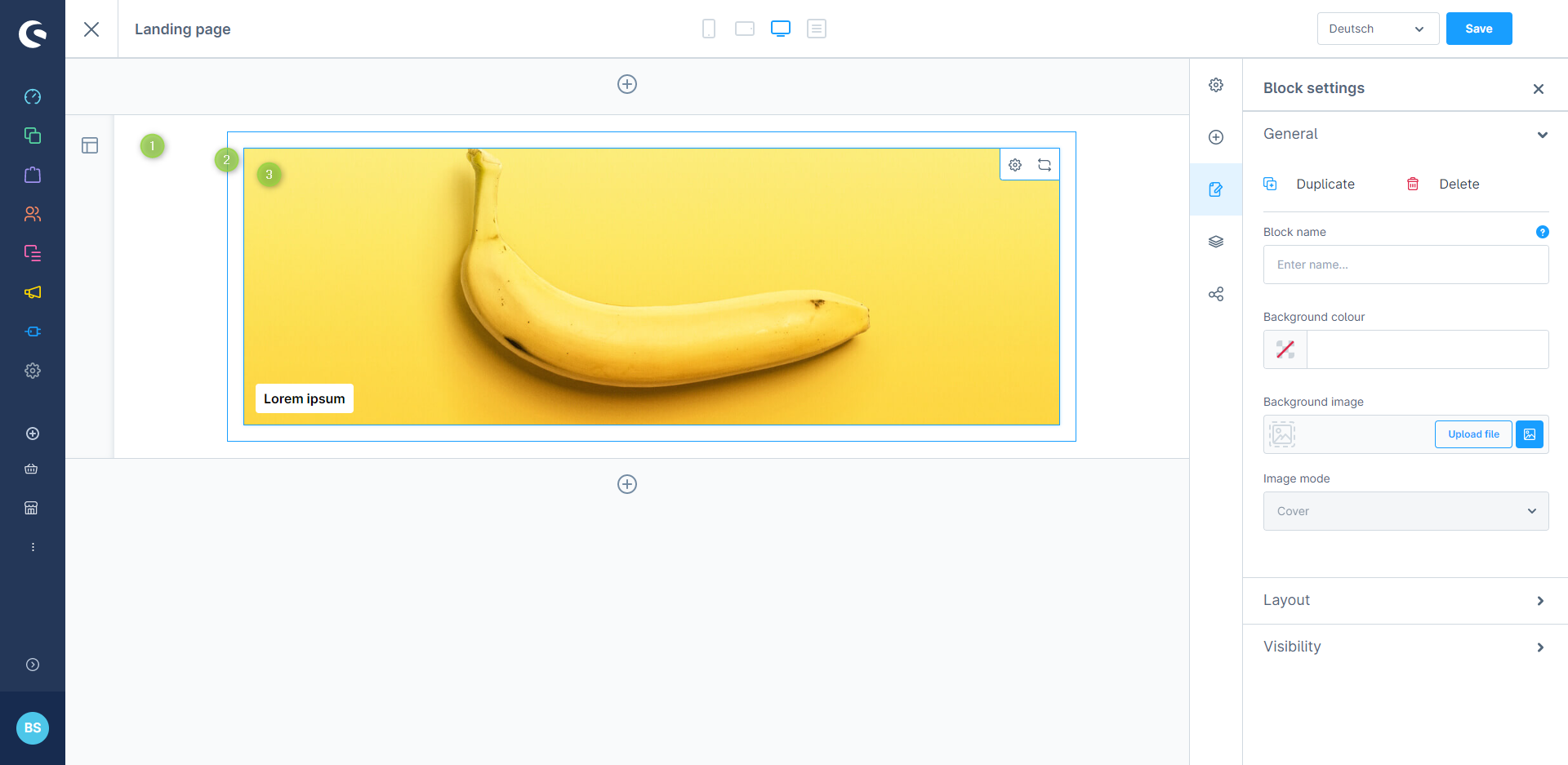
CMS element
Add CMS element
To add a CMS element you need a suitable CMS block in your Shopping Experience. You can then assign a CMS element to this CMS block. You can read more about this in the section CMS block.
Replace CMS element
- Move the mouse over the CMS block
- Click on the
 "Replace" icon (1)
 - The pop-up "Select element" will open
- Select the desired CMS element here (2)

Add or replace CMS element
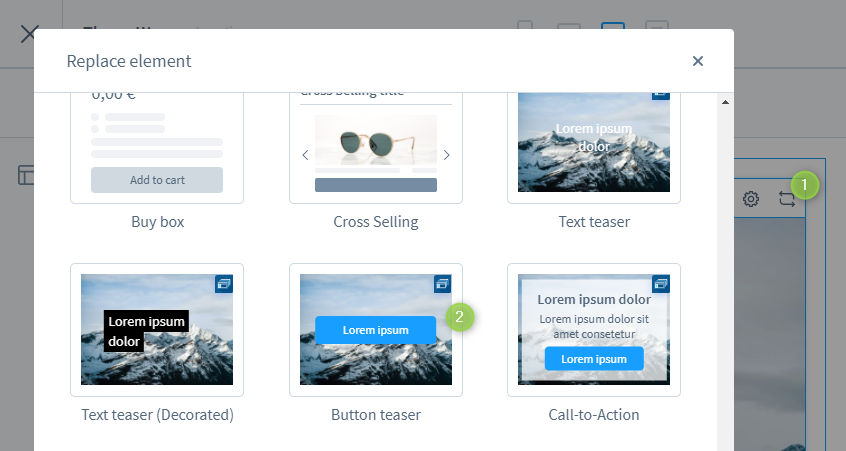
CMS element selection
Configure CMS element
- Click on the corresponding CMS block to activate the "edit mode"
- Hover the mouse over the desired CMS element
- Click on the
 "cog" icon (1) to configure the CMS element
 - The "Element settings" pop-up will open (2)
- Save your changes

Configure or edit CMS element
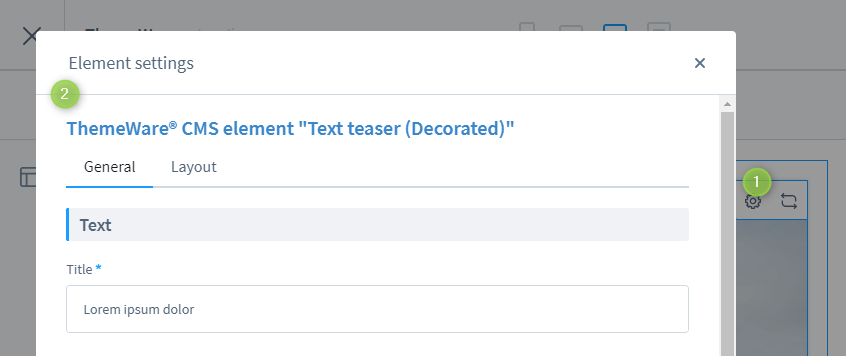
CMS element settings
Multilingual
If you want to configure an alternative language in a CMS element, you can simply change the language in the top right corner of the editor of the corresponding Shopping Experience.
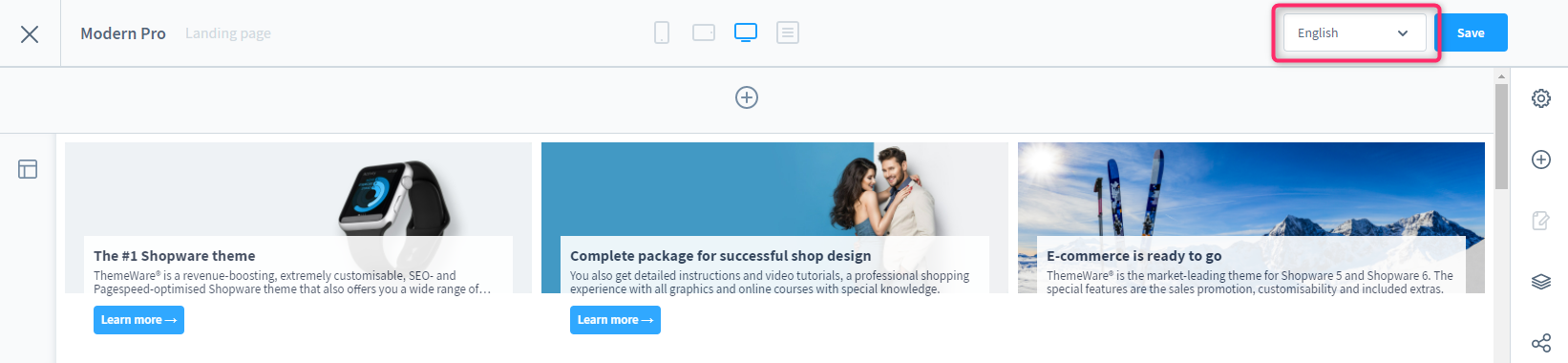
Shopping Experience: Switch language
Further information
You can find more information about ThemeWare® CMS elements in the ThemeWare® Manual:
ThemeWare® Manual
You can find more information about the Shopping Experience in Shopware 6 in the Shopware documentation:
Shopware documentation: Shopping Experiences