
In this article you will learn how to configure the colours in your shop.
You can configure colours in several places:
- Theme configuration
- Shopping Experiences
- any HTML elements (inline styles)
- Shopware core (very few, not relevant for the design)
Below we show you how to adapt the main colours in the theme configuration to your needs, introduce the colour configuration field and show you possible configuration values.
Example
You will probably want to adapt the primary colour to your corporate design first.
- Open the administration of your shop
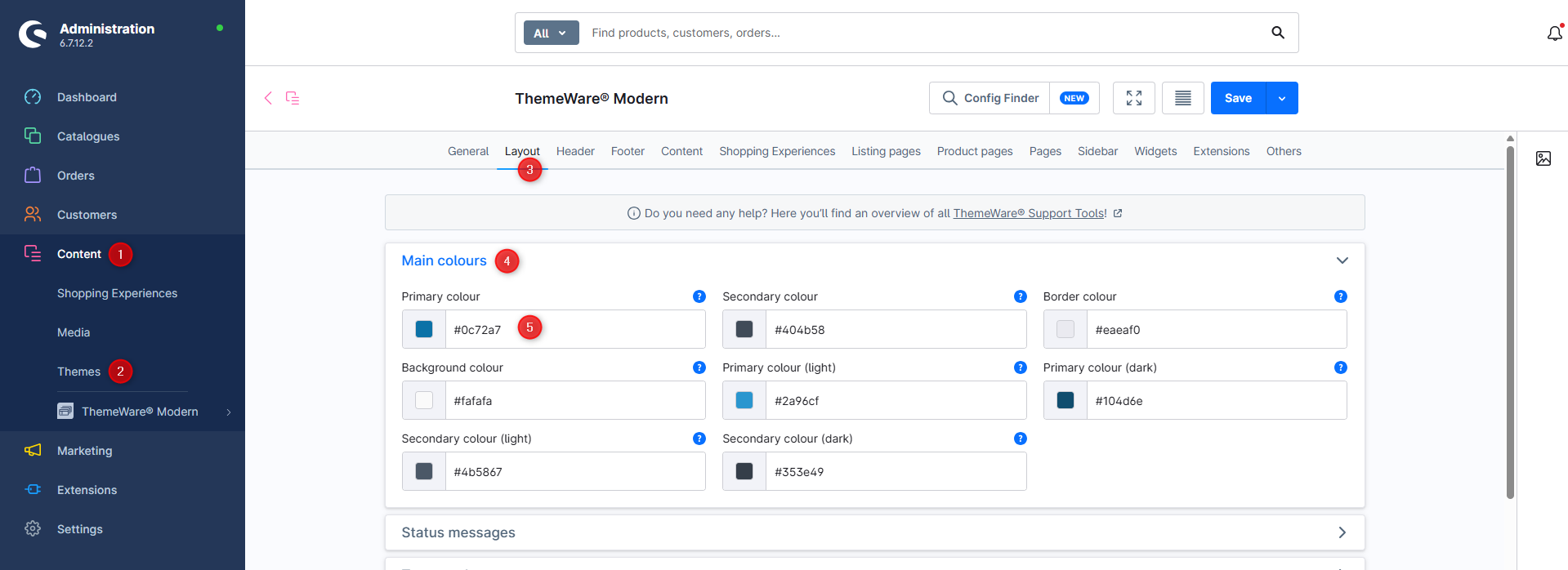
- Switch via the main navigation to the "theme administration" (1) (2) ("Content" => "Themes")
- Note: In the Shopware Cloud you will find the "Themes" area directly in the main navigation.
- Now click on your ThemeWare® theme to start editing
- Switch to the tab "Layout" (3)
- Open the block "Main colours" (4)
- As "Primary colour" (5) we choose the value
#0e8ed3 - In the field "Primary colour (light)" we choose the shade
#6ac5f5 - As "Primary colour (dark)" we choose
#0c7ebb - Save the theme configuration
- Switch to the storefront and reload the page
You have now successfully changed the primary colour.
Screenshots
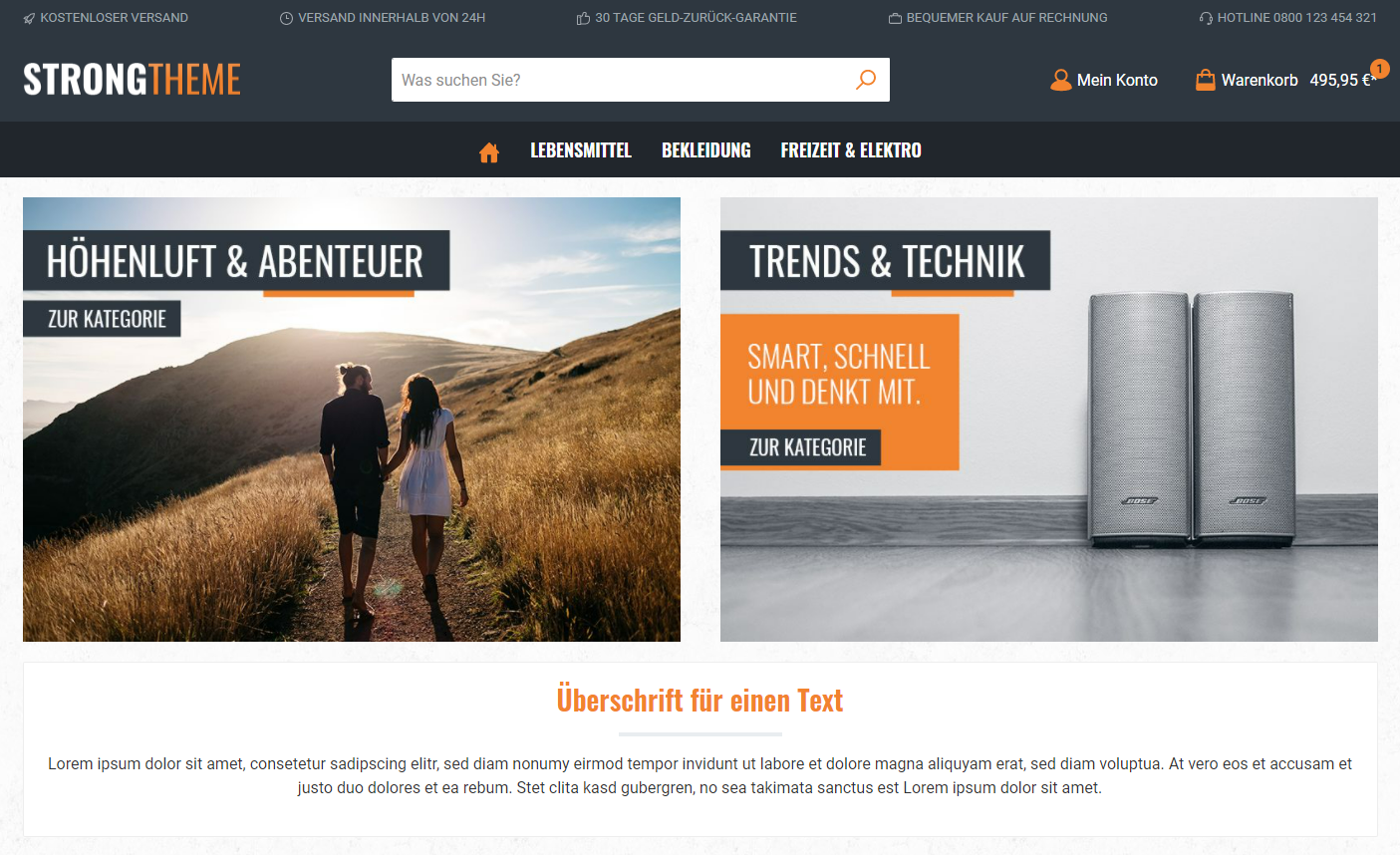
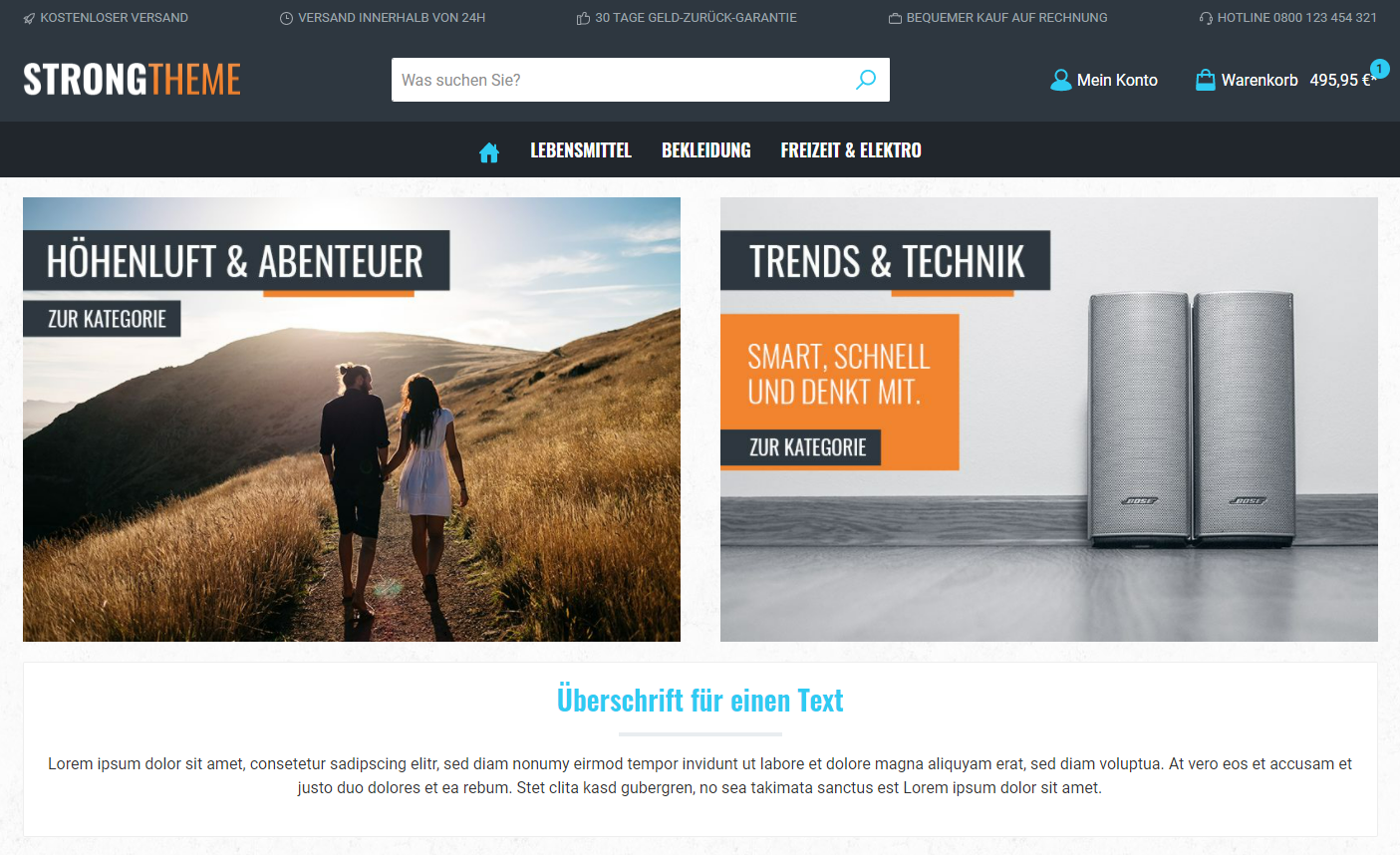
Note: This does not change the colour of the logo or of design elements in banners of the Shopping Experience. Those are graphics which the browser cannot recolour. However, you can download all graphics in PSD format via the ThemeWare® Utilities and adapt them as you like.
Further information
- Basic knowledge: You can find more information on the topic "colour configuration" in the article Color configuration.