
When making changes in the store (especially when they affect the storefront), it is quite useful to clear the Shopware cache once.
Note: This article is only relevant for users of a self-hosted store.
In the module Caches & Indexes you have the possibility to clear and warm up the cache.
- Open your shop administration
- Navigate to the section "Settings" => "System" => "Caches & Indexes".
- Click onto the button "Clear caches" (1) or onto the button "Clear and warm up caches" (2)
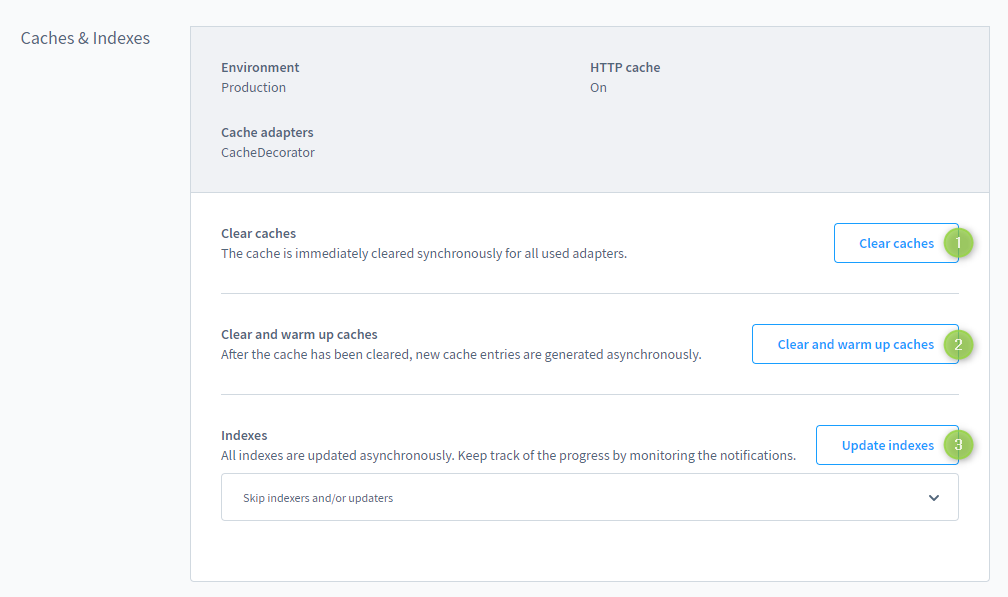
Clear caches (1)
This allows you to empty the caches without them being warmed up again immediately afterwards.
Clearing and warming up caches (2)
At first, a new cache will be created. As soon as this exists, the old cache will be removed.
Updating indexes (3)
Updates the indexes such as the category and product indexes as well as the SEO URLs. Using the dropdown menu you can choose all indexes that should not be updated when updating the indexes.
Further information
Shopware documentation: Caches & Indexes