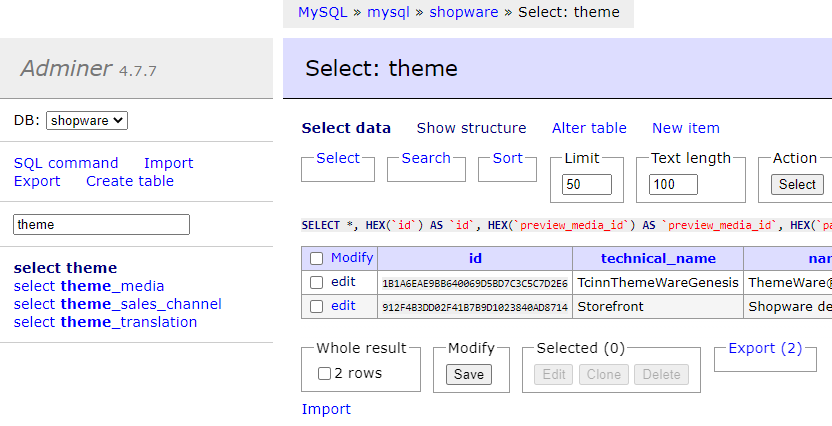
In this article you will learn how to edit the database with the Adminer extension for Shopware 6.
Note: This article is intended for professionals and experts. If you are not absolutely sure, we will be happy to support you: ThemeWare® Services at a glance
Editing the database
We recommend the free extension "Adminer for the Admin" for easy access to the database.
Important: In the Shopware 6 Cloud currently is no possibility to reach the configuration via the database.
Backup for safety
Manual editing of the database is suitable for experienced users who are familiar with the database. Get help if this does not apply to you.
Attention: Make sure you create a backup of your database before you make any changes here!
1. Installing an extension
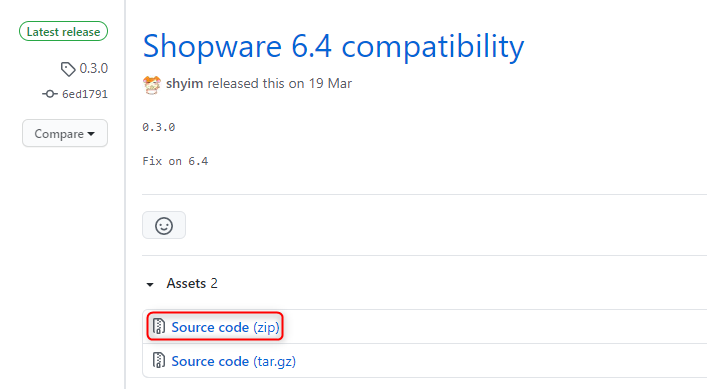
Note: You may also get the extension via the Shopware Store. In case this is not listed there, just use the GitHub version.
- Download the latest Release as a zip file
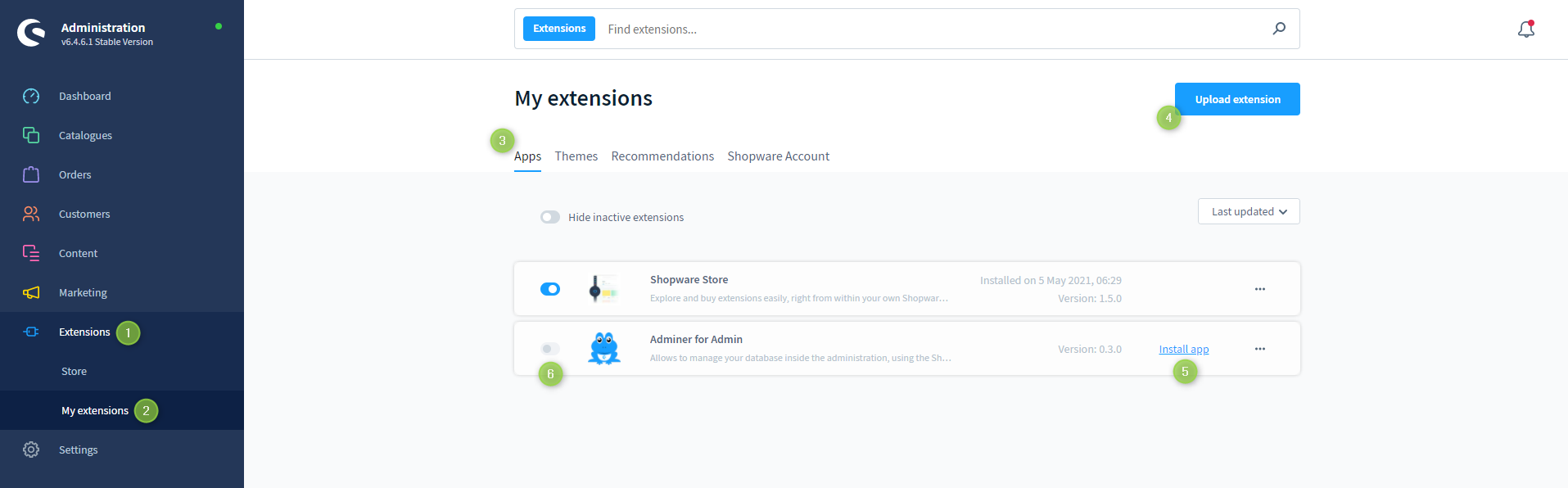
- Upload the zip file into your shop
- Install and activate the extension thereafter
2. Editing the database
Important: Make sure to backup your database before you make any changes here!
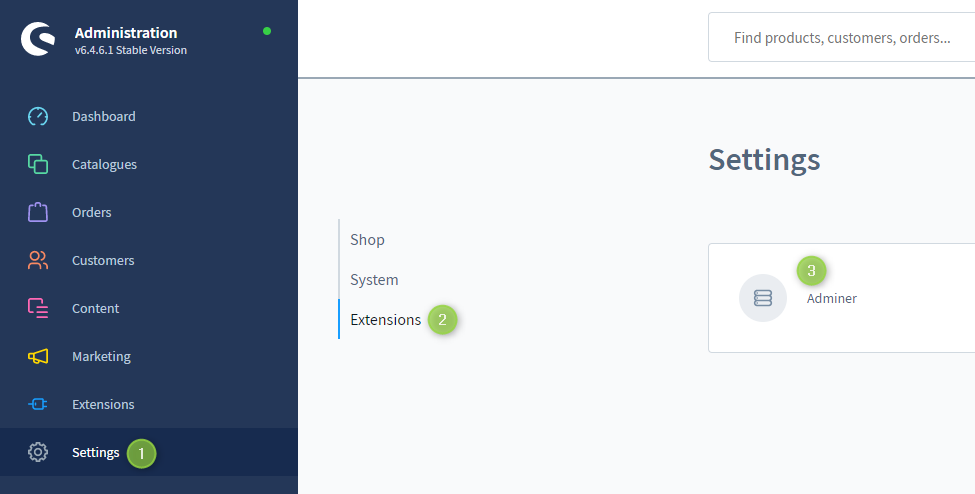
- Once the extension has been successfully activated, you can access your database via the Shopware settings ("Settings" => "Extensions" => "Adminer")
- Now you are ready to make changes in the database