
The widget "Payment methods" is a widget with which you can display the payment methods you offer with their logos.
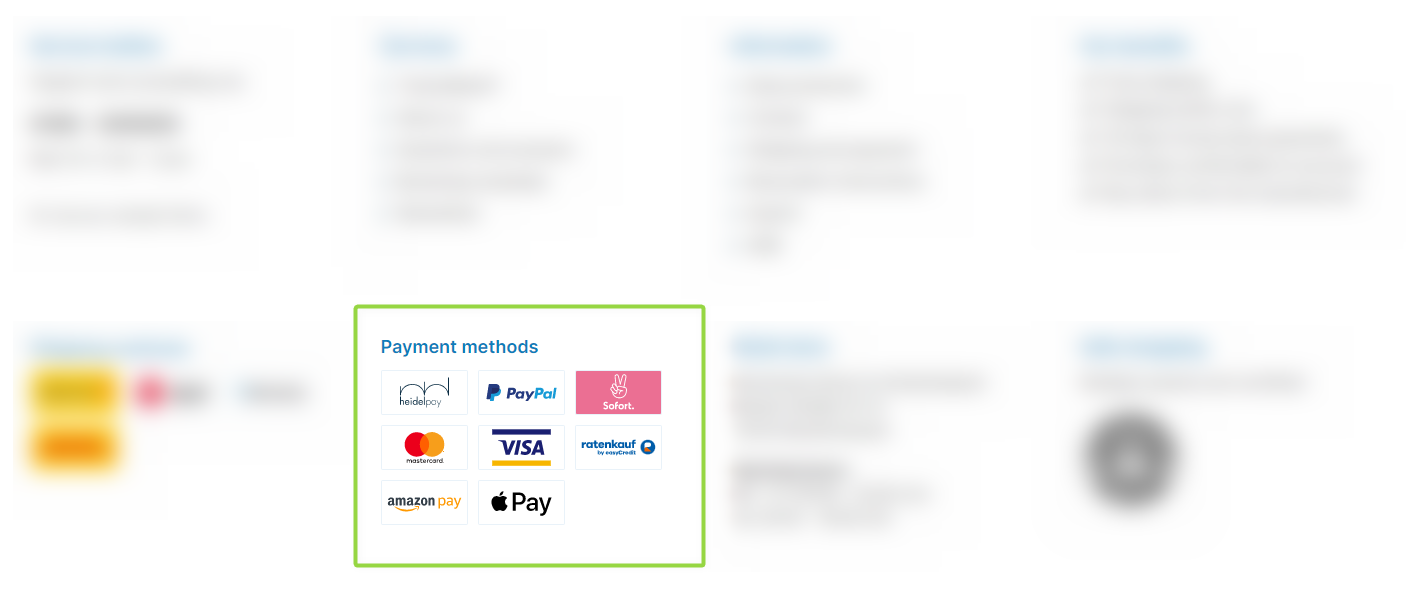
ThemeWare® "Payment logos" widget
Configuration
You can configure the "Payment logos" widget in the theme configuration.
You can find the configuration in the "Widgets" tab.
Content
- Edit the headline using the snippet
twt.widget.payment.headline. - Optional: Edit the link of the logos using the snippet
twt.widget.payment.link. - For custom logos you maintain the alt and title texts via
twt.widget.payment.customImage1–3.alt/.title(see "Accessibility").
Note: For information on how to edit snippets, see the following instructions: Texts: Editing and translation
Tip: If a change does not affect the storefront, just clear the Shopware cache: Clearing / warming up the Shopware cache
Configuring payment methods
You configure the actual payment methods in Shopware 6 via the corresponding administration in the Shopware settings ("Settings" > "Shop").
Payment method logos
You can upload your logos for the corresponding payment methods via the payment management in the Shopware settings.
Tip: In the free ThemeWare® Utilities you will find a logo set with 90 pagespeed-optimised graphics for payment methods.
Accessibility
You can maintain the tooltip text (title attribute) using the following snippets:
twt.widget.payment.customImage1.titletwt.widget.payment.customImage2.titletwt.widget.payment.customImage3.title
The title is displayed on mouseover, but is not relevant for accessibility, as it is usually ignored by screen readers.
Alt attribute
You can maintain the alt text of the custom logos using the following snippets:
twt.widget.payment.customImage1.alttwt.widget.payment.customImage2.alttwt.widget.payment.customImage3.alt
For the automatically determined payment method logos, the alt text comes from the alternative text of the media item in Shopware, or from the name of the payment method as a fallback.
Note: When the logos are linked, the alt text no longer describes the logo but the destination of the link. The text is inserted into the following snippet for this purpose:
twt.widget.payment.linkAlt(default:Payment information about %name%)
The placeholder %name% is replaced by the alt text of the respective logo. Without linking, the snippet is not applied.
This is the same approach Shopware uses for the shop logo in the header: The link does not carry a label of its own but takes it from the alt attribute of the image. No aria-label is output.
Options
- Link logos
- Makes the logos clickable; you set the link via the snippet
twt.widget.payment.link.
- Makes the logos clickable; you set the link via the snippet
- Show fallback badges
- Shows a text badge for payment methods without a stored logo.
- Show only custom images
- Shows only your own logos instead of the automatically determined payment method logos.
Summary
Theme configuration
- Tab "Widgets" => Block "Payment logos"
- Tab "Widgets" => Block "Payment logos" => Section "Basic configuration" => "Link logos" / "Show fallback badges" / "Show only custom images"
Snippets
- Headline
twt.widget.payment.headline
- Link for logos (optional)
twt.widget.payment.link
- Custom logos
twt.widget.payment.customImage1.alttwt.widget.payment.customImage1.titletwt.widget.payment.customImage2.alttwt.widget.payment.customImage2.titletwt.widget.payment.customImage3.alttwt.widget.payment.customImage3.title