
The ThemeWare® "Countdown banner (compact)" is a "Sale" banner element for your Shopping Experiences.

ThemeWare® "Countdown banner (compact)"
Note: The element is explicitly intended for use in its own CMS block. It is not designed for use in other CMS blocks and therefore cannot be exchanged or placed in other blocks.
Important: This element is only available in the ThemeWare® Pro Edition.
The compact "Countdown banner" has two phases:
- Pre-sale phase
- Sale phase
1. Pre-sale phase
The pre-sale phase is a countdown to the start of the final sale. This offers the opportunity to promote an upcoming sale.
Tip: Link the button to your newsletter subscription page or to the scroll anchor #newsletterSubscription of the ThemeWare® Newsletter footer widget.
2. Sale phase
Die Sale-Phase ist ein Countdown bis zum Ende des entsprechenden Sales.
Tip: Link the button to a sale category or landing page.
Sale finished
After both phases, the block is hidden by CSS. Then remove it from the corresponding Shopping Experience at the next possible moment.
Configure element
You can configure the ThemeWare® "Countdown banner (compact)" as follows:
- Click on the corresponding CMS block (1) to activate the "edit mode"
- Hover the mouse over the desired CMS element
- Click on the
 "gear" icon (2) to configure the CMS element
 - The "Element Settings" pop-up will open
- Make the desired changes
- Save your changes
You have now configured the CMS element.
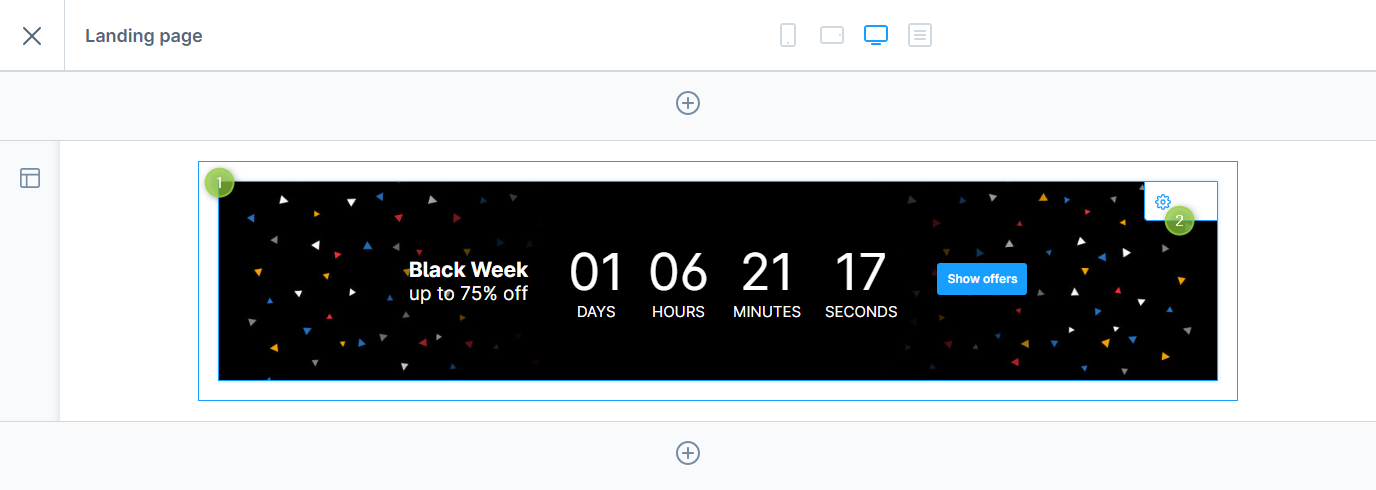
Configuring the ThemeWare® "Countdown banner (compact)"
Configuration
The configuration of the "Countdown banner (compact)" is quite self-explanatory and corresponds to the "Countdown banner" (see Countdown banner).
Layout
In the tab "Layout" you can additionally configure the alignment (justifyContent) and the maximum width of the content.
SEO & Pagespeed
In the tab "SEO & Pagespeed" you can configure the HTML tag for the title.
Advanced
You can select any HTML element of our banners using appropriate CSS classes. If you would like to use your own CSS classes, you can add them in the tab "Advanced".
Responsive
In the tab "Responsive" you can configure the "wrapping" of the counter (see Countdown banner (compact)).
Breakpoint
Select the desired breakpoint. The content is displayed in a single row from this viewport onwards.
Single-line / row alignment
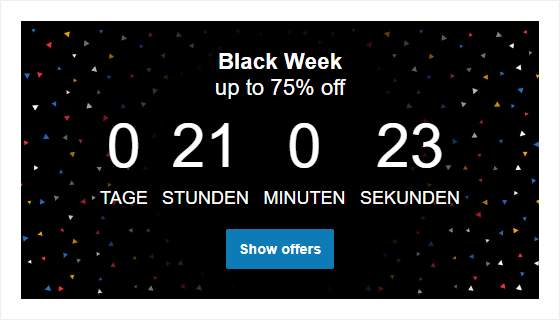
Wrapped / column alignment
Layout types
There are currently three different layout types (see screenshots below) available for the counter:
- Clean countdown
- Numbers with coloured background
- Counters with coloured background
Screenshots

Clean countdown

Numbers with coloured background

Counters with coloured background
Image (Background image)
As you can see from the preview graphic of the "Countdown banner", it makes sense to leave some "space" for the text in order to make it easier to read.
Tip: To help you to create the perfect background image, you will find PSD templates for CMS elements in the ThemeWare® Utilities.
Snippets
- twt.cms.countdownBanner.days
- twt.cms.countdownBanner.hours
- twt.cms.countdownBanner.minutes
- twt.cms.countdownBanner.seconds