
With further links you can add up to three further links (e.g. to manufacturer or information pages) in the description tab of a product. You maintain these via custom fields in the corresponding product.
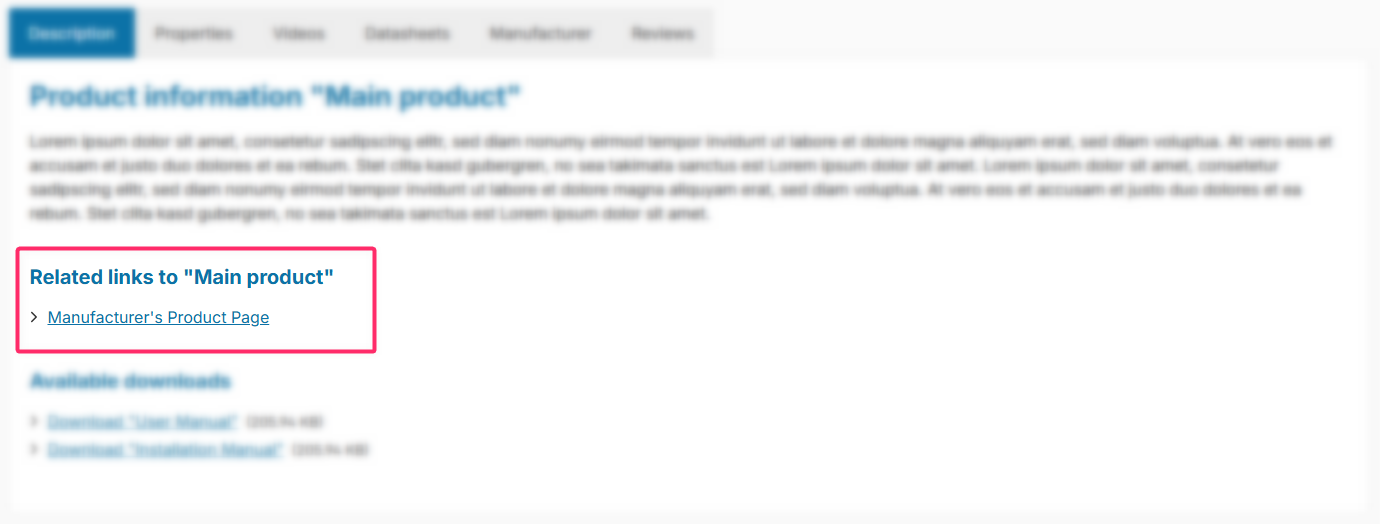
Note: The further links are displayed in the "Description" tab if the "Show further links" configuration is enabled and at least one link has been added via a custom field (Link 1–3).
Configuration
Theme configuration
- Go to the "Product pages" tab
- Expand the "Tab "Description"" block
- Scroll to the section "Further product links"
- Enable the configuration "Show further links"
- Optional: Use "Open links in a new tab" to define whether the links open in a new tab
- Save your changes after editing
Further links (Custom fields)
- Switch via the main navigation to the "Product managment" ("Catalogues" => "Products")
- Choose the product you want to edit
- Switch to the tab "Specifications"
- Scroll to the section "Custom fields"
- Enter the desired URL in the custom field "→ Further link 1-3"
- Enter the desired link text in the custom field "Further link 1-3 – Title"
- Save your changes
Text: Headline
- Edit the headline with the following snippet:
twt.detail.furtherLinks.title
Note: For information on how to edit snippets, see the following instructions: Texts: Editing and translation
Tip: If a change does not affect the storefront, just clear the Shopware cache: Clearing / warming up the Shopware cache
Custom fields
Further linksSummary
Theme configuration
- Tab "Product pages" => Block "Tab "Description"" => Section "Further product links" => Show further links
- Tab "Product pages" => Block "Tab "Description"" => Section "Further product links" => Open links in a new tab
Snippets
twt.detail.furtherLinks.title%product%is replaced by the product name.
twt.detail.furtherLinks.fallback