
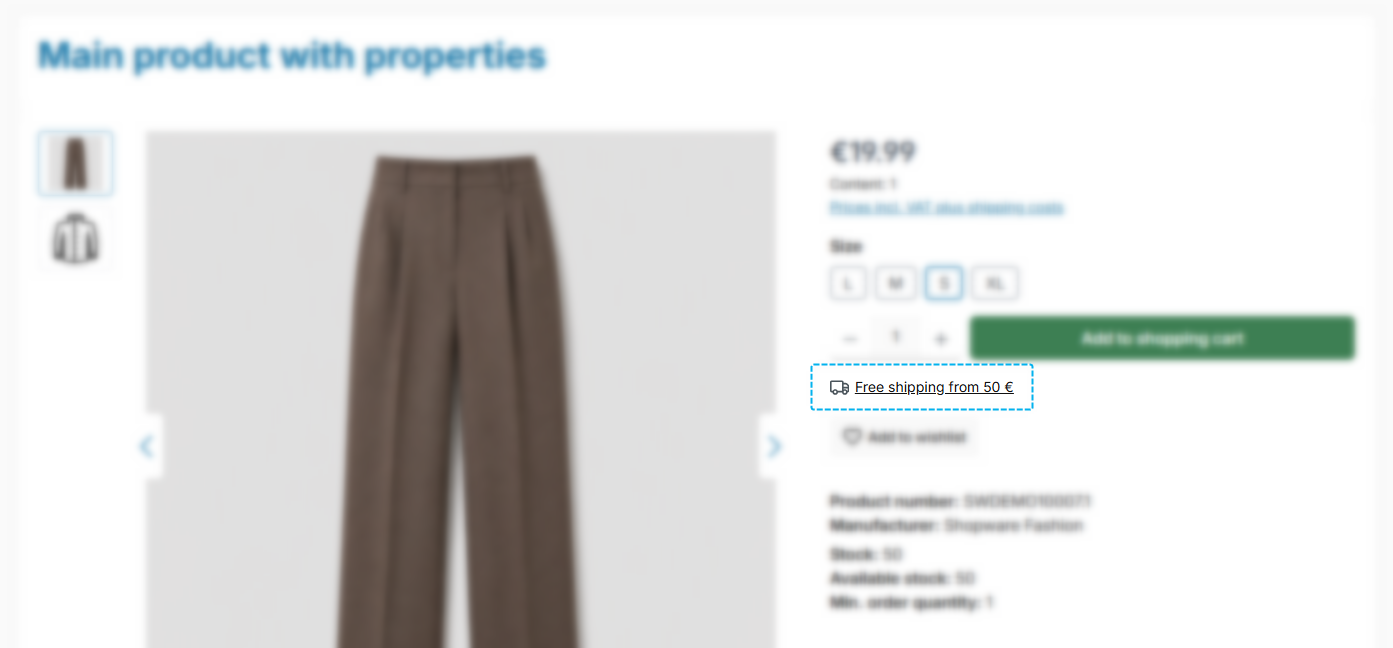
The shipping link shows a short note about your shipping costs below the buy button – for example "Free shipping from 50 €". A click opens the shipping and payment information page configured in your shop as an overlay, so your customer stays on the product page.
Note: Which page opens is defined in the Shopware settings ("Settings" > "Shop" > "Basic information" > "Shop pages" > "Shipping/payment information"). It is the same page that Shopware's tax note ("plus shipping costs") opens.
Configuration
Theme configuration
- Go to the "Product pages" tab
- Expand the "Buy box" block
- Scroll to the section "Shipping link"
- Choose the option "show" under "Show shipping link"
- Save your changes after editing
Content
- Write the text via the snippet
twt.detail.shippingLink - The preset is "Free shipping from 50 €"
Note: For information on how to edit snippets, see the following instructions: Texts: Editing and translation
The text is your statement
Important: If you state a threshold in the snippet ("Free shipping from 50 €"), it has to apply to all delivery countries of your shop.
Shopware manages shipping costs per shipping method, currency and rule – a snippet cannot tell those apart, because snippets belong to the language, not to the delivery country. A shop delivering to Germany and Austria uses the same German text source for both.
If you deliver under different conditions, phrase the text neutrally – for example "Shipping costs & delivery times". The details are then on the linked page, which you maintain anyway. That way the link works for every shop, no matter which countries it delivers to.
Automatic exceptions
The link does not appear in two cases:
- The product is flagged as free of shipping costs. A threshold "from X €" would be misleading there – and the "Free shipping" label already shows the information at that spot.
- No shipping and payment information page is configured in the shop. The text is then shown without a link instead of offering a click that leads nowhere.
Summary
Theme configuration
- Tab "Product pages" => Block "Buy box" => Section "Shipping link" => Show shipping link
Snippet
twt.detail.shippingLink
Shopware setting
- "Settings" > "Shop" > "Basic information" > "Shop pages" > "Shipping/payment information"