
With ThemeWare® you can use the "Floating widget" of our Shopware 5 themes in your Shopware 6 shop as well, for example to display contact information prominently.
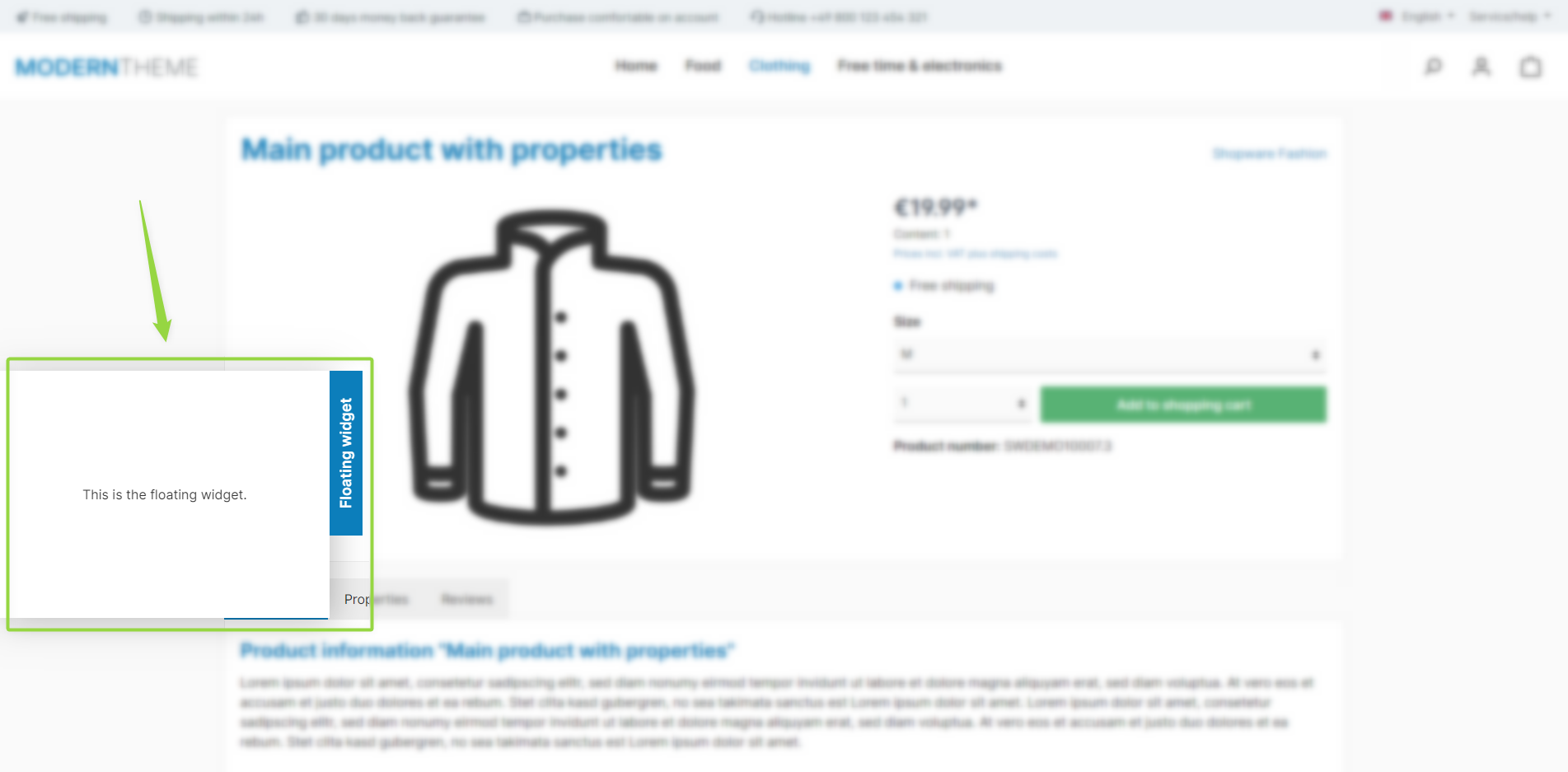
ThemeWare® "Floating widget"
Note: The floating widget is shown if the "Show floating widget" configuration is enabled. The content is maintained via snippets.
Configuration
Theme configuration
- Go to the tab "Extensions"
- Expand the block "Floating widget"
- Enable the floating widget with the configuration "Show floating widget"
- Save your changes after editing
Content
- Edit the title and text of the floating widget using the following snippets:
twt.extension.floatingWidget.titletwt.extension.floatingWidget.body
- Optional: Edit the link URL using the snippet
twt.extension.floatingWidget.link(only used if the "Link widget" configuration is enabled)
Note: For information on how to edit snippets, see the following instructions: Texts: Editing and translation
Tip: If a change does not affect the storefront, just clear the Shopware cache: Clearing / warming up the Shopware cache
Options
- Show floating widget @Phone (<768px)
- Controls whether the widget appears on smartphones (<768px).
- Position
- Places the widget "left" or "right".
- Hover effect
- "no effect", "pull out" or "reduce opacity".
- Show overlay (if opended)
- Places a dimming overlay over the page while the widget is open.
- Show opened (when the page has been loaded)
- Opens the widget automatically when the page loads.
- Animate (when the page has been loaded)
- "no animation" or "Wobble (3x)".
- Link widget
- Makes the widget clickable: "no", "yes" or "yes (open in new tab)". You set the target URL via the snippet
twt.extension.floatingWidget.link.
- Makes the widget clickable: "no", "yes" or "yes (open in new tab)". You set the target URL via the snippet
In addition, the size, padding, alignment and the distance to the page edge as well as colors, font and a background image can be adjusted.
Summary
Theme configuration
- Tab "Extensions" => Block "Floating widget" => Show floating widget / Show floating widget @Phone (<768px)
- Tab "Extensions" => Block "Floating widget" => Section "Basic configuration" => Position / Hover effect / Show overlay / Show opened / Animate / Link widget
Snippets
- Title
twt.extension.floatingWidget.title
- Text
twt.extension.floatingWidget.body
- Link
twt.extension.floatingWidget.link
- Alt text (image)
twt.extension.floatingWidget.altText
- Aria label (Widget)
twt.extension.floatingWidget.ariaLabel
- Aria label (Button)
twt.extension.floatingWidget.closeAriaLabeltwt.extension.floatingWidget.openAriaLabel
- Aria label (Link)
twt.extension.floatingWidget.linkAriaLabel