
You can add product data sheets in PDF format to the product using custom fields in the respective product. The data sheets can be displayed on product pages either in the "Properties" tab or in a separate "Datasheets" tab.
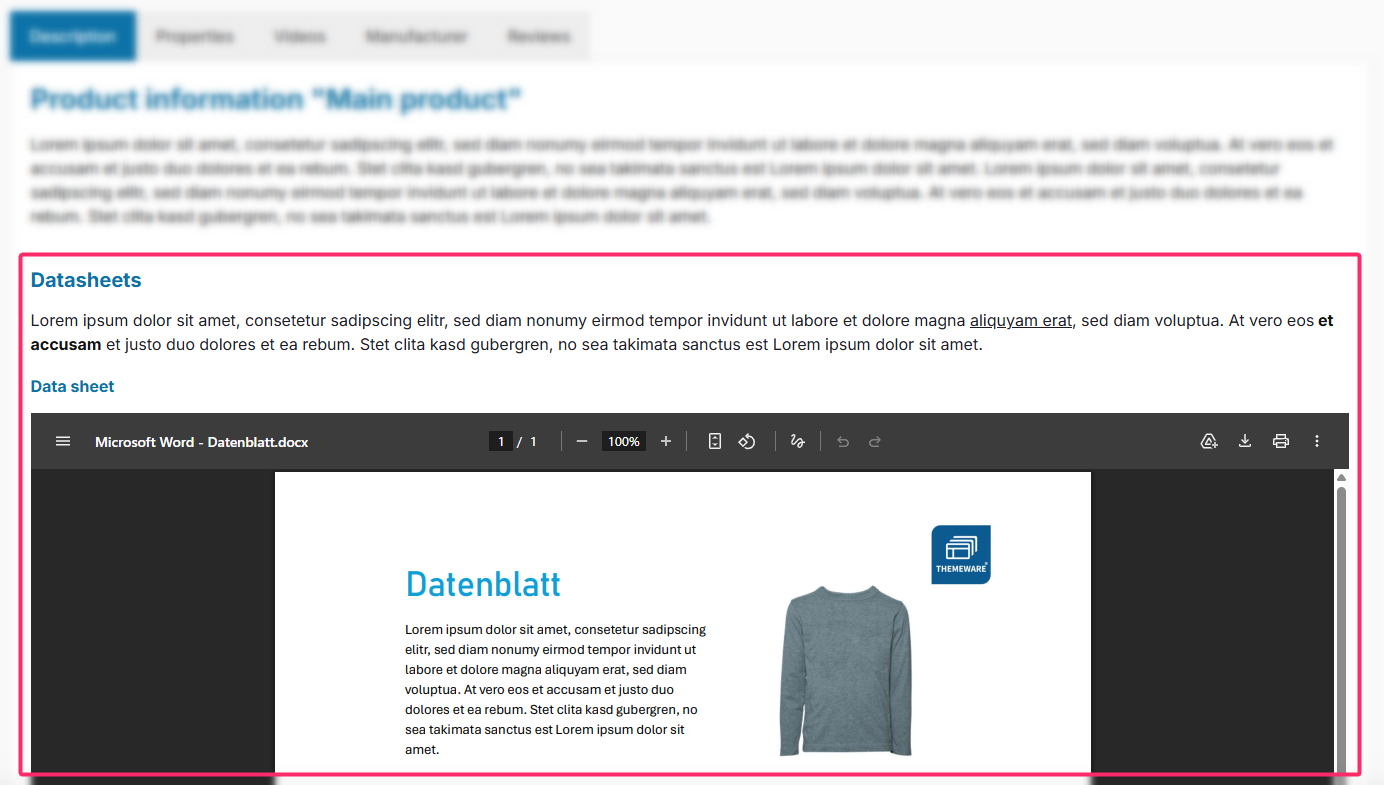
Note: Currently, only "PDF" files are supported.
Note: The datasheets are displayed within the product description if the feature is enabled in the theme configuration, the dedicated datasheet tab is disabled, and at least one datasheet has been assigned using a custom field (Datasheet 1–3).
Guide: You can find a step-by-step guide in the ThemeWare® Wiki: Providing datasheets as PDF
Note: The tab is displayed if the feature is enabled as a dedicated tab in the theme configuration and at least one datasheet has been assigned using a custom field (Datasheet 1–3).
Configuration
Theme configuration
Datasheets in the properties tab
- Go to the "Product pages" tab
- Expand the "Tab "Description"" block
- Scroll to the section "Datasheets"
- Enable the configuration "Show datasheets"
- Optional: Use the "Show preview" configuration to control whether the embedded PDF preview is shown in the description tab
- Save your changes after editing
Datasheets in a separate tab
- Go to the "Product pages" tab
- Expand the "Tab "Datasheets"" block
- Enable the configuration "Show datasheets"
- Save your changes after editing
Datasheets (Custom fields)
- Switch via the main navigation to the "Product managment" (1) (2) ("Catalogues" => "Products")
- Choose the product you want to edit (3)
- Switch to the tab "Specifications"
- Scroll to the section "Custom fields"
- Select the custom field set "Datasheets" of your theme
- Select a datasheet (PDF file) from your media manager in the custom field "Datasheet 1-3"
- Enter the desired link text in the custom field "Datasheet 1-3 – Title"
- Optional: Enter a description in the custom field "Datasheets (Text)"
- Save your changes
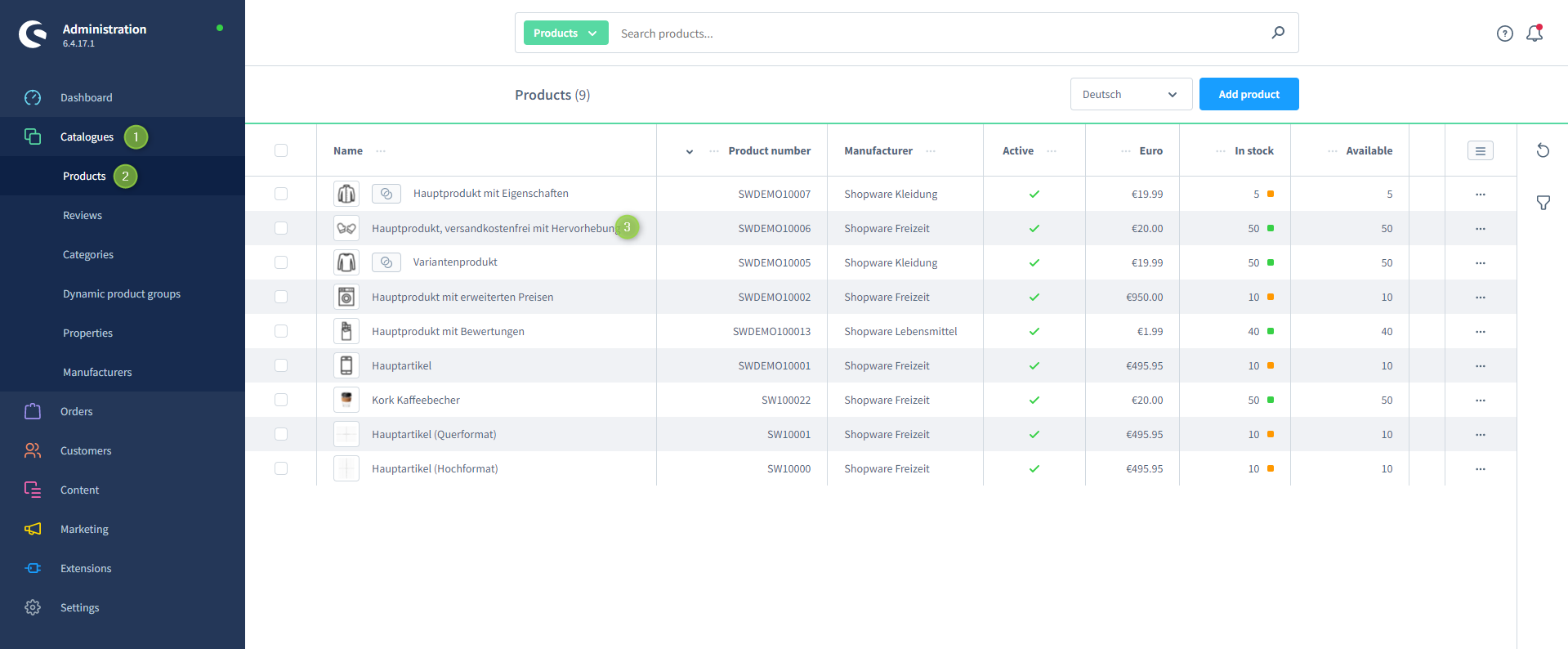
Shopware 6 product managment
In the separate datasheets tab, the embedded PDF preview is always displayed. In the description tab, it is only shown if the "Show preview" configuration is enabled. The datasheet download link remains available at all times in both cases.
Custom fields
DatasheetsSummary
Theme configuration
- Tab "Product pages" => Block "Tab "Description"" => Section "Datasheets" => Show datasheets
- Tab "Product pages" => Block "Tab "Description"" => Section "Datasheets" => Show preview
- Tab "Product pages" => Block "Tab "Datasheets"" => Show datasheets tab
Snippets
twt.detail.datasheets.link%name%is replaced by the file name.
twt.detail.datasheets.fallback