
In our themes, you can choose from different icon sets to better match the design of your shop.
By selecting an icon set, certain default icons in the theme are automatically replaced – for example, in the header or buttons – as long as a corresponding icon is available in the selected set.
Some icons (e.g. cart, account, or search) can also be customized individually using separate configuration fields.
Note: If the "default" icon set is selected, no icons will be replaced. This set keeps the default appearance without any modifications.
ThemeWare® One

ThemeWare® One solid (new)

ThemeWare® One thin (new)

ThemeWare® Light

ThemeWare® Six (new)

ThemeWare® Six solid (new)

Boxicons

Boxicons (variation)

Boxicons solid

Boxicons solid (variation)

Font Awesome v5
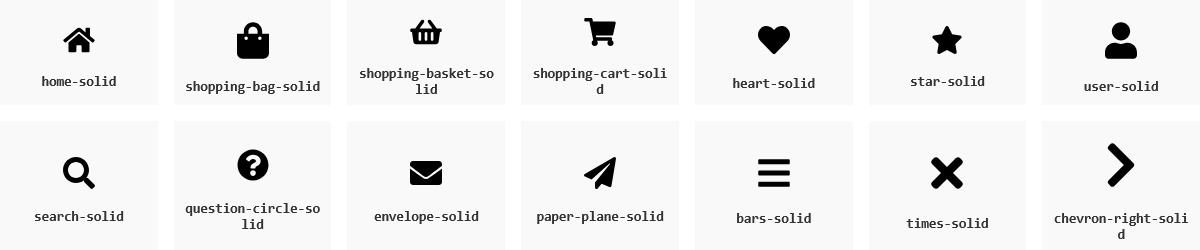
Font Awesome v5 (variation)

Font Awesome v6
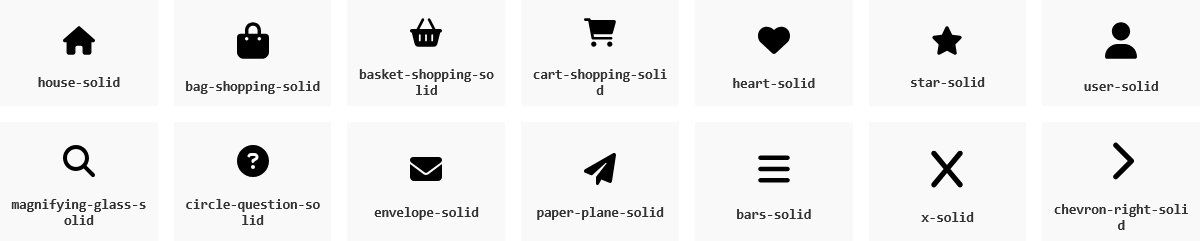
Font Awesome v6 (variation)

Feather

Material Icons

Shopware 6
You can find an overview of the standard icons for Shopware 6 in the ThemeWare® Service Portal:
Boxicons v2.0.5 – MIT License (View)
Feather Icons – MIT License (View)
Font Awesome Free v5.15.4 – CC BY 4.0 License (View)
Font Awesome Free v6.2.0 – CC BY 4.0 License (View)
Material Design Icons v4.0.0 – Apache License 2.0 (View)