
ThemeWare® provides the functionality to display logos of the available payment methods in the Buybox on product pages.
We try to keep as many elements of ThemeWare® modular as possible, which is particularly evident in the approach of the widgets. You probably know these from the footer. The "Payment methods on product pages" are an example of this modularity, because technically speaking, this is the "Payment methods" widget.
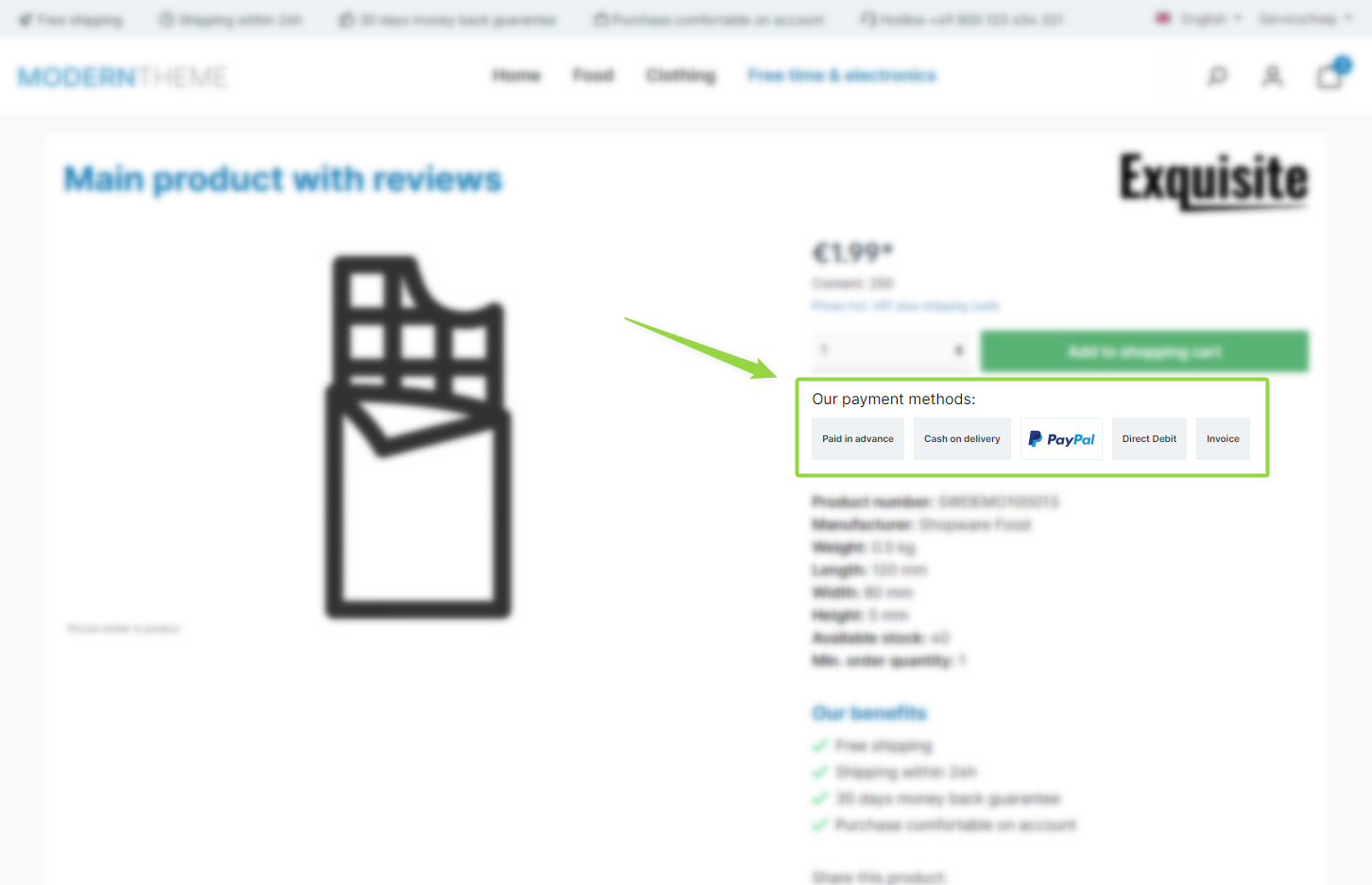
ThemeWare® "Payment methods on product pages"
Note: The payment logos are displayed if the "Show payment logos" configuration is enabled. The payment methods available in the shop are shown; the position setting controls whether they appear above or below the product specifications.
Configuration
Theme configuration
- Go to the "Product pages" tab
- Expand the block "Payment logos (in the buybox)"
- Enable the configuration "Show payment logos"
- Save your changes after editing
Payment methods
- You can manage the payment methods in the Shopware settings: "Settings" => "Shop" => "Payment methods"
Text: Headline
- Edit the headline with the following snippet:
twt.detail.paymentLogos.headline
Note: For information on how to edit snippets, see the following instructions: Texts: Editing and translation
Tip: If a change does not affect the storefront, just clear the Shopware cache: Clearing / warming up the Shopware cache
Summary
Theme configuration
- Tab "Product pages" => Block "Payment logos (in the buy box)"
Snippet
twt.detail.paymentLogos.headline
Additional information
You can find more information on how to create and manage payment methods with Shopware 6 in the Shopware documentation:
Shopware documentation => Payment methods