
The ThemeWare® "Image & text layered" element displays an image with a text box layered on top. The element is explicitly intended for use in its own CMS block.
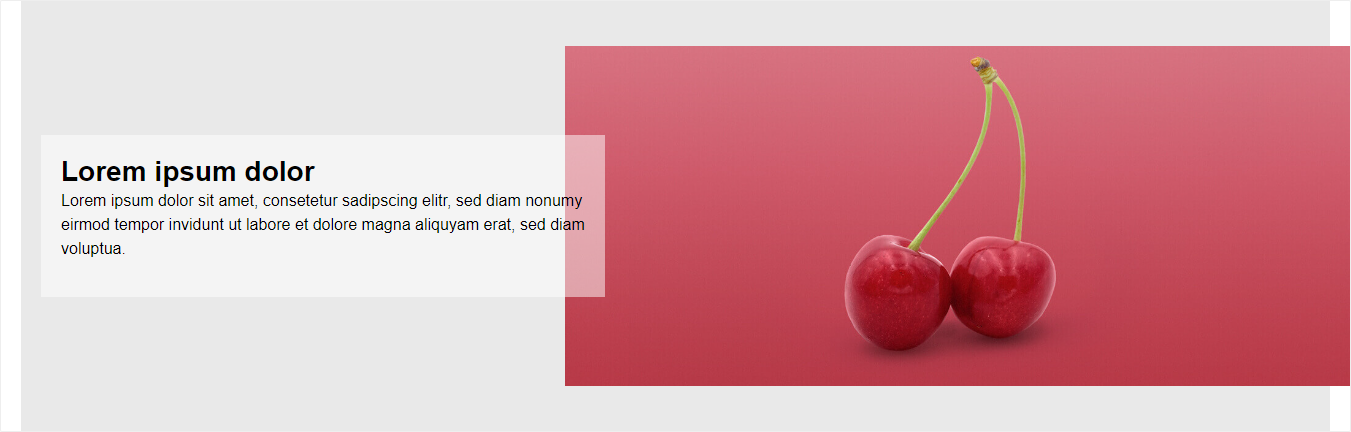
ThemeWare® "Image & text layered" element
Note: The element is explicitly intended for use in its own CMS block. It is not designed for use in other CMS blocks and therefore cannot be exchanged or placed in other blocks.
Important: This element is only available in the ThemeWare® Pro Edition.
Configure element
You can configure the ThemeWare® "Image & text layered" element as follows:
- Click on the corresponding CMS block (1) to activate the "edit mode"
- Hover the mouse over the desired CMS element
- Click on the
 "gear" icon (2) to configure the CMS element
 - The "Element Settings" pop-up will open
- Make the desired changes
- Save your changes
You have now configured the CMS element.
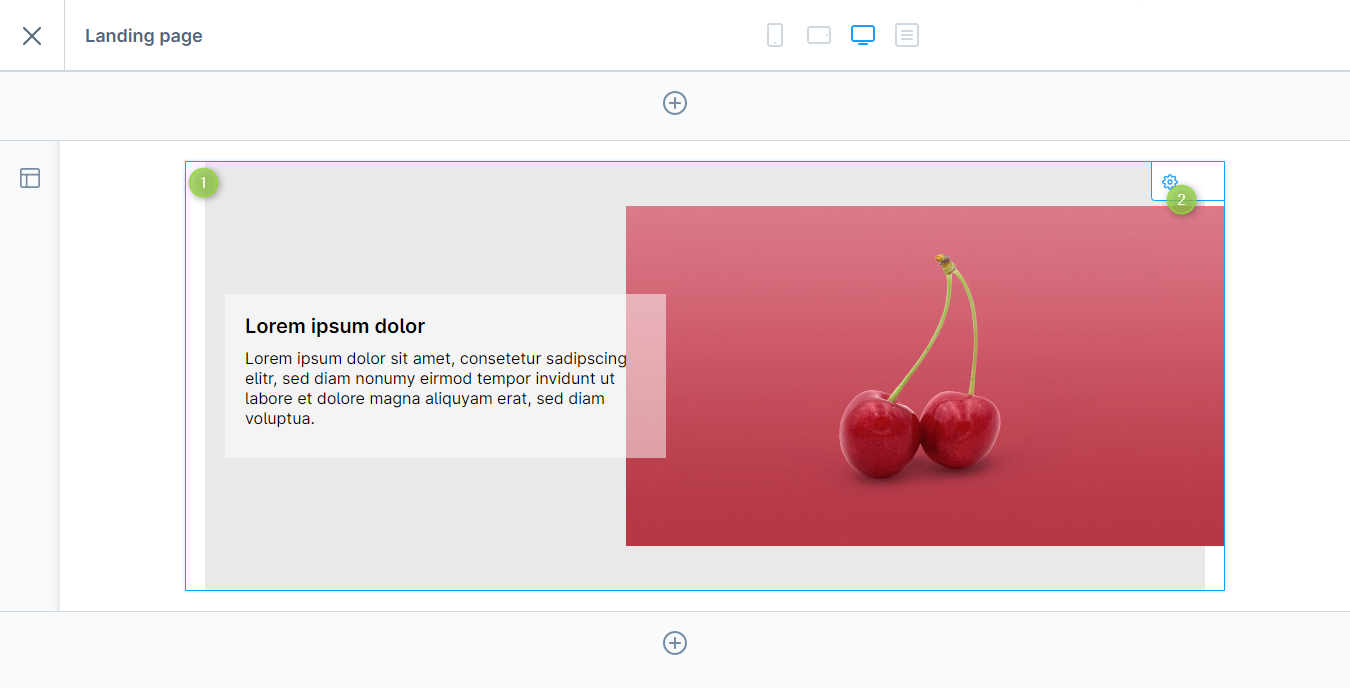
Configuring the ThemeWare® "Image & text layered" element
Configuration
The configuration of the "Image & text layered" element is fairly self-explanatory. The headline, the text and the image are mandatory fields. Strictly speaking, you do not need to configure anything else.
General
In the "General" tab you configure the content of the element.
Content
In the "Content" section you can enter the headline and the text for the element. The text is a mandatory field.
Image
In the "Image" section you define the image of the element. The image is a mandatory field. You can also configure the display mode and the minimum height (default:
340px, only visible in "Cover" mode).Accessibility
In the "Accessibility" section you can enter the alt text for the image and specify whether the image should be marked as decorative.
Layout
In the "Layout" tab you can configure the appearance of the element.
General
In the "General" section you can configure the layout type ("Standard" or "Within"), the arrangement ("Standard" or "Reversed") and the background colour.
Content
In the "Content" section you can configure the text alignment.
Headline
In the "Headline" section you can configure the font family and the text colour of the headline.
Text
In the "Text" section you can configure the font family and the text colour of the text.
Image
In the "Image" section you can configure the image position (object position).
Content overlay
In the "Content overlay" section you can configure the background colour of the text overlay (default:
rgba(255, 255, 255, 0.5)).
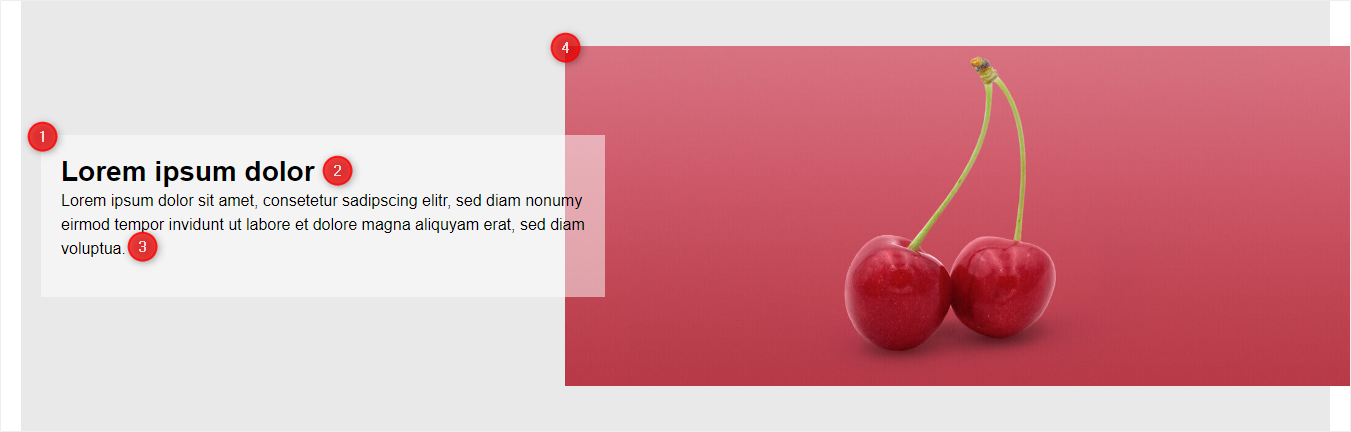
Elements of the "Image & text layered" element
SEO & Pagespeed
In the "SEO & Pagespeed" tab you can configure the HTML tag and the HTML tag class for the headline as well as the fetch priority and lazy loading of the image.
Advanced
You can select each HTML element of our CMS elements using the appropriate CSS classes. If you want to use your own CSS classes, you can insert them in the "Advanced" tab. Separate fields are available for the CSS class of the element, the headline and the text.
Data mapping (coming soon)
On category and product pages, the following fields can be dynamically mapped from the current category or product:
- Image - e.g. category image or product image
- Headline - e.g. category name or product name
- Text - e.g. category description or product description