
With ThemeWare®, you can use the sales-promoting "Checkout steps" of our Shopware 5 themes in your Shopware 6 shop as well.
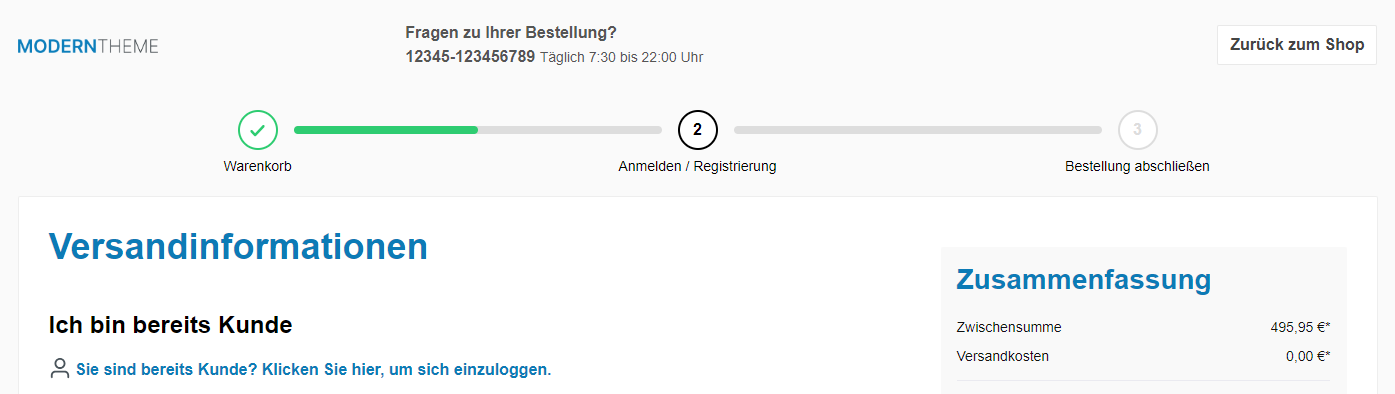
Note: The checkout steps are shown in the checkout if the "Show checkout steps" configuration is enabled. You can additionally display them in the shopping cart via "Show checkout steps in shopping cart".
Configuration
Theme configuration
- Go to the tab "Extensions"
- Expand the block "Checkout steps"
- Enable the configuration "Show checkout steps" (display in the checkout)
- Optional: Enable "Show checkout steps in shopping cart" to additionally display them in the shopping cart
- Save your changes after editing
Content
- Edit the checkout step texts using the following snippets:
twt.extension.checkoutSteps.step1twt.extension.checkoutSteps.step2twt.extension.checkoutSteps.step3
Note: For information on how to edit snippets, see the following instructions: Texts: Editing and translation
Tip: If a change does not affect the storefront, just clear the Shopware cache: Clearing / warming up the Shopware cache
Options
- Layout type
- "Continuous lines", "Lines between steps", "Continuous bars between steps" or "Bars between steps".
- Icon style (Steps)
- "Steps with numbers", "Steps with icons" or "Small steps".
- Show text from...
- Defines from which breakpoint the text below the steps appears (or "don't show").
Summary
Theme configuration
- Tab "Extensions" => Block "Checkout steps" => Show checkout steps / Show checkout steps in shopping cart
- Tab "Extensions" => Block "Checkout steps" => Section "Basic configuration" => Layout type / Icon style (Steps) / Show text from...
Snippets
- Text
twt.extension.checkoutSteps.step1twt.extension.checkoutSteps.step2twt.extension.checkoutSteps.step3