
With the extension "Highlight category" you can, as the name says, highlight a category in the top navigation.
To do this, you activate the highlighting via a custom field in the corresponding category.

Highlighted category in top navigation
Note: A category is only highlighted in the top navigation if the "Highlight category" custom field is set to "yes" for it. The theme configuration only controls the appearance of the highlighting.
Guide: You can find a step-by-step guide in the ThemeWare® Wiki: Highlighting a category in the navigation
Configuration
Theme configuration
- Go to the "Header" tab
- Expand the "Top navigation" block
- Scroll to the section "Link (highlighted)"
- Now configure the highlighting as you like
- Save your changes after editing
Highlight category (custom field)
- Switch via the main navigation to the "Category managment" (1) (2) ("Catalogues" => "Categories")
- Choose the category you want to edit (3)
- To the right of the category list, the corresponding category now opens in the category editor (4)
- You are in the tab "General"
- Scroll to the block "Custom fields"
- Activate the highlighting with the custom field "Highlight category" and the option "yes"
- Save your changes
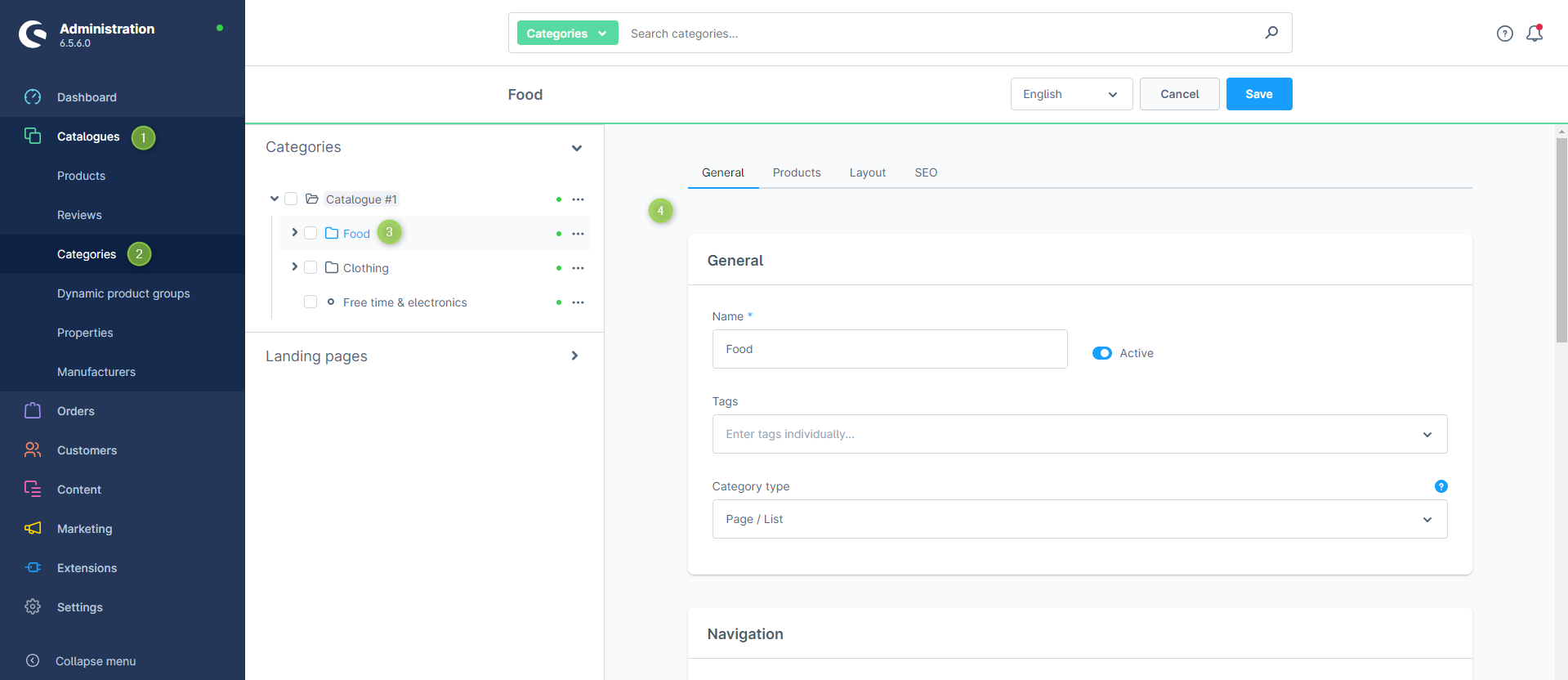
Shopware 6 "Category managment"
Custom fields
Highlight categorySummary
Theme configuration
- Tab "Header" => Block "Top navigation" => Section "Link (highlighted)"