
The navigation automatically displays the subcategories of the current category in small tiles. Name and image are based on the corresponding information in the category management of Shopware.
This CMS extension is made up of various "components":
The CMS extension "Listing subcategories" is based on the theme extension of the same name. Both extensions are configured via the theme configuration.
In contrast to the theme extension, the CMS extension can be positioned freely and you can overwrite the theme configuration with the configuration of the CMS element. In addition, the CMS extension provides you with additional layouts.
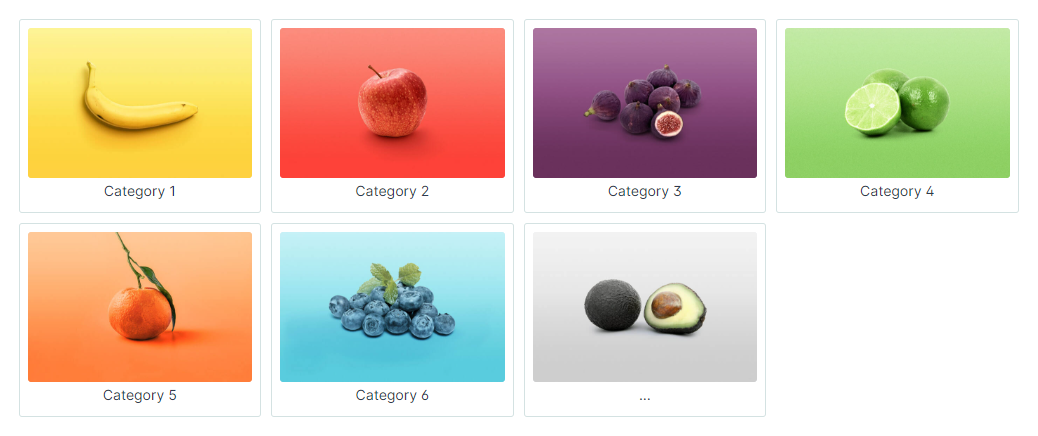
ThemeWare® CMS extension "Listing subcategories"
Note: The CMS extension "Listing subcategories" was developed for CMS pages of the type "Lising page", i.e. pages with (product) listings.
Note: Subcategories are currently only displayed in Shopware 6 for the main category.
Important: This element is only available in the ThemeWare® Pro Edition.
Tip: In the Cloud Edition, the theme extension of the same name is available: Listing subcategories
Configure element
You can configure the ThemeWare® "Listing subcategories" as follows:
- Click on the corresponding CMS block (1) to activate the "edit mode"
- Hover the mouse over the desired CMS element
- Click on the
 "gear" icon (2) to configure the CMS element
 - The "Element Settings" pop-up will open
- Make the desired changes
- Save your changes
You have now configured the CMS element.
Content
The texts and images shown were taken from the category management ("Catalogues" => "Categories") of Shopware.
The "Name" and the "Image" (= Display image) of the corresponding categories are displayed. The image is not mandatory.
Theme configuration
This CMS extension "Subcategories in Listing" is based on the theme extension of the same name. Both extensions are configured via the theme configuration:
Tab "Extensions" => Block "Listing subcategories (on listing pages)"
Note: You do not need to activate the theme extension to use the CMS extension.
Element configuration
The actual configuration of the "Listing subcategories" can be found in the tab 'Extensions' in the ThemeWare® configuration.
Layout
In the tab "Layout" you can activate a individual configuration for the element. This allows you to overwrite a few "global" configurations from the theme configuration.
Grid
In the tab "Grid" you can configure the number of columns in different viewports.
SEO & Pagespeed
In the tab "SEO & Pagespeed" you can configure the "Lazy loading" of the images.
Advanced
You can select each HTML element of our CMS elements using the appropriate CSS classes. If you want to use your own CSS classes, you can insert them in the "Advanced" tab.
Layout types
There are currently 6 different display modes available (see screenshots below):
- Button
- Buttons (Outline)
- Text only
- Image only
- Text below the image
- Text next to the image
Screenshots

Button

Text only

Image only

Text below the image

Text next to the image
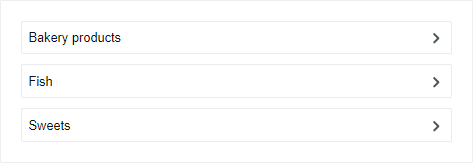
Mobile representation (all layout types)
Demo
You can find some examples of use in our demo shops:
ThemeWare® Demoshop => Listing subcategories (Button style)