
The Symbols tab displays the product symbols of a product in a separate tab on the product page.
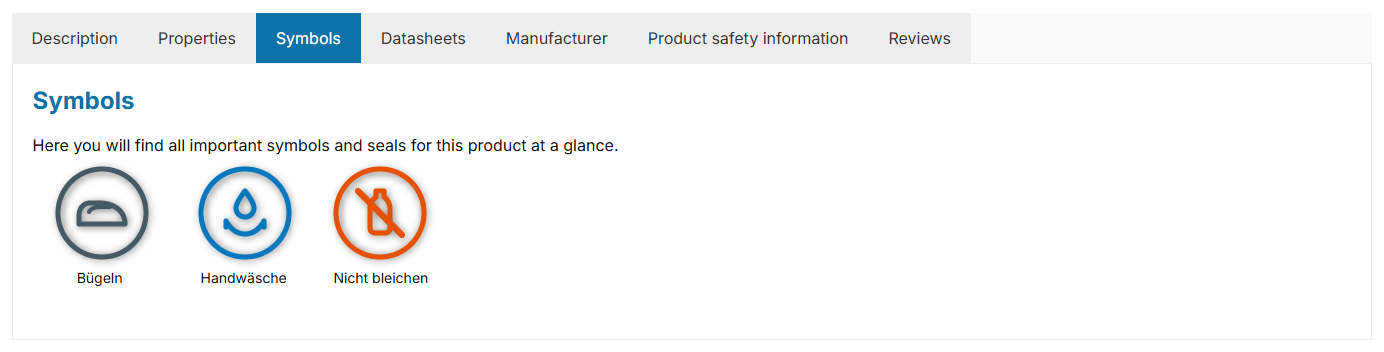
Note: The tab is displayed when the "Show product symbols" configuration is set to "show in a separate tab" and at least one symbol has been maintained for the product – via a property with an image or a custom field.
Configuration
Theme configuration
- Switch to the tab "Product pages"
- Open the block "Product symbols"
- Set the "Show product symbols" configuration to "show in a separate tab"
- Save your changes after editing
Content
The "Symbols tab" is filled via properties with an image and/or via custom fields in the respective product. As with all custom fields, make sure to fill them for variants accordingly.
Title
The name of the tab is based on the snippet twt.detail.tabSymbols.title.
Headline
A headline is displayed within the tab. You can adjust the text via the snippet twt.detail.tabSymbols.headline (%product% is replaced by the product name).
Note: You can find out how to edit snippets in the following tutorial: Edit and translate texts
Tip: If a change does not affect the storefront, simply clear the Shopware cache: Clearing / warming up the Shopware cache
Custom fields
SymbolsPropertiesOptions
- Show headline
- Specify whether the headline is displayed within the tab ("show" / "don't show").
Summary
Theme configuration
- Tab "Product pages" => Block "Product symbols" => Show product symbols
- Tab "Product pages" => Block "Tab 'Symbols'" => Section "Basic configuration" => Show headline
Snippets
- Title
twt.detail.tabSymbols.title
- Headline
twt.detail.tabSymbols.headline%product%is replaced by the product name.