
The Backup tab gives you an overview of all themes in your ThemeWare® family (base theme + duplicates) – including the sales channel assignment, a direct jump into the configuration and, of course, backing up the theme configuration.
Overview & configure
Each theme row shows which sales channel the theme is assigned to (or that it isn't assigned yet). Via "Configure" you jump straight into the Theme-Manager for that specific theme – for duplicates that means precisely the theme that is live on the respective sales channel.
Create a backup
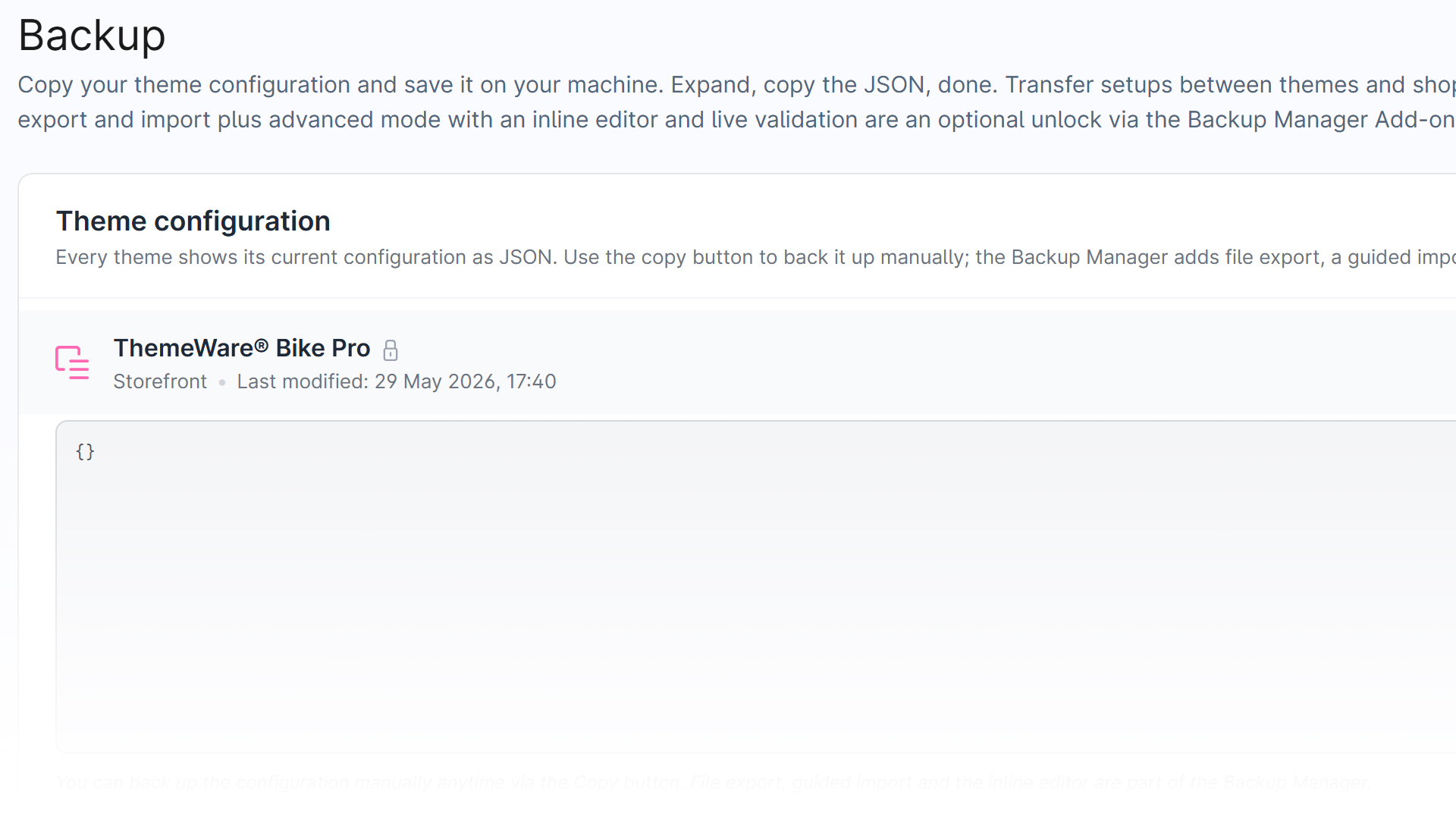
With the practical "Copy" function you back up a theme's configuration with a single click and make manual backups much easier. Expand, copy the JSON, done.
Step by step:
- Find the relevant theme in the backup tab.
- Expand the theme section.
- Click "Copy".
- The theme configuration is now in the clipboard.
- Paste it into a TXT file and save it.
What gets backed up?
Only the values you have changed yourself (configValues), not a complete copy of all settings. What this means for variants, duplicates, updates and media is explained in the Backup Manager.
Backup Manager (Add-on)
For details on the Backup Manager's features and pricing, see the Add-ons overview.
Backup ManagerYou want to create a new duplicate from a source instead?
That's what the "Take over configuration" function in the Variants tab is for. It creates a new theme with the customizations from any ThemeWare® edition (Pro or Cloud) and leaves your existing setup untouched.