
ThemeWare® provides the functionality to display many additional product specifications (e.g. manufacturer, dimensions, weight, availability, etc.) in the buybox on product pages, in addition to the product number.
Three custom fields can be used to individually supplement the existing specifications.
Two styles are available for the display: "Standard" (list) and "Compact" (a space-saving grid with the label above the respective value).
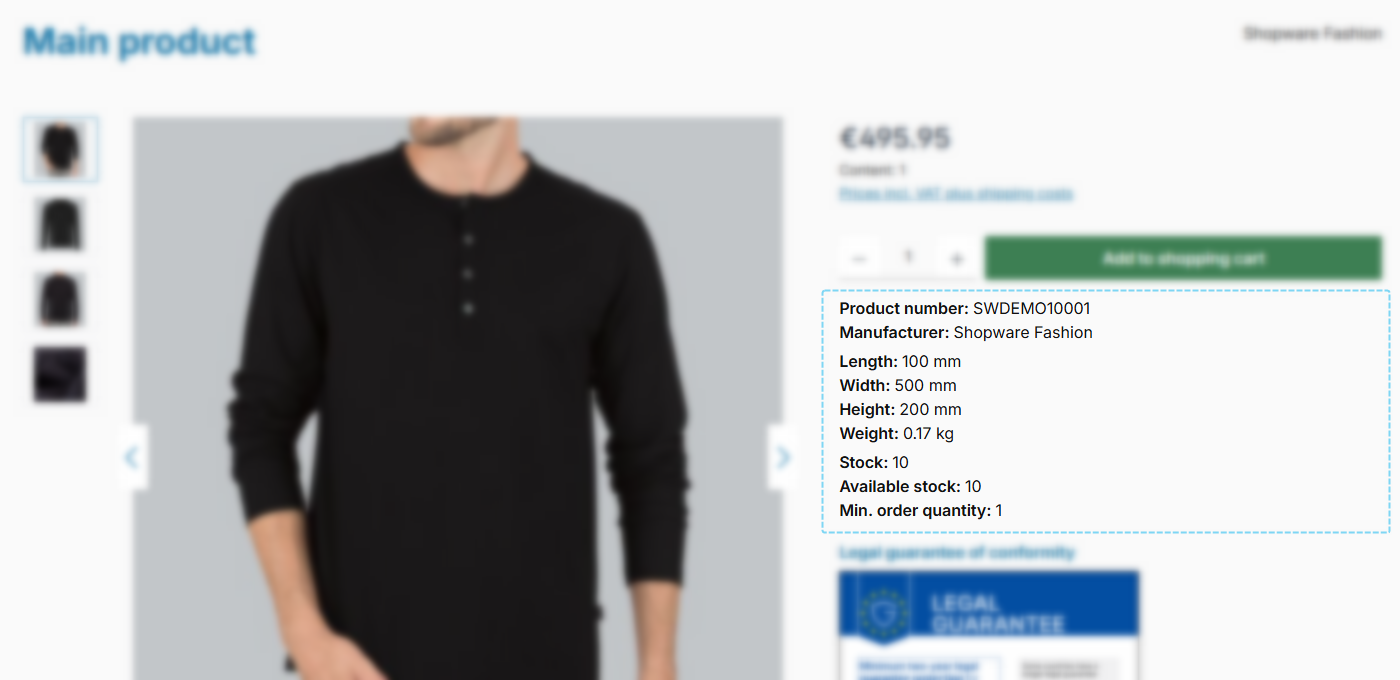
ThemeWare® "Product specifications"
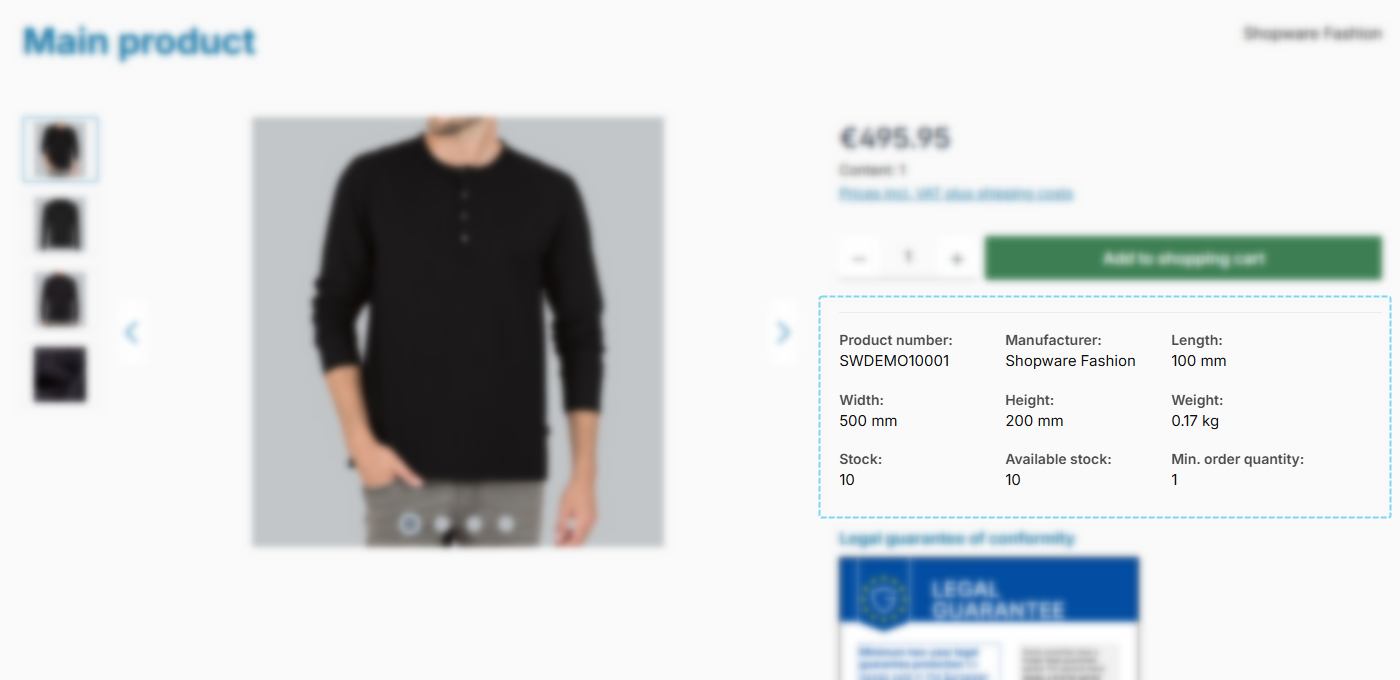
ThemeWare® "Product specifications" in the "Compact" style
Note: Each specification is enabled individually in the theme configuration and is only shown if the respective field has a value on the product (e.g. the manufacturer row only if a manufacturer is assigned). The three custom fields likewise only appear if they are filled.
Configuration
Theme configuration
- Go to the "Product pages" tab
- Expand the block "Product specifications (in the buy box)"
- In the section "Basic configuration", select the desired display via the "Style" configuration ("Standard" or "Compact")
- Activate the specifications to be displayed
- Save your changes after editing
Note: The "Spacing (Sections)" configuration only applies to the "Standard" style. In the "Compact" style, all specifications are displayed in one shared grid.
Product specifications
- Switch via the main navigation to the "Product managment" (1) (2) ("Catalogues" => "Products")
- Choose the product you want to edit (3)
- In the tabs "General" and "Specifications" you will find all Shopware product specifications
- Save your changes
ThemeWare® custom field 1-3
- Switch via the main navigation to the "Product managment" (1) (2) ("Catalogues" => "Products")
- Choose the product you want to edit (3)
- Switch to the tab "Specifications"
- Scroll to the section "Custom fields"
- Select the custom field set of your theme
- Enter the desired text in the custom field "Custom field 1", "Custom field 2" and/or "Custom field 3"
- Save your changes
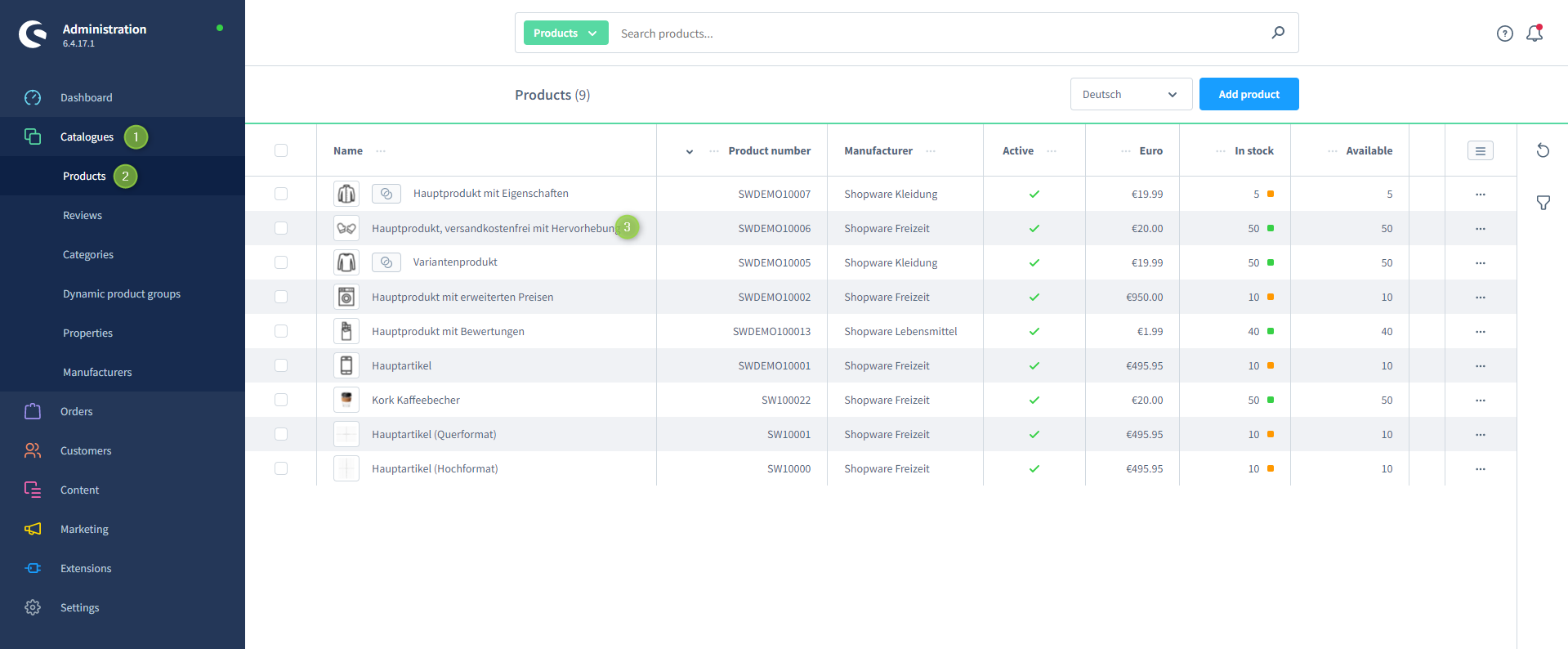
Shopware 6 product managment
Text: Labels
You can edit and/or translate the labels of the custom fields with the "Snippet management" using the following snippets:
- Available stock:
twt.detail.availableStockLabel - Custom field 1:
twt.detail.customFields.customField1.label - Custom field 2:
twt.detail.customFields.customField2.label - Custom field 3:
twt.detail.customFields.customField3.label - Delivery time:
twt.detail.deliveryTimeLabel - EAN:
twt.detail.eanLabel - Height:
twt.detail.heightLabel - Length:
twt.detail.lengthLabel - Max. order quantity:
twt.detail.maxpurchaseLabel - Min. order quantity:
twt.detail.minpurchaseLabel - Manufacturer:
twt.detail.manufacturerLabel - Manufacturer product number:
twt.detail.manufacturernumberLabel - Weight:
twt.detail.weightLabel - Width:
twt.detail.widthLabel
Note: For information on how to edit snippets, see the following instructions: Texts: Editing and translation
Tip: If a change does not affect the storefront, just clear the Shopware cache: Clearing / warming up the Shopware cache
Custom fields
Custom field 1Custom field 2Custom field 3Summary
Theme configuration
- Tab "Product pages" => Block "Product specifications (in the buy box)"
Snippets
twt.detail.availableStockLabeltwt.detail.customFields.customField1.labeltwt.detail.customFields.customField2.labeltwt.detail.customFields.customField3.labeltwt.detail.deliveryTimeLabeltwt.detail.eanLabeltwt.detail.heightLabeltwt.detail.lengthLabeltwt.detail.maxpurchaseLabeltwt.detail.minpurchaseLabeltwt.detail.manufacturerLabeltwt.detail.manufacturernumberLabeltwt.detail.weightLabeltwt.detail.widthLabel
Custom fields
Further information
You can find out how to edit snippets in the following instructions:
ThemeWare® Knowledge Base => Texts: Editing and translation