
By default, the product slider ends at the edge of its container. With this extension, the neighbouring products are partially visible on the left and right. This signals that there is more to see and encourages users to click through.
The setting applies globally to all product sliders. Individual CMS blocks can deviate from it using a CSS class.
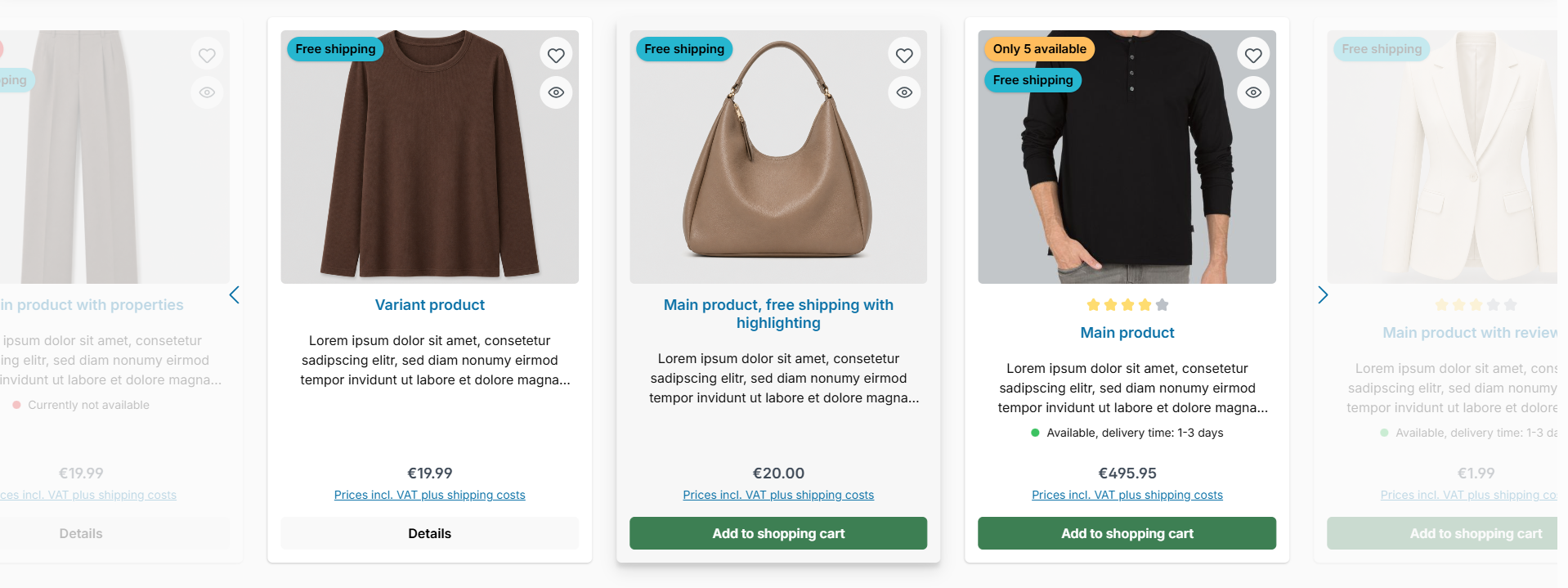
Note: The extension applies to all product sliders, including the cross-selling on product pages.
Layout types
Four layout types are available:
| Layout type | Effect |
|---|---|
| Off (default) | Shopware standard, the products end at the container edge |
| Peek | The neighbouring products are partially visible inside the container |
| Overflow | The neighbouring products extend beyond the container |
| Peek and overflow | Both combined |
Configuration
Theme configuration
- Go to the tab "Shopping Experiences"
- Expand the block "Product slider (Category 'Commerce')"
- Select the desired "Layout type" in the section "Design"
- Adjust the further configurations in the section "Basic configuration" if required
- Save your changes after editing
Cropped products
The configuration "Cropped products" controls how the cropped neighbouring products are displayed.
| Value | Effect |
|---|---|
| Normal | The neighbouring products are displayed unchanged |
| Dimmed | The neighbouring products are shown with reduced opacity and are not clickable |
Note: As soon as a product is fully visible, it becomes clickable again. Keyboard navigation automatically moves the focused product into view, making it operable.
Crop width
The width of the visible part of the neighbouring products can be set separately for desktop and mobile devices:
- "Crop width @Desktop (>=992px)" – default: 30 (pixels)
- "Crop width @Mobile (<992px)" – default: 20 (pixels)
Both configurations only apply to layout types with peek.
Individual layout per CMS block
You can keep the global setting and let individual CMS blocks deviate from it. To do so, add a CSS class to the respective block in the CMS editor.
| CSS class | Layout type |
|---|---|
twt-cms-product-slider-reset |
Off |
twt-cms-product-slider-peek |
Peek |
twt-cms-product-slider-overflow-visible |
Overflow |
twt-cms-product-slider |
Peek and overflow |
Tip: The class twt-cms-product-slider-reset fully resets the global setting for this block. This lets you keep individual sliders at the Shopware standard even when a layout type is active globally.
When the overflow does not apply
The overflow is suppressed automatically in two cases, because it would collide with neighbouring content there. The peek remains in both cases.
- The slider is placed in a multi-column CMS block – the neighbouring products would otherwise extend into the other column
- The slider is placed in a sidebar section
Summary
Theme configuration
- Tab "Shopping Experiences" => Block "Product slider (Category 'Commerce')" => Section "Design" => Layout type
- Tab "Shopping Experiences" => Block "Product slider (Category 'Commerce')" => Section "Basic configuration" => Cropped products
- Tab "Shopping Experiences" => Block "Product slider (Category 'Commerce')" => Section "Basic configuration" => Crop width @Desktop (>=992px)
- Tab "Shopping Experiences" => Block "Product slider (Category 'Commerce')" => Section "Basic configuration" => Crop width @Mobile (<992px)
CSS classes
twt-cms-product-slider-resettwt-cms-product-slider-peektwt-cms-product-slider-overflow-visibletwt-cms-product-slider