
In this section you will find everything about the ThemeWare® CMS blocks which you can select in the "Block categories" and add to your Shopping Experiences.
ThemeWare® CMS blocks
With ThemeWare® you get an extensive and growing selection of CMS blocks to customize your shop. The ThemeWare® CMS blocks are available from version 0.5.0 in the Pro Edition and some of them in the Cloud Edition.
More CMS blocks are in the pipeline for both the Pro Edition and the Cloud Edition and will follow with upcoming updates. Be curious!
Tip: If you have further ideas or wishes for existing or new blocks, please send us your suggestions for improvement via our Service Portal.
Add a ThemeWare® CMS block
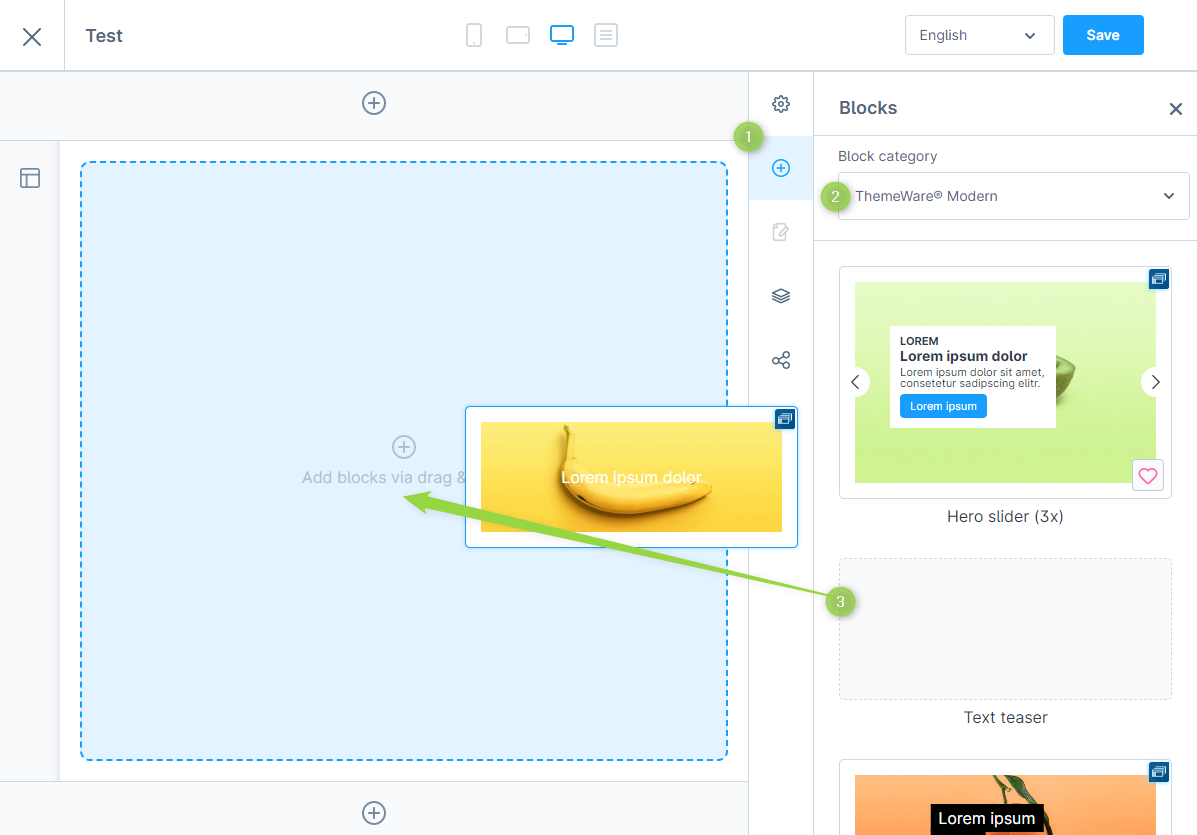
- Click on the plus icon to select a CMS block.
- Select the desired CMS block in the "Block category" dropdown.
- Drag'n'drop the CMS block into your Shopping Experience.
Pro Edition
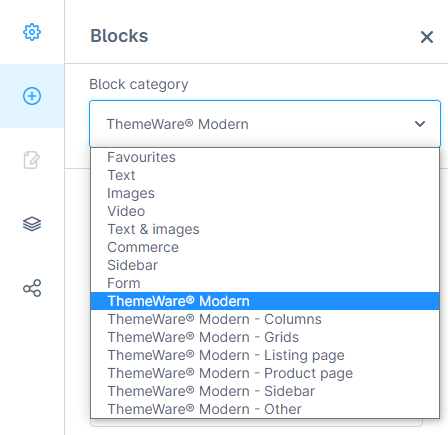
In the ThemeWare® Pro Edition, the ThemeWare® CMS blocks have their own categories and are structured according to the following pattern:
- ThemeWare® General
- Contains basic design blocks such as sliders, teasers and banners.
- ThemeWare® Columns
- Contains column blocks that can be filled as desired.
- ThemeWare® Grids
- Contains grid blocks that can be filled with picture elements.
- ThemeWare® Listing page
- Contains CMS blocks for listing pages.
- ThemeWare® Product page
- Contains CMS blocks for product pages.
- ThemeWare® Sidebar
- Contains CMS blocks for the sidebar.
- ThemeWare® Other
- Contains further cross-page CMS blocks.
ThemeWare® Pro Edition
Cloud Edition
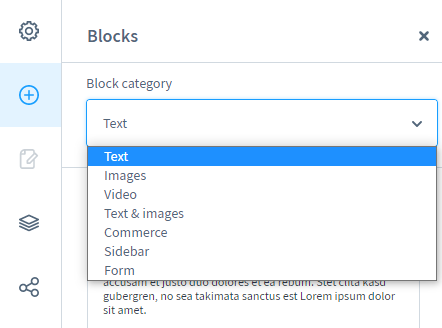
In the ThemeWare® Cloud Edition you will find the ThemeWare® CMS blocks in the default Shopware categories (see "Text & Images").
Block settings
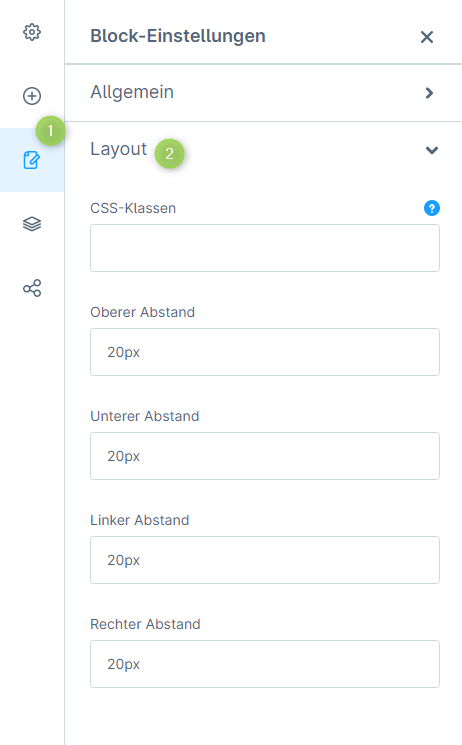
The CMS blocks in Shopware 6 have different configuration fields. In the section "Layout", for example, you will find the option to add "CSS classes" and to define the padding of the block.
Block settings
CSS classes
In the block settings you also have the option of defining CSS classes for the corresponding CMS block. ThemeWare® offers you a number of CSS classes that you can use in your Shopping Experiences.
For all CMS blocks the following CSS classes are interesting:
ThemeWare® Knowledge Base => CSS spacing classes for Shopping Experiences
You can find more classes in the following section "Tutorials" > "Shopping Experiences":
ThemeWare® Knowledge Base => Shopping Experiences
In addition, you can also use CSS classes: from Bootstrap, since the storefront in Shopware 6 is based on Bootstrap 5.
Style CMS block individually
You can style a specific CMS block using CSS by assigning a custom CSS class in the block settings and defining the desired styles either in your stylesheet or within your theme configuration.
Replace CMS element
You can replace the CMS elements in most CMS blocks. You can learn more about this in the article CMS elements.
Further information
Further information and basics about "Shopware 6 Shopping Experiences" and "CMS blocks" can be found in the ThemeWare® Knowledge Base:
ThemeWare® Knowledge Base