
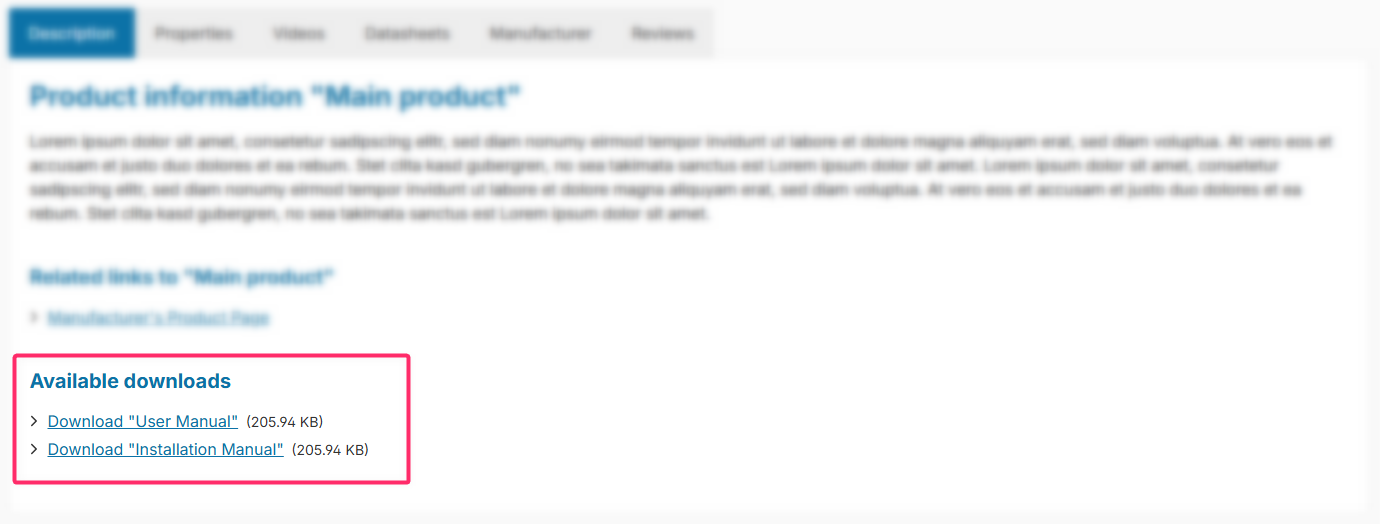
You can store product downloads of the file type "PDF" in custom fields for the respective product. The downloads can be displayed on product pages in the "Properties" tab.
Note: Currently, only "PDF" files are supported.
Note: Unfortunately, Shopware 6's media manager does not currently support zip files. As soon as this is possible, you can also use these.
Guide: You can find a step-by-step guide in the ThemeWare® Wiki: Providing downloads on products
Note: The downloads are displayed in the "Description" tab if the "Show downloads" configuration is enabled and at least one download has been added via a custom field (Download 1–3).
Configuration
Theme configuration
- Go to the "Product pages" tab
- Expand the "Tab "Description"" block
- Scroll to the section "Downloads"
- Enable the configuration "Show downloads"
- Save your changes after editing
Downloads (Custom fields)
- Switch via the main navigation to the "Product managment" (1) (2) ("Catalogues" => "Products")
- Choose the product you want to edit (3)
- Switch to the tab "Specifications"
- Scroll to the section "Custom fields"
- Select the custom field set "Downloads" of your theme
- Select a file (PDF file) from your media manager in the custom field "Download 1-3"
- Enter the desired link text in the custom field "Download 1-3 – Title"
- Optional: Enter a description in the custom field "Download 1-3 – Description"
- Save your changes
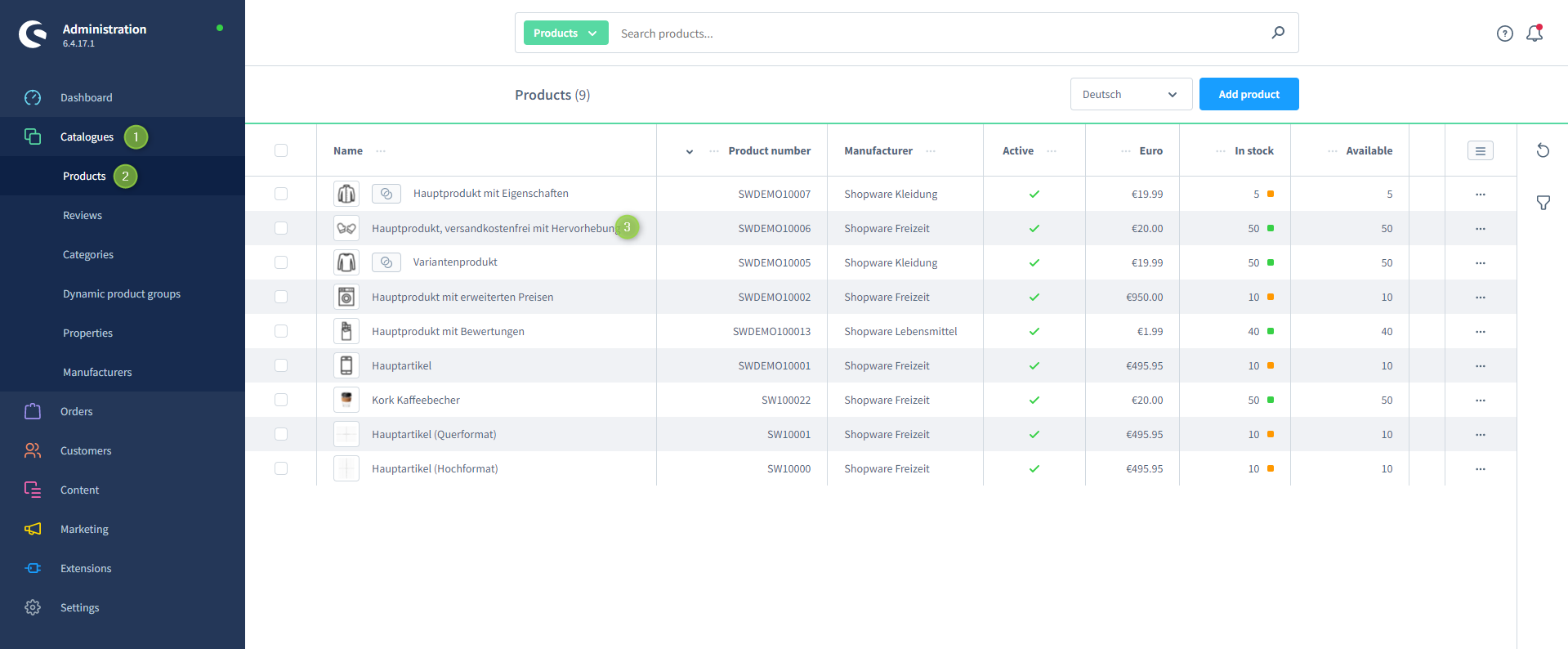
Shopware 6 product managment
Custom fields
DownloadsSummary
Theme configuration
- Tab "Product pages" => Block "Tab "Description"" => Section "Downloads" => Show downloads
Snippets
twt.detail.downloads.link%name%is replaced by the file name.
twt.detail.downloads.fallback