
ThemeWare® 5.5.0 is now available! 🎉 The new release includes the following changes:
Important before the update (Pro Edition): As of 5.5, Shopware compares the ThemeWare® custom field sets with the delivered definition on every update. The update moves your own fields in these sets to a separate set, the saved values are kept. In a few cases this is not possible, what to do then is described in the manual.
Highlights
- Top sellers can now be highlighted in the listing with a border, gradient, background colour and glow
Changes
- Dimmed product boxes are now also marked as sold out for screen readers
- Dimming product boxes after clearance can now also be enabled for variants Feature-Request
- The spacing of the elements on the product image can now be adjusted
- The stock in the product specifications can now also be shown at 0
- The sold badge can now also be shown for variants in the listing Feature-Request
- The buttons "Add to shopping cart" and "Details" in the list view are now more compact
- The custom announcement now also has spacing to the headline on the page "Complete payment"
- The product rating with the content "Number" now shows "0" without reviews and can also be displayed decorated
- The product box can now also be displayed without a border
- The storefront is now more robust against customised templates and extensions
- Forms in the ThemeWare® CMS styling now have even spacing to the border on all sides
- Form fields can now also be displayed without a border, and the quantity selection (-/+) has its own settings
- Preparation for Shopware 6.8: The theme now registers its services via PHP instead of XML Pro
- Preparation for Shopware 6.8: The theme now determines the language without the sales channel languages
- Preparation for Shopware 6.8: The theme now generates category links without the Twig function category_url
- Preparation for Shopware 6.8: The theme now creates custom fields using the new Shopware method
- Preparation for Shopware 6.8: The theme now registers its cookie via event instead of a cookie provider Pro
- Preparation for Shopware 6.8: The theme now styles pages using the new Shopware method
- Preparation for Shopware 6.8: The deprecated Twig filter spaceless has been removed
- Preparation for Shopware 6.8: The deprecated JavaScript helpers DomAccess and Iterator have been removed
- Bugfix: The list view now only shows the quantity selection if it is enabled
- Bugfix: The top navigation now reliably highlights the active category even with HTTP cache enabled
- Bugfix: Manufacturer logos in SVG format are now also displayed in the manufacturer tab on larger screens
- Bugfix: With the Shopping Experiences Header enabled, the phone header now also stays at the top when scrolling at certain widths
Notes
- Your own custom fields in the ThemeWare® custom field sets are in a separate set after the update Pro
- The configuration for dimming product boxes after clearance has a new place in the theme configuration
- Please check custom CSS using the class twt-is-sold, the empty element before the product box has been removed
Highlights
Top sellers can now be highlighted in the listing with a border, gradient, background colour and glow
Products that you mark with "Highlight product" in Shopware now stand out in the listing at once. In the new block Listing pages => Product box 'Topseller' you choose a border in your border colour, a border with a gradient or a gradient that slowly rotates around the box. In addition, you can activate a background colour of its own and a glow around the box. On hover, border, glow and background switch to their @hover colours.
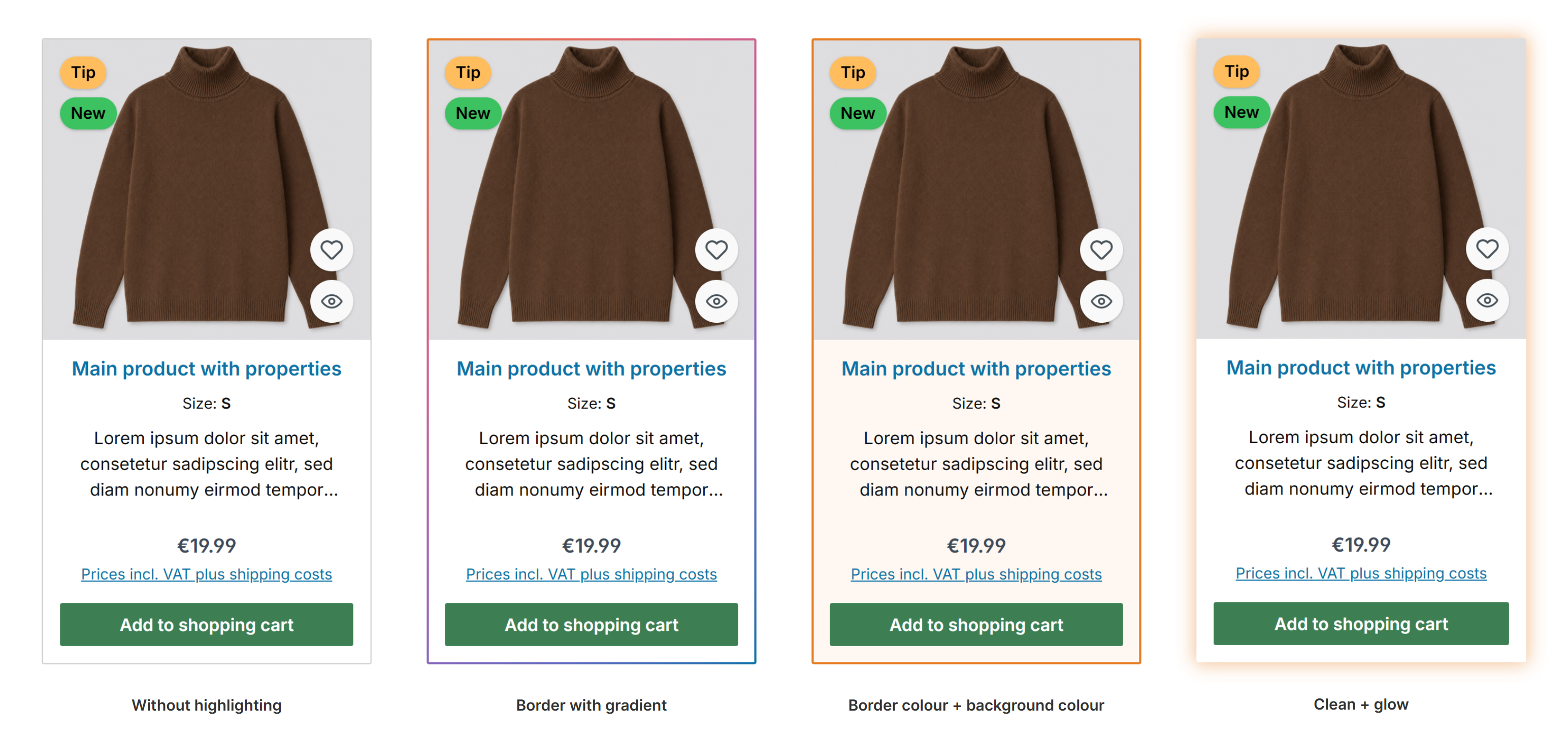
Top seller box without highlighting, with gradient, with border and background, clean with glow
The highlighting works in the category, in the list view and in product sliders, even if the top seller badge is hidden. Every ThemeWare® variant comes with matching colours, which you can adjust freely. If "Reduce motion" is set on the device, the gradient stands still. More about this in the manual.
Beta: This feature is still in beta and may change in an upcoming update. Feel free to test it and send us your feedback.
Changes in detail
Dimmed product boxes are now also marked as sold out for screen readers
If "Dim product box after clearance" is active and the sold badge is hidden, it was previously only visually recognisable that a product is sold out. The product box now additionally contains the note "Sold out" for screen readers. This way, screen reader users also learn why a product is dimmed.
Dimming product boxes after clearance can now also be enabled for variants Feature-Request
Previously, only products without variants were dimmed after clearance, because one product box can stand for several variants. With the new configuration "Dimming for variants", variants can be dimmed as well: if the displayed variant is sold out, the box is dimmed even if other variants are still available. Boxes showing the main product remain excluded. You can find the configuration under Listing pages => Product box => Dimming => Dimming for variants. The feature is still in beta.
Note: Currently only the variant shown in the product box counts (e.g. the main variant), as information about the other variants is not yet available in the listing.
The spacing of the elements on the product image can now be adjusted
Badges, wishlist and Quickview button and the rating on the image keep a common spacing to the image edge. You can now adjust it: "automatic" as before (16px for full-width images, 8px otherwise), "large" (16px), "medium" (8px) or "small" (4px). A smaller spacing suits square badges, for example, or images without a background area of their own, where the elements otherwise look indented too far. You can find the configuration under Listing pages => Product box => Product image => Spacing (elements on the product image).
The stock in the product specifications can now also be shown at 0
"Show stock" and "Show available stock" have the new value "always show". With it, the stock also appears when it is 0, just like the stock badge in the mode "Always show stock". With "show", the stock is still only shown as long as it is greater than 0. You can find the configuration under Product pages => Product specifications (in the buy box) => Section: Deliverability.
The sold badge can now also be shown for variants in the listing Feature-Request
Previously, the listing only showed the sold badge for products without variants. With the new configuration "Sold badge for variants", it can also appear for variants: if the displayed variant is sold out, the box gets the badge even if other variants are still available. Boxes showing the main product remain excluded. You can find the configuration under Listing pages => Product badges (in the product box) => Badge: Sold badge => Sold badge for variants. The feature is still in beta.
Note: Currently only the variant shown in the product box counts (e.g. the main variant), as information about the other variants is not yet available in the listing.
The buttons "Add to shopping cart" and "Details" in the list view are now more compact
In the list view, the buttons "Add to shopping cart" and "Details" were up to 360px wide and looked very long next to the product text. They are now at most 240px wide. The quantity selection keeps its width.
The custom announcement now also has spacing to the headline on the page "Complete payment"
On the page "Complete payment", customers can change the payment method of an existing order, e.g. after a cancelled payment. If you show the custom announcement in the checkout, it also appears there. Previously, it touched the headline on this page. Now it has the same spacing as on the order confirmation page, where the spacing to the headline has also become slightly larger.
The product rating with the content "Number" now shows "0" without reviews and can also be displayed decorated
If the product box shows the rating as a number, products without reviews now show "0" instead of "0.0". As soon as there are reviews, the average appears as usual with one decimal place, for example "4.5". In addition, the layout type "Decorated" now also flanks the number with lines, not only the stars. You can find the settings under Listing pages => Product box => Product rating.
The product box can now also be displayed without a border
In addition to "Border colour" and "Drop shadow", the layout type of the product box has the new value "Clean". The box then has neither a border nor a shadow and stands out only through its background colour, the border colours have no effect. This suits a clean listing. You can find the configuration under Listing pages => Product box => Design => Layout type.
Forms in the ThemeWare® CMS styling now have even spacing to the border on all sides
If you add the Shopware block "Form" to a Shopping Experience, e.g. for a contact or newsletter form, it now has the same spacing of 20px to the border on the left and right as at the top and bottom in certain configurations of the ThemeWare® CMS styling. The fields no longer reach the edge of the box. If you have set your own spacing on the block, it remains unchanged.
The storefront is now more robust against customised templates and extensions
If you customise templates via Twig or an extension overrides parts of the shop, the theme's functions now also work reliably when an expected element is missing or built differently. This concerns, among others, the announcement banner, the countdown banner, the hero slider, the floating widget and the sticky top navigation. In addition, the announcement banner can now also be closed when the browser blocks storing site data. It then appears again on the next page view.
Form fields can now also be displayed without a border, and the quantity selection (-/+) has its own settings
In addition to "default" and "underlined", the layout type of the form fields has the new value "clean". Input and selection fields then appear as a coloured area without a border and stand out only through their background colours. Also new is the "Background colour @hover", so form fields visibly react when you move the mouse over them.
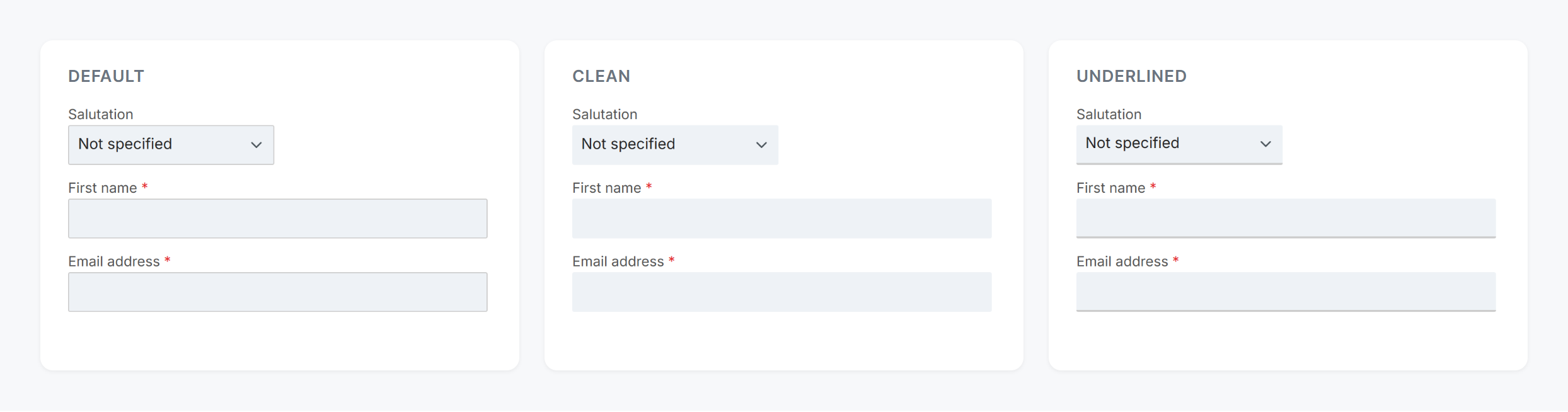
Form fields in the layout types default, clean and underlined
The quantity selection (-/+) has its own section now: background and icon colour of the buttons, each also @hover, as well as the new setting "Separation". With "separated", the layout type "default" shows lines between the buttons and the input field, "clean" and "underlined" a small distance. The settings apply wherever a quantity selection appears: product page, Quickview, product box and shopping cart.
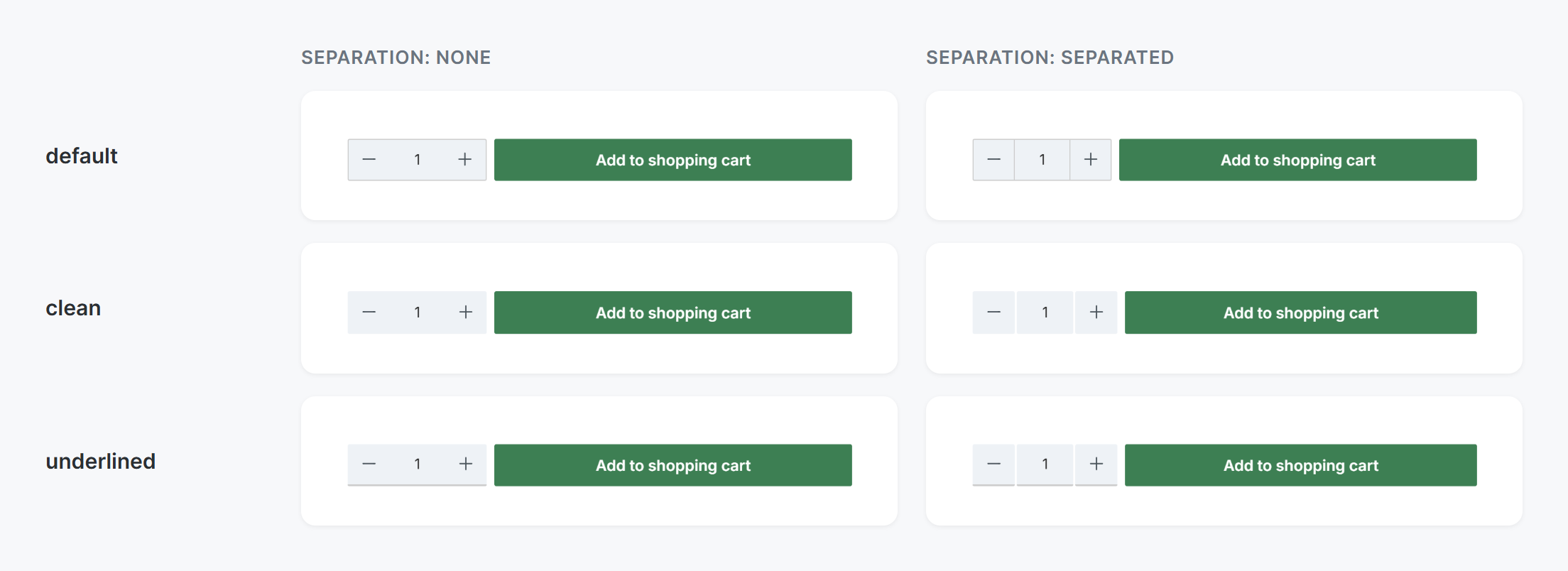
Quantity selection (-/+) per layout type, with separation "none" and "separated"
In addition, form fields have a slightly stronger background and a more legible placeholder, selection fields are as high as input fields, and the text colour and font size of the label are now in their own section "Label". You can find everything under Layout => Forms.
Preparation for Shopware 6.8: The theme now registers its services via PHP instead of XML Pro
Shopware 6.8 no longer loads XML files for services and routes. ThemeWare® therefore now registers its services (e.g. the data of the shopping experience elements, the cookie settings and the news in the theme manager) and routes in PHP files, as Shopware intends. This also works in all 6.7 versions, nothing changes in your shop.
Preparation for Shopware 6.8: The theme now determines the language without the sales channel languages
As of Shopware 6.8, the languages of the sales channel are no longer available in the shop. Some elements would then always have shown the English version, e.g. the SSL seal ("Pay safely" instead of "Sicher bezahlen"). ThemeWare® now determines the language for the SSL seal, the ratings, the discount badge, the social proofing, the product specifications and the number formats the same way Shopware does. This also works in all 6.7 versions, nothing changes in your shop.
Preparation for Shopware 6.8: The theme now generates category links without the Twig function category_url
Shopware 6.8 removes the Twig function category_url. ThemeWare® now generates the links of the category in the product specifications and of the category teasers (Pro Edition) the way Shopware intends. This also works in all 6.7 versions, the links and opening in a new tab stay the same.
Preparation for Shopware 6.8: The theme now creates custom fields using the new Shopware method
Since 6.7.13, Shopware creates custom fields from a separate file, the previous definition in the app manifest is removed with 6.8. ThemeWare® now uses this file for both the Pro and the Cloud Edition. Existing custom fields and their content are kept during the update. In the Cloud Edition, the help texts of the custom fields are now formatted the same way as in the Pro Edition.
Preparation for Shopware 6.8: The theme now registers its cookie via event instead of a cookie provider Pro
Shopware 6.8 removes the previous interface that extensions use to register their own cookies in the cookie settings (cookie provider). ThemeWare® therefore now adds its cookie "Local Storage" under "Comfort features" via the event Shopware intends for this. This also works in all 6.7 versions, the cookie settings in your shop stay the same.
Preparation for Shopware 6.8: The theme now styles pages using the new Shopware method
With 6.8, Shopware removes the body classes is-ctl-* and is-act-*. ThemeWare® now styles the account, login, registration, checkout, home page, categories, product page, search and wishlist via the classes is-active-route-*, which Shopware already outputs today. Nothing changes in your shop.
Preparation for Shopware 6.8: The deprecated Twig filter spaceless has been removed
Shopware 6.8 updates Twig to version 4, which drops the deprecated spaceless filter. Where it was needed for the layout, e.g. for the language and currency buttons in the top bar or the product badges, Twig itself or CSS now takes care of it. In addition, the buttons for language, currency and service menu in the USP bar (e.g. in the Modern theme) now have the same spacing as in the top bar.
Preparation for Shopware 6.8: The deprecated JavaScript helpers DomAccess and Iterator have been removed
Shopware 6.8 removes the JavaScript helpers DomAccess and Iterator and recommends the native browser methods instead. ThemeWare® now uses them in the sticky header, the top navigation, the announcement banner, the parallax banner and the scroll animations. Nothing changes in your shop.
Bugfix: The list view now only shows the quantity selection if it is enabled
In certain configurations, the list view also showed the quantity selection when it was not enabled under Others => Beta => Quantity selection (in product boxes). It now behaves like the grid: without the quantity selection, the regular button "Add to shopping cart" appears.
Bugfix: The top navigation now reliably highlights the active category even with HTTP cache enabled
With the HTTP cache enabled, the top navigation could in certain cases highlight a category other than the current one, because the header is cached between pages. ThemeWare® now determines the path of the active category on every page request, just like Shopware itself. This also prepares for Shopware 6.8.
Bugfix: Manufacturer logos in SVG format are now also displayed in the manufacturer tab on larger screens
SVG logos without a width and height of their own were not visible in the manufacturer tab of the product page from tablet width up. They now appear in the same size as other manufacturer logos. Logos in PNG or JPG format remain unchanged.
Bugfix: With the Shopping Experiences Header enabled, the phone header now also stays at the top when scrolling at certain widths
On phones, the Shopping Experiences Header deliberately does not overlay the shopping experience, the normal phone header applies there. It now also stays at the top edge of the screen when scrolling at widths just below 576px, as at all other phone widths.
Notes
Your own custom fields in the ThemeWare® custom field sets are in a separate set after the update Pro
With the switch to the new Shopware method, Shopware compares the ThemeWare® custom field sets with the delivered definition on every update and removes all fields that do not belong to it. To keep your own fields in these sets, the update moves them to a separate set beforehand, e.g. "Own product fields". Field names and saved values stay the same. What happens in which case and how to restore a removed field is described in the manual.
The configuration for dimming product boxes after clearance has a new place in the theme configuration
The configuration "Dim product box after clearance" (previously "Dim products after clearance") and its layout type are no longer located under Others => Beta => Product box, but under Listing pages => Product box => Dimming. Your settings are kept.
Please check custom CSS using the class twt-is-sold, the empty element before the product box has been removed
Previously, an empty element with the class twt-is-sold was placed before every dimmed product box, and the CSS addressed the box via .twt-is-sold + .product-box. The marker now sits inside the product box itself, dimming works via .product-box:has(.twt-is-sold). If your custom CSS uses the selector .twt-is-sold + .product-box, please change it to .product-box:has(.twt-is-sold).