
ThemeWare® 5.0.0 is now available! 🎉 A milestone: The ThemeWare® Hub, innovative CMS elements, the ThemeWare® Backup Manager, the mega menu and many more innovations make it a game-changer for your shop. The new release includes the following changes:
Highlights
- The ThemeWare® Hub – The Service Portal in your administration 🚀
- CMS extension "Category teaser" added Pro Feature-Request
- CMS extension "Category teaser (Advanced)" added Pro
- CMS extension "Category teaser (Modern)" added Pro
- CMS extension "Hover teaser" added Pro
- CMS extension "Teaser" added Pro
- CMS extension "Nested subcategories" added Pro Feature-Request
- The "ThemeWare® Flyout" now supports a "card style"
- The "ThemeWare® Flyout" now supports a "dropdown style"
- The "ThemeWare® Flyout" now supports a "sidebar style"
- The "ThemeWare® Flyout" now supports a "teaser style"
- Configurations added to the variant configurator on the product detail page
- Configurations for offcanvas elements added
- Responsive block/column configuration added for CMS (column) blocks Pro
Changes
- New configuration to show/hide subtitles in the USP bar added Feature-Request
- New configuration for using fetchpriority="high" added to CMS elements Pro
- Image and hover effects added to various CMS elements Pro Feature-Request
- CMS element "Subcategory navigation" made available on the home page Pro Feature-Request
- CMS elements "Listing subcategories" made available on the home page Pro Feature-Request
- CMS configuration checked and cleaned up Pro
- CMS preview images converted to WebP Pro
- Display of CMS configuration improved Pro
- The "ThemeWare® Flyout" now has a configuration for "Navigation levels" Feature-Request
- Data mapping added in various CMS elements Pro
- The breadcrumb configuration has been refactored
- Hover effects of the "Classic teaser" improved Pro
- Content of "ThemeWare® Flyout" scrollable when there are many subcategories
- Configuration for displaying the embedded datasheet preview added Feature-Request
- Mobile image display for "Listing subcategories" configurable Pro Feature-Request
- Refactored and extended box shadow SCSS classes for CMS elements Pro
- Box shadow configuration in "Modern teaser" enabled Pro
- Box shadow configuration in "Listing subcategories (Modern)" enabled Pro
- The service hotline is also displayed in the top bar in the USP bar layout "Small icons + Top bar"
- Storefront templates checked and cleaned up
- Thumbnail selection for portrait images in "Listing subcategories" improved Pro
- Toggle "Advanced Configuration" added to CMS elements Pro
- Twig variable support added to CMS element "Custom Code" Pro Feature-Request
- Bugfix: Spacing of social icons (side by side) with labels in the footer fixed
- Bugfix: Display of the CMS element "Listing subcategories" in the CMS editor fixed Pro
- Bugfix: Background colour of items in the account dropdown menu fixed
- Bugfix: JavaScript error in top navigation fixed
- Bugfix: Subcategories in the dropdown navigation are now displayed correctly
- Bugfix: Custom fields of the "Hero section" assigned to categories Cloud
Notes
- The breadcrumb navigation has been updated
- The ThemeWare® Flyout has been updated
- The "Compact product boxes" configuration is now enabled by default
Note: We recommend creating a backup of your shop before updating, just to be safe.
Highlights
NEW: The ThemeWare® Hub – The Service Portal in your administration 🚀
With the ThemeWare® Hub, we bring the benefits and features of our Service Portal directly into your Shopware administration – exactly where you need them. All functions are bundled into dedicated tabs:
- Dashboard — overview, setup assistant and quick links
- Add-ons — unlock optional features
- Utilities — request the free extra package
- Variants — create theme variants and transfer configurations
- Backup — back up and restore your theme configuration
- News — news & announcements
- Changelog — version history & updates
- Support — help, guides & contact
You can open the Hub via the main navigation under "Content > ThemeWare® {your theme}" or via "Settings > Extensions > ThemeWare® {your theme} Dashboard".
In-app purchases: Optional add-ons can be unlocked directly in the Hub via Shopware's purchase modal. This requires the "Shopware Extension Store" to be enabled and your shop to be linked to your Shopware account.
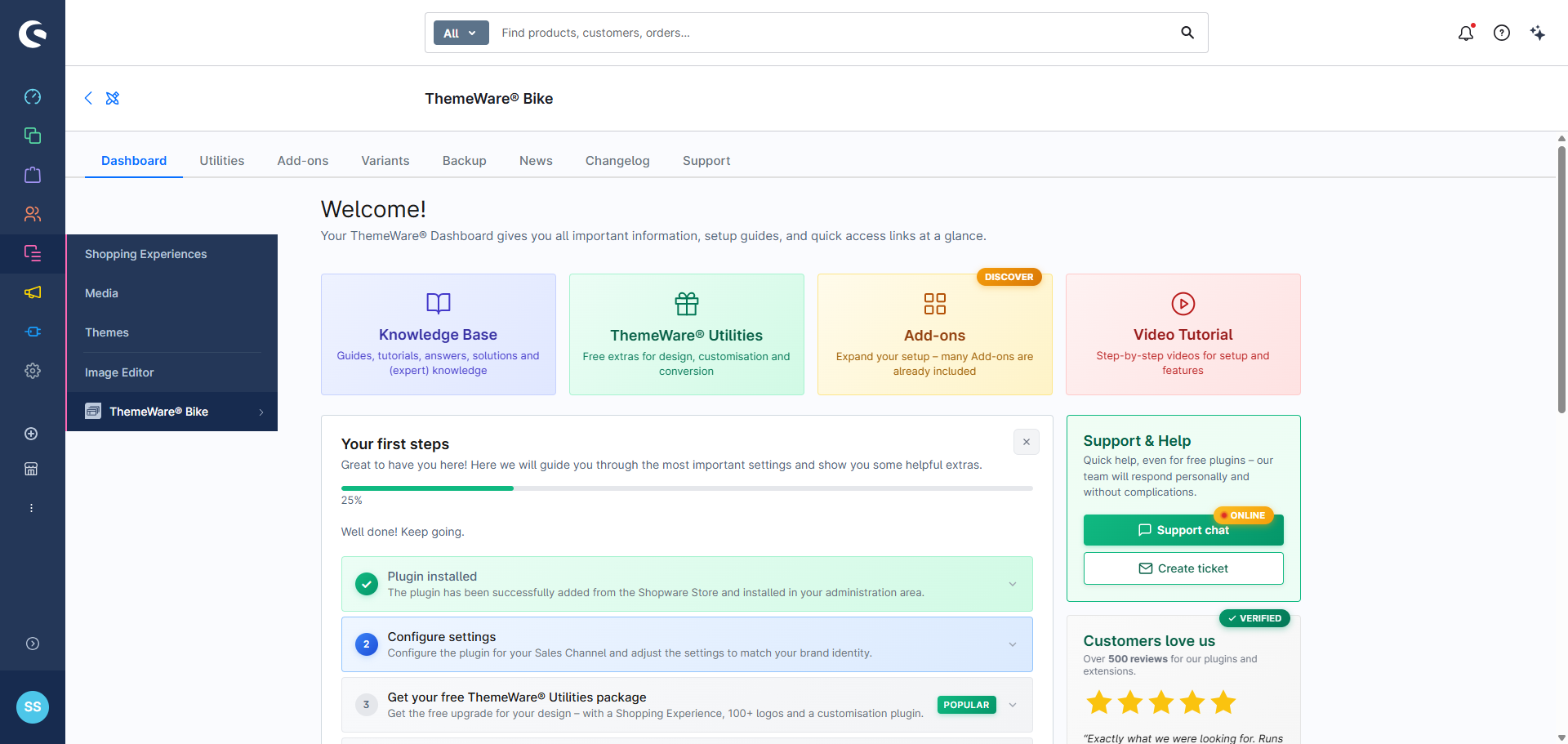
The ThemeWare® Hub
CMS extension "Category teaser" added Pro Feature-Request
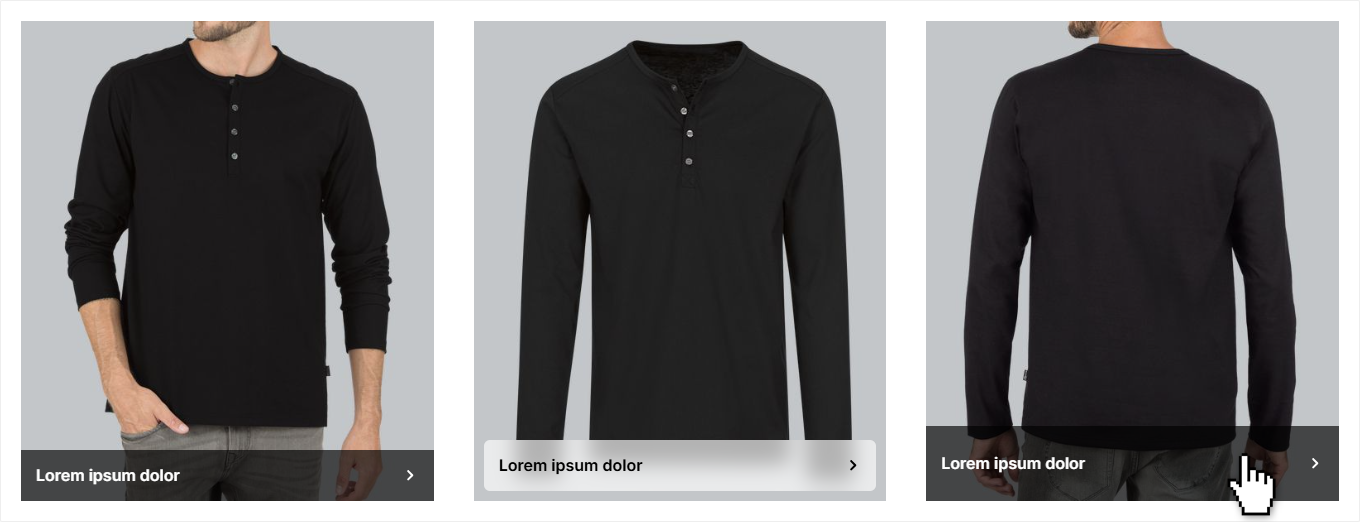
The new "Category teaser" allows you to promote categories directly in your Shopping Experiences. The element automatically displays the category name and image from Shopware's category management and links to the respective category. It uses the caption bar style with a bar at the bottom of the image. Title, image and CTA can optionally be overridden manually.
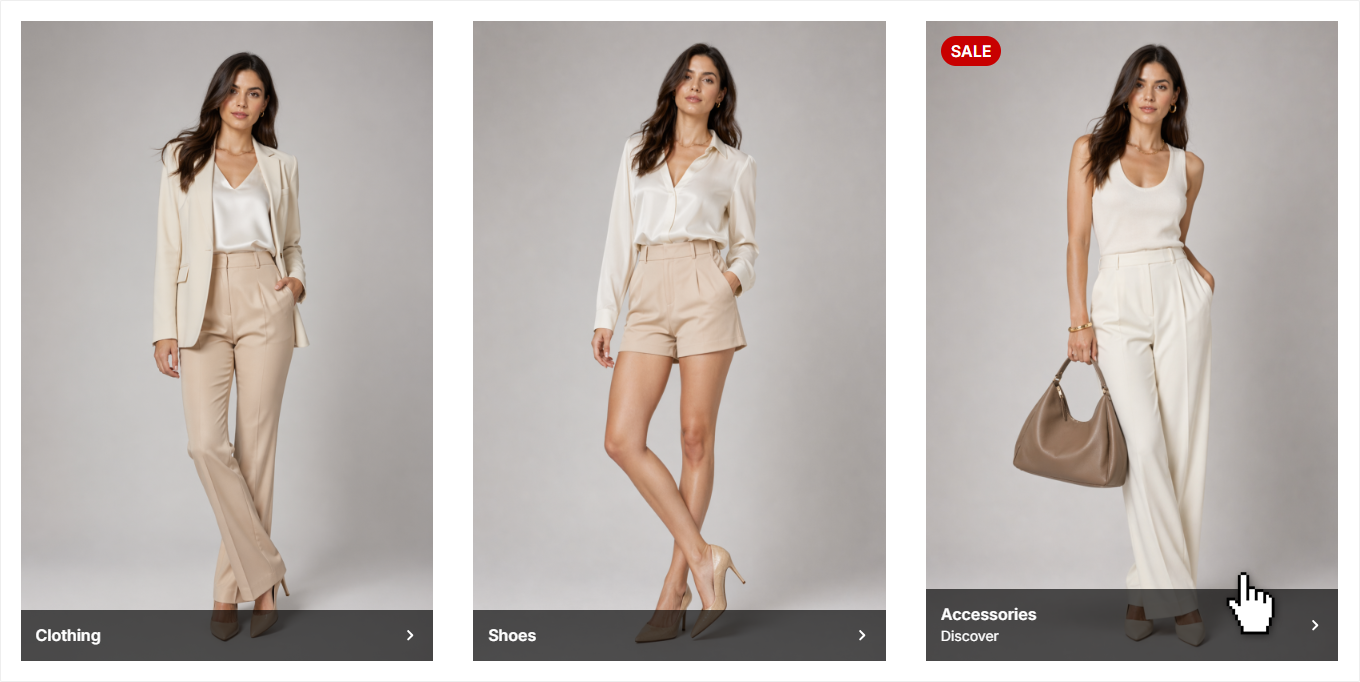
CMS extension "Category teaser (Advanced)" added Pro
The "Category teaser (Advanced)" is the extended variant of the category teaser with a content overlay and significantly more styling options. It additionally offers a subtitle, CTA hover effects and a flexibly positionable content overlay with configurable background colour and backdrop effect.
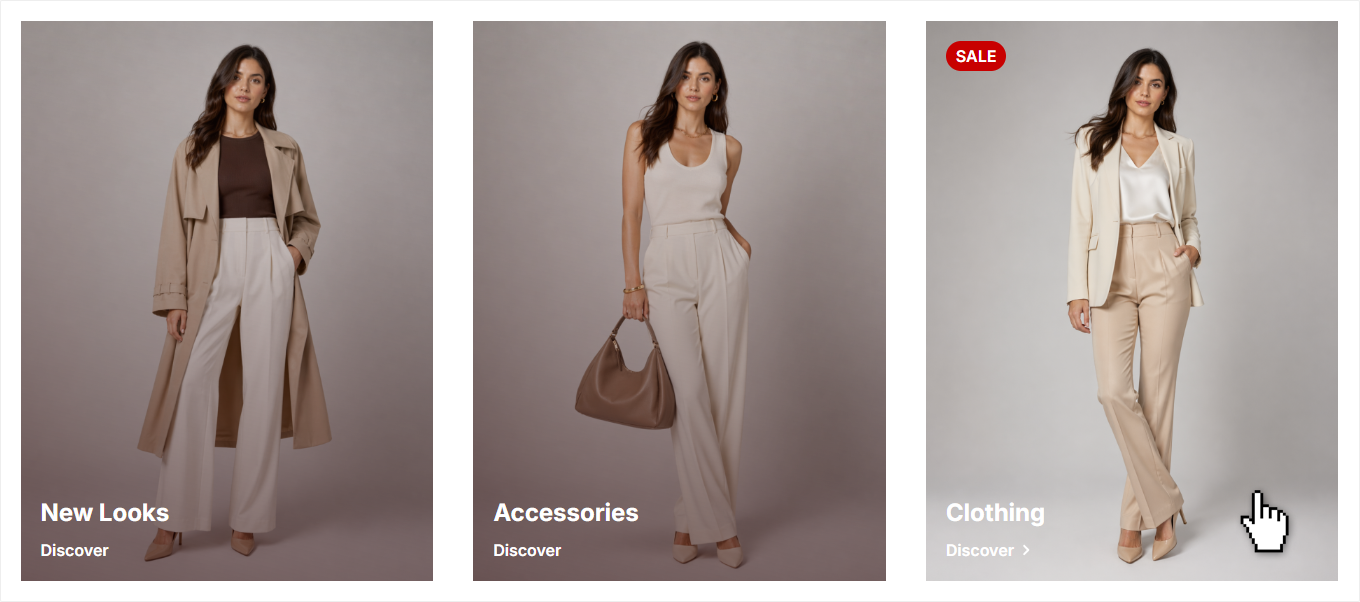
CMS extension "Category teaser (Modern)" added Pro
The "Category teaser (Modern)" is the simplified modern variant based on the modern teaser style. It offers a streamlined configuration with a focus on the caption, making it particularly suited for a clean, modern look.
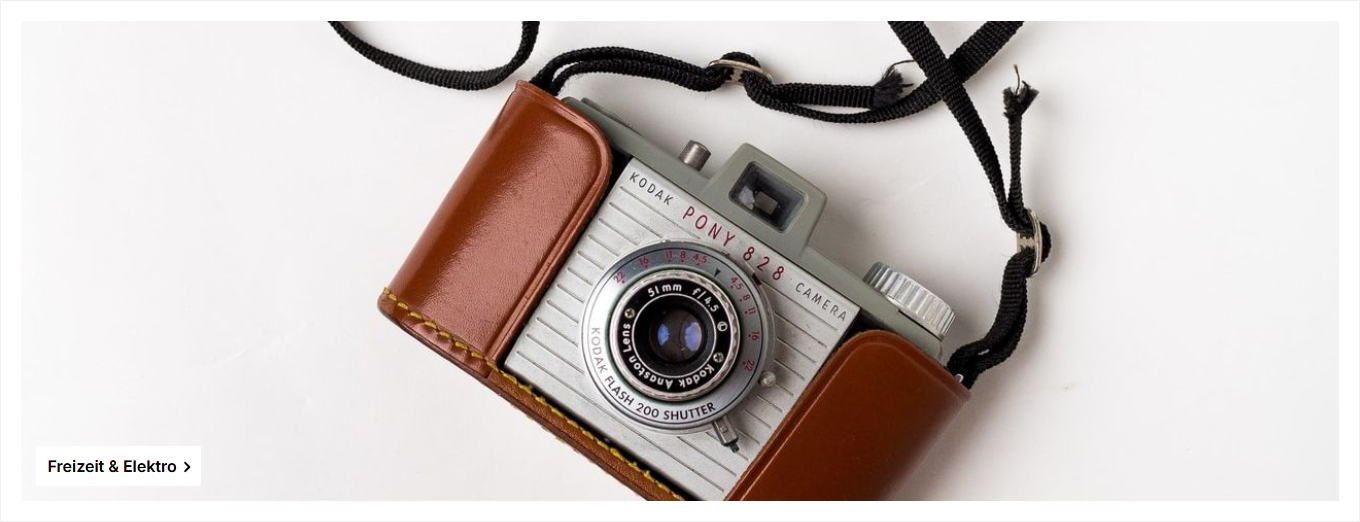
CMS extension "Hover teaser" added Pro
The new "Hover Teaser" offers more than 10 unique hover effects, each providing a distinct visual treatment with different animations for title, subtitle and decorative elements. Additionally, image effects, a configurable accent colour and a colour overlay are available.

CMS extension "Teaser" added Pro
The new "Teaser" displays an image with a caption bar at the bottom containing a title, subtitle and optionally an arrow icon. It offers various hover effects and a configurable colour overlay.
CMS extension "Nested subcategories" added Pro Feature-Request
A suggestion from the community has been implemented: The new CMS extension "Nested subcategories" displays the subcategories of the current category, including their own subcategories, in a clearly grouped structure within the listing.
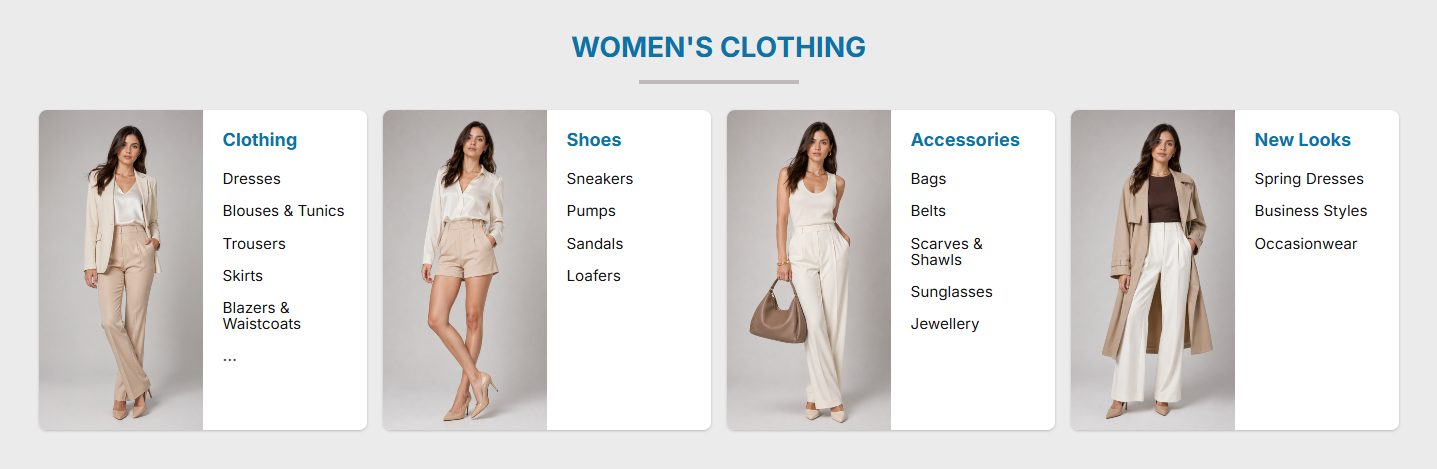
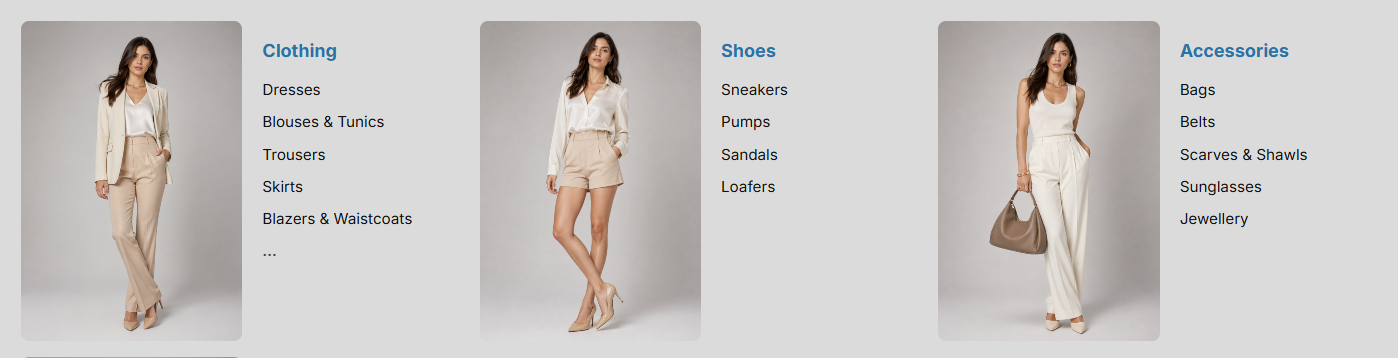
Add-on: The "Nested subcategories" are available as a paid add-on and can be unlocked directly in the ThemeWare® Hub (tab "Add-ons").
The "ThemeWare® Flyout" now supports a "card style"
As part of the rework of the ThemeWare® Flyout (mega menu), we have added a new "cards" display option.
The card style is ideal for main categories that have only a few subcategories but should still be presented attractively. You can enable the card style globally in the theme configuration or per main category via the "Top navigation flyout" category custom field.
see Tab "Header" => Block "Top navigation flyout" => "Top navigation flyout" => "ThemeWare® Flyout with cards"
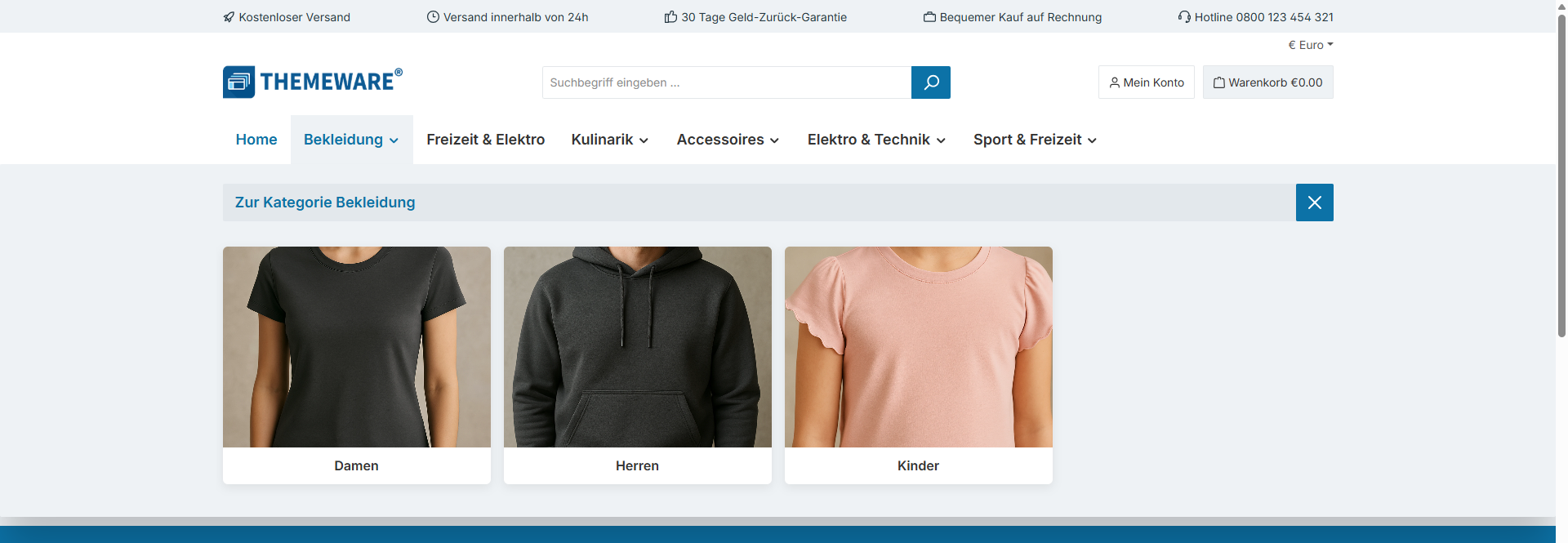
Note: The flyout cards are still in development. We welcome your constructive feedback.
The "ThemeWare® Flyout" now supports a "dropdown style"
The previous dropdown beta function has been removed and adopted as a display option for the ThemeWare® Flyout (mega menu).
The dropdown is the most compact way of displaying subcategories and can be enabled globally in the theme configuration or per main category via the "Top navigation flyout" category custom field.
see Tab "Header" => Block "Top navigation flyout" => "Top navigation flyout" => "ThemeWare® Dropdown"
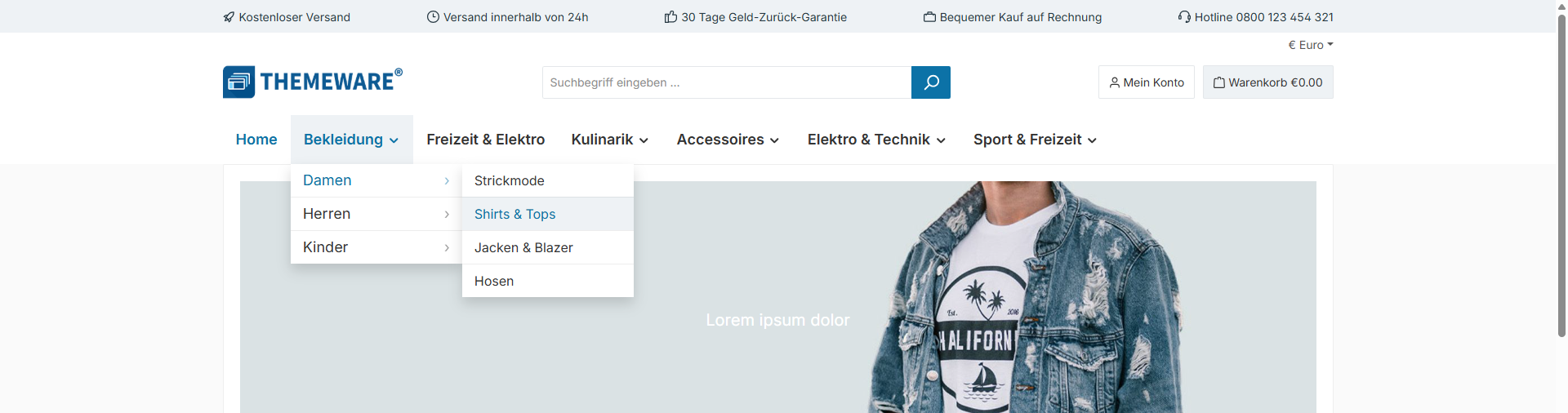
Note: The dropdown style is still in development. We welcome your constructive feedback.
Note: Currently not available in the "Full-width sticky header".
The "ThemeWare® Flyout" now supports a "sidebar style"
As a further display option for the ThemeWare® Flyout (mega menu), a "sidebar style" is now available. Subcategories are displayed in a lateral navigation bar. This style can also be enabled globally in the theme configuration or per main category via the "Top navigation flyout" category custom field.
see Tab "Header" => Block "Top navigation flyout" => "Top navigation flyout" => "ThemeWare® Flyout with sidebar"
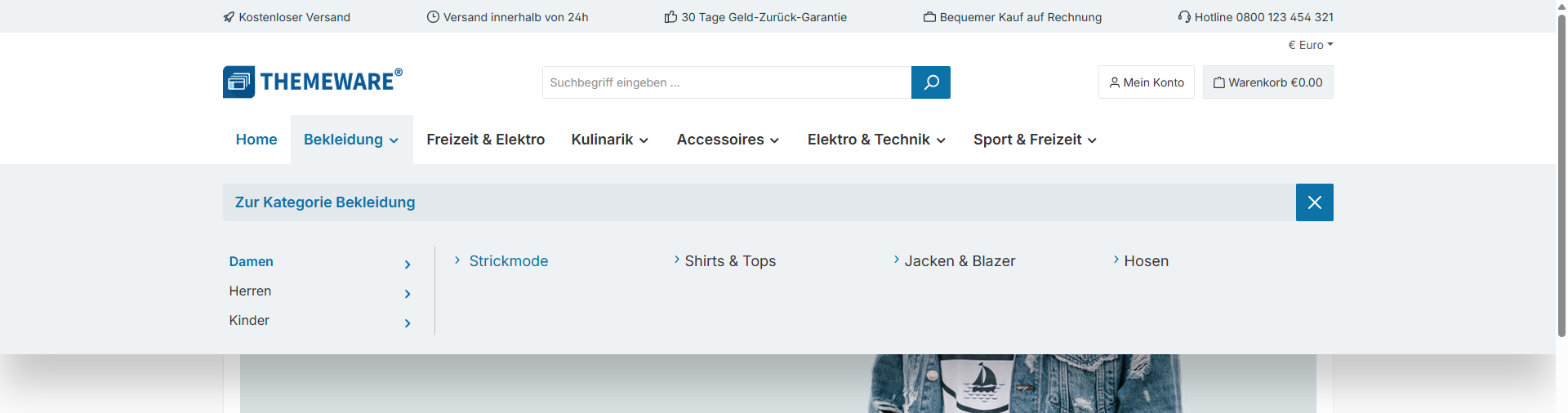
Note: The sidebar style is still in development. We welcome your constructive feedback.
The "ThemeWare® Flyout" now supports a "teaser style"
As a further display option for the ThemeWare® Flyout (mega menu), a "teaser style" is now available. Alongside the subcategories, you can display up to three category teasers (image, text and link), which you maintain per main category via the category custom fields. The layout adapts automatically to the number of teasers. If no custom teasers are set, the category image is used as the teaser. This style can also be enabled globally in the theme configuration or per main category via the "Top navigation flyout" category custom field.
see Tab "Header" => Block "Top navigation flyout" => "Top navigation flyout" => "ThemeWare® Flyout with teasers"
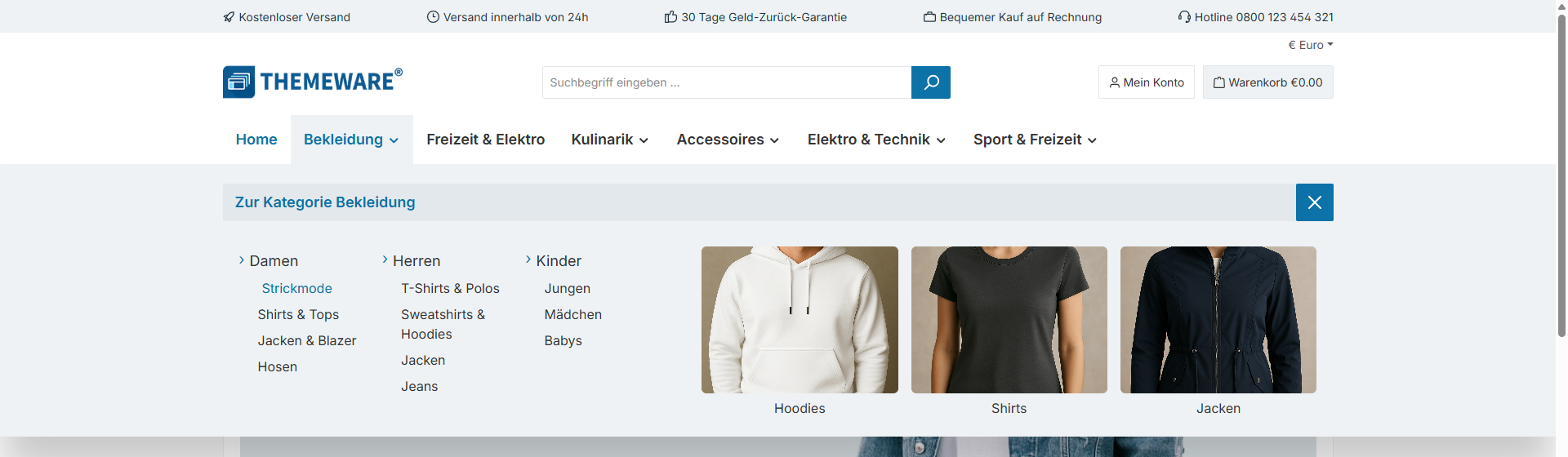
Note: The teaser style is still in development. We welcome your constructive feedback.
Configurations added to the variant configurator on the product detail page
A new color configuration has been added for the variant configurator on the product detail page. Variant options can now be styled more individually with custom colors, while the familiar Shopware default display style remains available.
In addition, a suggestion for improvement has been implemented: inactive variants can now optionally be displayed with a strikethrough. Feature-Request
see Tab "Product pages" => Block "Configurator (in the buy box)"
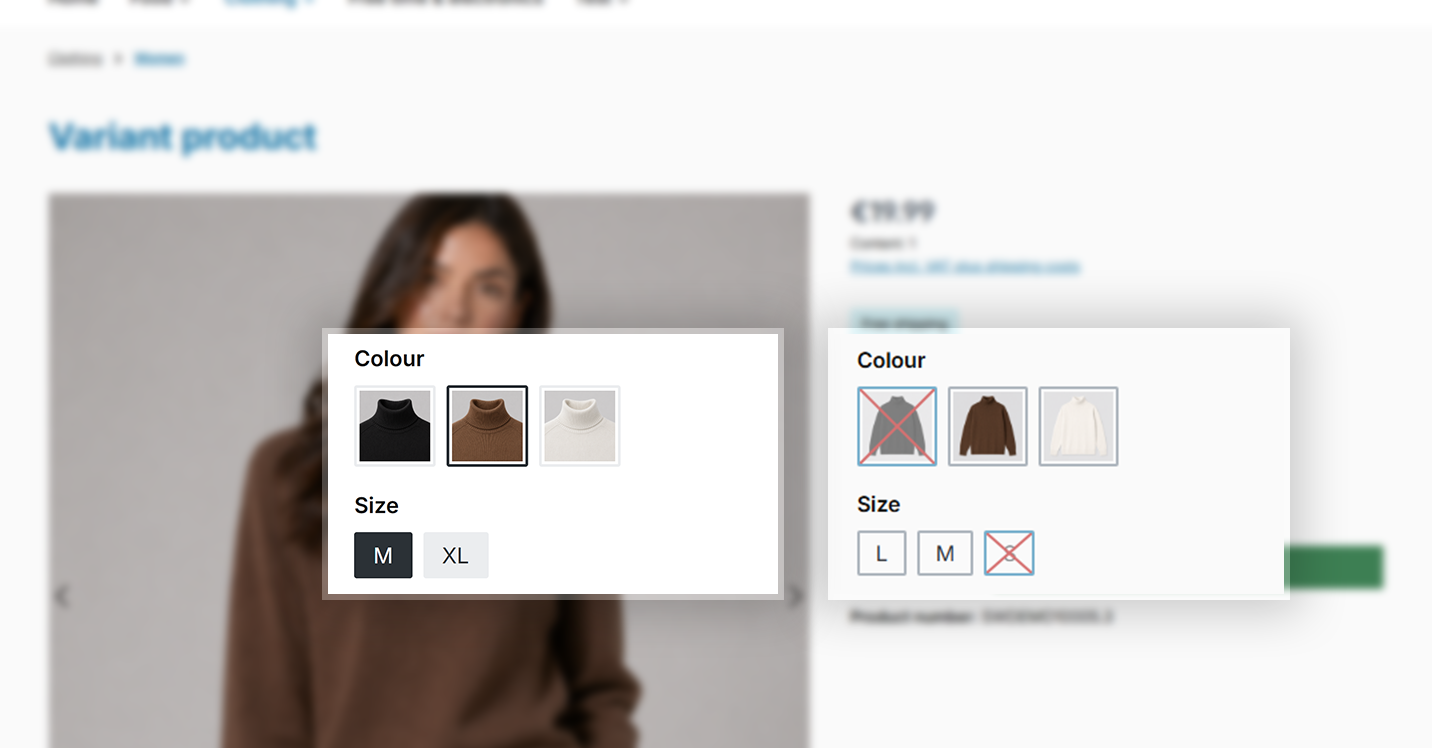
Note: The new "ThemeWare" layout type is not applied by default.
Configurations for offcanvas elements added
As part of our optimisations for the off-canvas shopping basket, we have added configuration fields for off-canvas elements (shopping basket and navigation).
Some configurations apply globally, whilst others are only available in the ‘ThemeWare®’ display mode.
see Tab "Content" => Block "Offcanvas (Cart & navigation)"
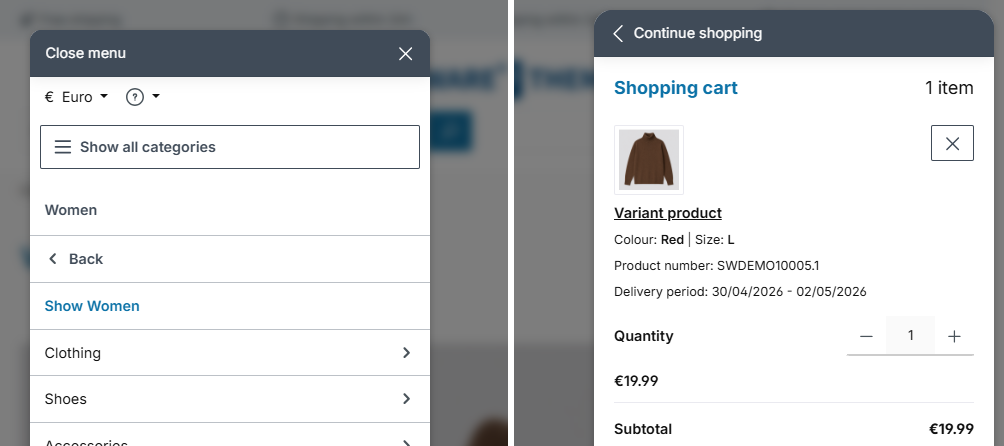
Note: The new "ThemeWare" layout type is not applied by default.
Note: Overlays (backdrops) for off-canvas elements now have a separate colour configuration. Adjust these to match your modal settings if necessary.
Responsive block/column configuration added for CMS (column) blocks Pro
As part of various improvements for mobile viewports, new responsive configuration options has been added for CMS (column) blocks. This allows block and column layouts to be controlled specifically for different viewports.
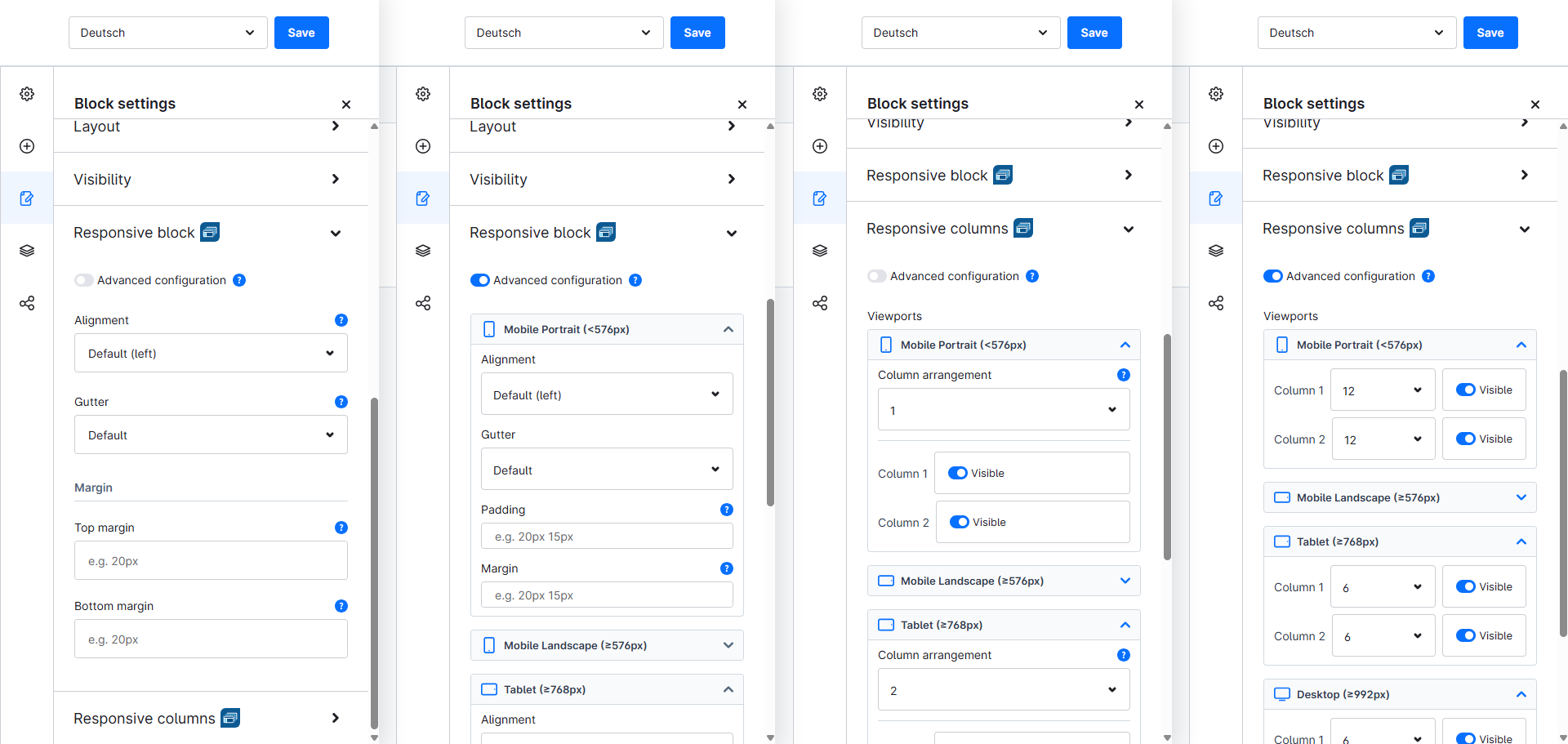
Note: The feature is still in development. We welcome your constructive feedback.
Changes in detail
New configuration to show/hide subtitles in the USP bar added Feature-Request
A feature request regarding the captions in the USP bar in the footer has been implemented.
The snippets are no longer left blank to avoid any potential issues. In addition, the previous options "large icons" and "large icons with captions" have been renamed to "large icons, text below" and "large icons, text beside", and now describe the arrangement of the icon and text.

The display of subtitles is now controlled via a new configuration and is available for both display types.
see Tab "Extensions" => Block "USP bar" => Section "Basic configuration" => "Show subtitle (Large icons)"
Note: If you are already using subtitles in the USP Bar, enable them after the update using the new configuration.
New configuration for using fetchpriority="high" added to CMS elements Pro
A new configuration option for the fetch priority of images has been added to various CMS elements. With fetchpriority="high" you can signal to the browser that an image is particularly important and should be loaded with priority - ideal for above-the-fold images.
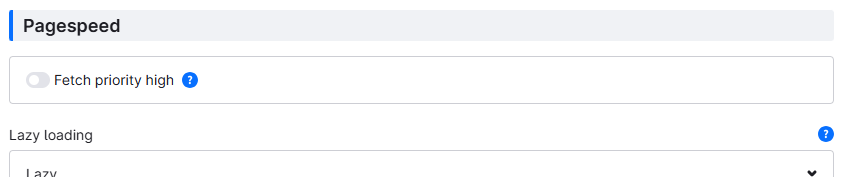
Image and hover effects added to various CMS elements Pro Feature-Request
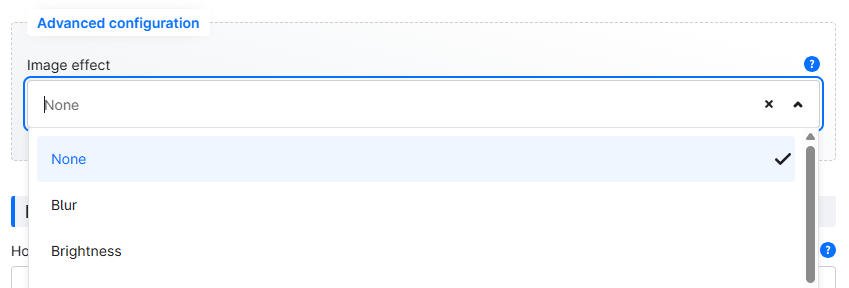
Various image effects (blur, brightness, contrast, greyscale, opacity, saturate, scale) and hover effects have been added to the following CMS elements:
- Advanced teaser
- Button teaser
- Call-To-Action
- Hero teaser
- Image teaser
- Round teaser
- Text teaser
- Text teaser (decorated)
CMS element "Subcategory navigation" made available on the home page Pro Feature-Request
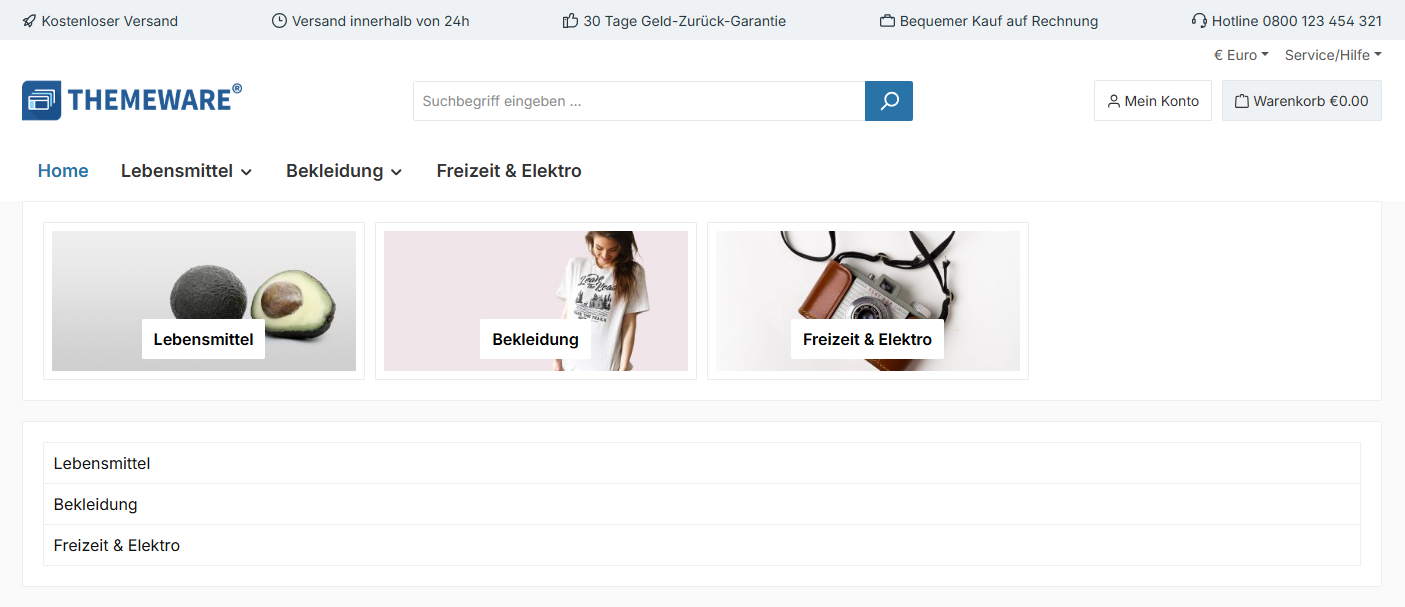
The "Subcategory navigation" CMS element is now also available on the home page and displays the main categories of your shop there. On category pages, the familiar display (current category, subcategories and further levels) is retained.
CMS elements "Listing subcategories" made available on the home page Pro Feature-Request
The CMS elements "Listing subcategories" and "Listing subcategories (Modern)" are now also available on the home page and display the main categories of your shop there. On category pages, the direct subcategories of the current category are still displayed.
(see screenshot above)
CMS configuration checked and cleaned up Pro
Various CMS element configurations have been checked, cleaned up and optimised. In addition, help texts, labels and options have been added, corrected and improved.
CMS preview images converted to WebP Pro
To reduce the file size of images, CMS preview images now use the WebP format.
Display of CMS configuration improved Pro
The display of the CMS configuration has been revised in various Pro Edition elements. Styles and spacing have been optimized, configurations have been grouped more clearly, and new divider elements have been introduced to improve clarity and readability in the administration area.
The "ThemeWare® Flyout" now has a configuration for "Navigation levels" Feature-Request
The new "Navigation levels" configuration lets you define how many category levels are rendered in the navigation (1 to 5 levels, default: 3 levels). The setting applies to the "ThemeWare® Flyout", "ThemeWare® Dropdown" and "ThemeWare® Flyout with sidebar" modes.
Rendering only goes up to your sales channel's "Navigation levels" setting (Admin → Sales Channels → [Channel] → Navigation), as deeper categories are not loaded into the storefront.
The navigation levels can also be overridden per category via the "Navigation levels" category custom field.
see Tab "Header" => Block "Top navigation flyout" => Section "Basic configuration 'ThemeWare® Flyout'" => "Navigation levels"
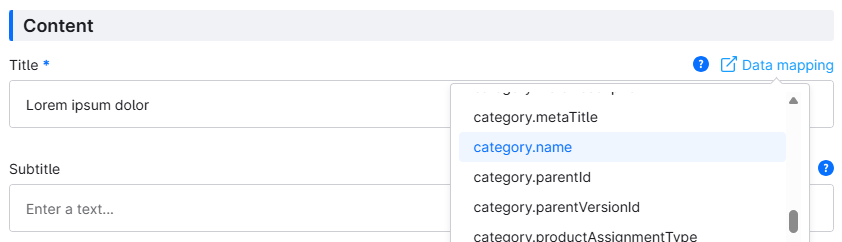
Data mapping added in various CMS elements Pro
Image and title can now be dynamically assigned from the associated category or product via data mapping in the following CMS elements:
- Advanced teaser
- Classic teaser
- Hover box
- Hero teaser
- Image teaser
- Image & text layered
- Modern teaser
- Parallax banner
- Round teaser
- Text teaser
- Text teaser (decorated)
The breadcrumb configuration has been refactored
The breadcrumb configuration has been refactored and simplified. You can now choose between several layout types:
- Links (default) — coloured links with underline configuration
- Links in coloured box — like "Links", plus a coloured box around the breadcrumb
- Buttons — Bootstrap buttons with their own coloration; corner type and border can be configured separately
In addition, you can select the separator icon (chevron, double chevron, arrow, slash, dot, pipe or dash) and control the display of the breadcrumb per page type (home page, CMS shop pages, CMS landing pages, CMS listing pages, CMS product pages).
see Tab "Content" => Block "Breadcrumb" => Section "Basic configuration" => "Layout type"
Hover effects of the "Classic teaser" improved Pro
The hover effects of the "Classic teaser" have been reworked and the associated CSS classes have been renamed from camelCase to kebab-case.
Content of "ThemeWare® Flyout" scrollable when there are many subcategories
If a main category has a large number of subcategories, the content of the ThemeWare® Flyout (mega menu) is now displayed as scrollable instead of overflowing the visible area. This keeps even extensive navigation structures fully accessible.
Configuration for displaying the embedded datasheet preview added Feature-Request
With a new configuration, you can now hide the embedded datasheet preview if required. The datasheet itself will still be available as a download link regardless. - This applies to the preview in the "Description" tab.
see Tab "Product pages" => Block "Tab 'Description'" => Section "Datasheets" => "Show preview"
Mobile image display for "Listing subcategories" configurable Pro Feature-Request
A new configuration has been added to the "Listing subcategories" CMS elements, allowing you to define whether the image should also be displayed in mobile viewports. This makes it easier to control the presentation on smaller screens and adapt it to the respective layout.
Refactored and extended box shadow SCSS classes for CMS elements Pro
The Box-Shadow SCSS classes for ThemeWare® CMS elements have been revised and expanded. These are applied automatically whenever a drop shadow configuration is used in a CMS element.
Box shadow configuration in "Modern teaser" enabled Pro
The box shadow configuration has been enabled in the "Modern teaser" CMS element.
Box shadow configuration in "Listing subcategories (Modern)" enabled Pro
The box shadow configuration has been enabled in the "Listing subcategories (Modern)" CMS element.
Service hotline is now displayed in the top bar in the USP bar layout "Small icons + Top bar"
The service hotline is now displayed in the top bar in the USP bar layout "Small icons + Top bar".
Storefront templates checked and cleaned up
Various Storefront templates have been checked, cleaned up and optimised.
Thumbnail selection for portrait images in "Listing subcategories" improved Pro
The thumbnail selection for portrait images in "Listing subcategories" elements has been improved. This ensures that suitable preview images are selected more reliably and that the display looks more consistent, especially for portrait-oriented images.
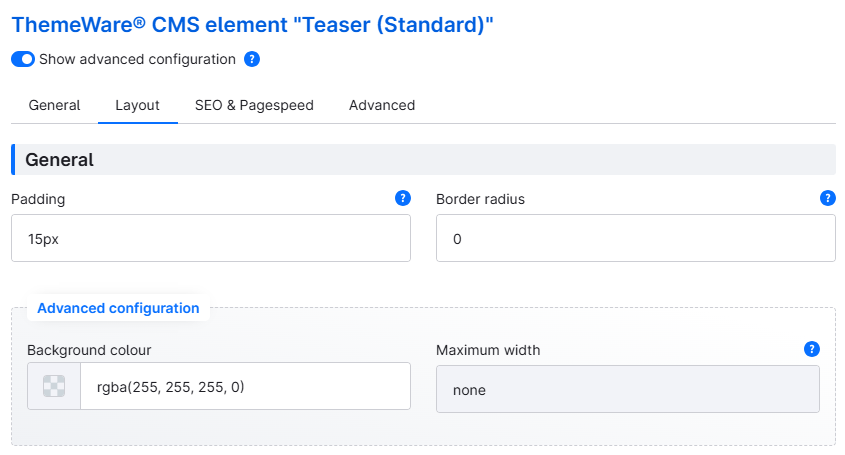
Toggle "Advanced Configuration" added to CMS elements Pro
As the configuration of our CMS elements has become quite extensive, advanced configuration fields will now be hidden by default in most elements. With the new toggle, you can reveal these fields whenever needed and choose between a simplified configuration or making full use of the elements’ capabilities.
Twig variable support added to CMS element "Custom Code" Pro Feature-Request
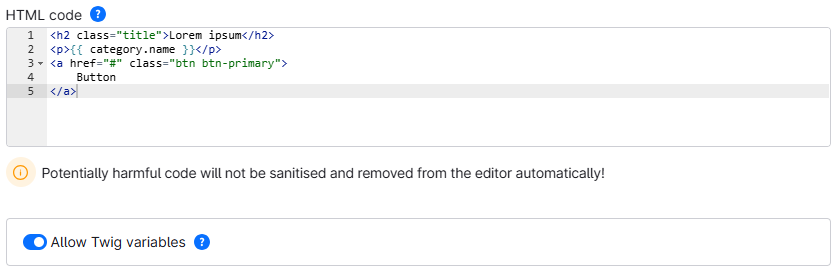
The CMS element "Custom Code" now supports Twig variables like {{ entity.name }} to output dynamic content. For example, {{ product.name }} outputs the product name and {{ category.name }} the category name.
Bugfix: Spacing of social icons (side by side) with labels in the footer fixed
When social media icons with labels are displayed side by side in the footer, spacing between the individual communities is now taken into account again.
Bugfix: Display of the CMS element "Listing subcategories" in the CMS editor fixed Pro
Fixed display of the CMS element "Listing subcategories" in the CMS editor for the layout types "Buttons", "Buttons (without grid)", "Text next to the image", "Text below the image", "Image only" and "Text only".
Bugfix: Background colour of items in the account dropdown menu fixed
The background colour of the links in the header account dropdown has been removed so that the dropdown colour itself is not obscured.
Bugfix: JavaScript error in top navigation fixed
A JavaScript error in the top navigation that could occur under certain circumstances has been fixed.
Bugfix: Subcategories in the dropdown navigation are now displayed correctly
Subcategories in the dropdown navigation are now displayed correctly and are fully navigable again.
Bugfix: Custom fields of the "Hero section" assigned to categories Cloud
Due to a typo, the custom fields of the "Hero section" were assigned to products. This affected the Cloud Edition and has now fixed now. The additional fields are now assigned to categories.
Notes
Redesign of the ThemeWare® flyout menu
The ThemeWare® Flyout (mega menu) has been thoroughly reworked. In addition to the new display options "cards", "dropdown" (adopted from the former beta function) and "sidebar", a configuration for the "Navigation levels" was added, the scrollable content for many subcategories was improved, and various bugs were fixed. The display can be controlled globally in the theme configuration or per category via the "Top navigation flyout" custom field.
Note: Please check the configuration of your top navigation (ThemeWare® Flyout) after the update.
Redesign of the breadcrumb
Note: The breadcrumb configuration has been updated. Please check your configuration after the update.
The "Compact product boxes" configuration is now enabled by default
In this release, the setting to remove the spaces defined by Shopware 6 in the product box has been enabled by default. It has also been moved to the "Category Pages" tab in the product box configuration.
see Tab "Listing pages" => Block "Product box" => Section "Layout and responsive improvements" => Compact product boxes
Note: Disable this function if you do not want to use it.
Enjoy the new release!